Desert Sketch on Old Paper

Desert Sketch on Old Paper

ai-image-editor

1 clip
0 uses

Any aspect ratio

Prompt

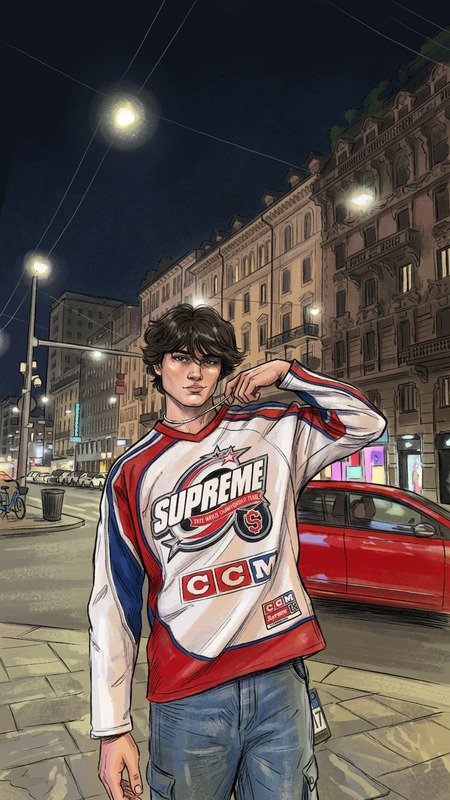
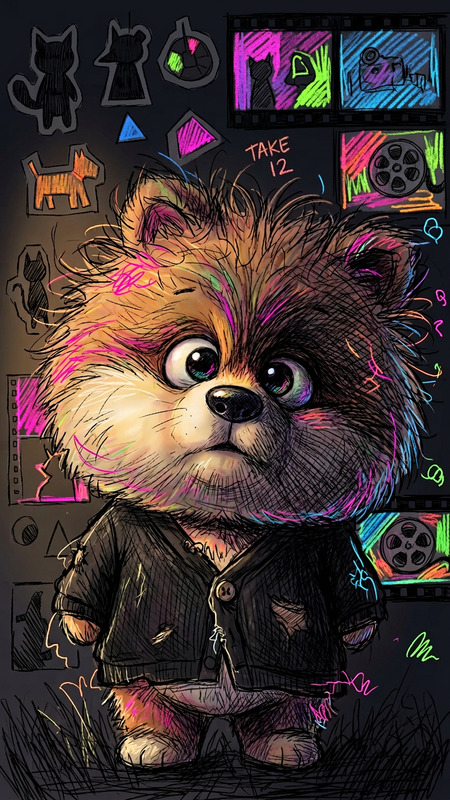
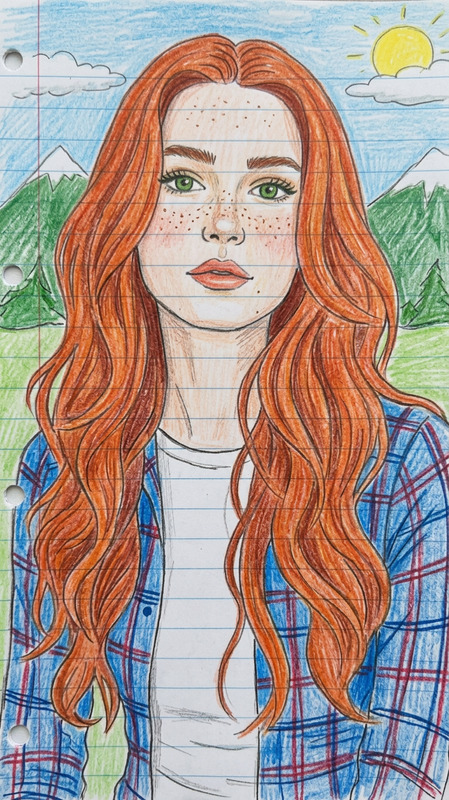
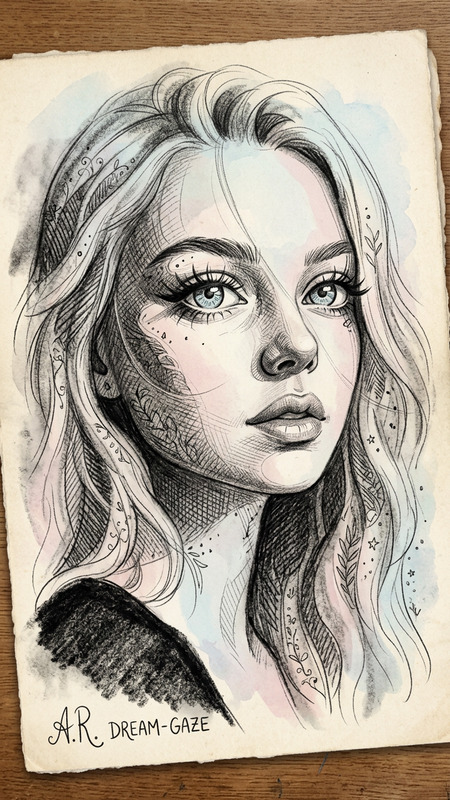
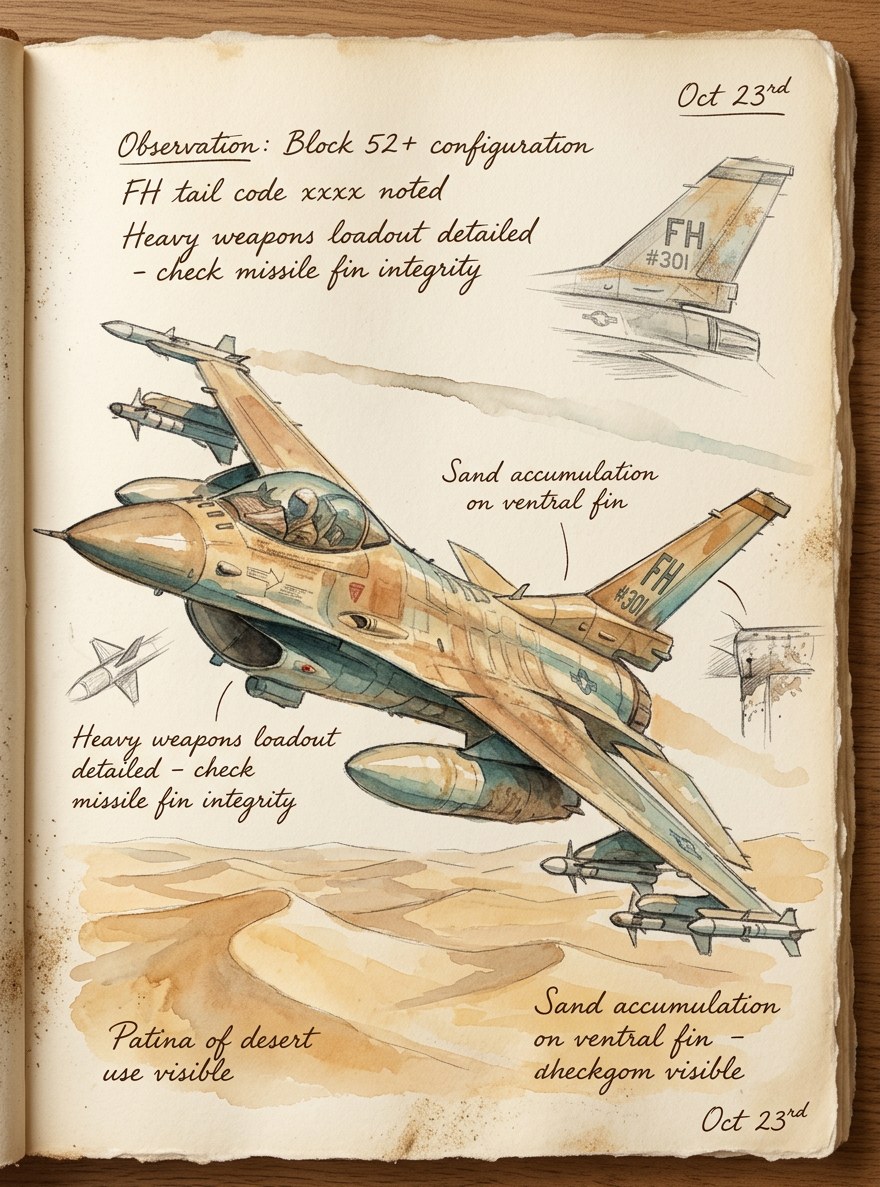
Subject illustrated as a loose watercolor sketch on aged journal paper, depicting a subject in desert dunes; soft granulation and gentle brush textures define ruffled fabric and weathered metal; warm palette of ochre, sand, and faded teal; handwritten sepia notes scattered across the page with subtle sand smudges along the edges; illuminated by soft window light, evoking a quiet explorer’s field journal; delicate, atmospheric, and tactile traditional art style.

AI Product Screenshot Template – Built with Magic Hour AI Image Editor

Turn plain product shots into high-converting, “this looks real” marketing visuals in minutes. This AI Product Screenshot template shows you how to transform a simple interface or dashboard into a polished scene you can reuse across landing pages, pitch decks, App Store/Play Store assets, and social posts.


What this template is for

Use this template if you want to quickly create:

  • Landing page hero images for SaaS and apps
  • Product screenshots for App Store / Google Play listings
  • Slide visuals for investor decks and sales pitches
  • UI mockups for early-stage products, MVPs, and Figma exports
  • Social media creatives for feature announcements and changelogs

The template is powered by the AI Image Editor, so you can start from any static screenshot and turn it into a polished, on-brand product shot—no designer or complex tooling required.


How to remix this template in Magic Hour

You can recreate and customize this template entirely inside Magic Hour:

  1. Capture or export your UI

    • Take a clean screenshot of your app, dashboard, website section, or Figma design.
    • Crop out browser chrome and unrelated elements so the focus stays on the product.
  2. Open it in the AI Image Editor

    • Go to the AI Image Editor.
    • Upload your screenshot as the base image you’ll be editing and enhancing.
  3. Enhance the core screenshot

    • Use the editor to clean up artifacts, unify spacing, and subtly improve contrast and readability.
    • If you’re working from a rough prototype, use AI editing to refine UI elements (cards, buttons, backgrounds) so they look production-ready.
  4. Add device frames and context

    • Place your UI into realistic device mockups (laptop, desktop, phone, tablet) for a more contextual product story.
    • Use AI editing tools to:
      • Smoothly blend the screen into a device frame
      • Adjust perspective so the UI feels naturally embedded
      • Add subtle reflections or shadows to match the scene
  5. Design the scene around your product

  6. Create multiple variations quickly

    • Duplicate the final composition and swap in:
      • Different screens (onboarding, analytics, billing, dashboards)
      • Different colorways or themes
      • Different devices (mobile-only, tablet, multi-device layouts)
    • The AI Image Editor lets you preserve the same “look and feel” while changing the core UI, so you can build a full brand system of product visuals.
  7. Export for web, decks, and app stores

    • Export high-resolution versions for:
      • Website hero sections and feature blocks
      • PDF pitch decks and sales one-pagers
      • App Store / Google Play screenshots (cropping as needed)
    • If needed, run exports through:

Why use AI for product screenshots?

High-quality product imagery is one of the biggest levers you have for conversion rates and perceived quality:

  • SaaS and app landing pages with strong visual storytelling consistently outperform purely text-based pages in A/B tests (case studies repeatedly show higher click-through and trial starts when users “see” the product clearly).
  • App Store / Play Store guidelines explicitly encourage clear, marketing-ready screenshots that highlight features and value—not just raw UI captures.

Traditionally, that meant design time, Photoshop skills, or custom mockups. With Magic Hour’s AI Image Editor:

  • You can iterate from idea → screenshot → polished asset in a single workflow
  • Non-designers (founders, PMs, marketers) can update visuals without blocking on design teams
  • You can maintain consistency across web, slide decks, and marketplace listings by remixing the same base template

Ideas for advanced users and teams

If you’re building at scale or want to push further:

  • Campaign-specific visuals

    • Duplicate this template for each campaign (e.g., “Security & Compliance”, “Analytics”, “AI Features”) and keep the layout consistent while swapping in relevant screens and environment details.
  • Persona-based storytelling

    • Use different background scenes for different audiences (e.g., a founder’s home office vs. an enterprise workspace).
    • Generate persona-specific visuals using AI Character Generator and place characters near the product to anchor use cases.
  • Motion and video from static screenshots

  • Social and ad creatives

    • Reuse the template as a foundation for:
      • LinkedIn and X feature announcements
      • Product hunt launch visuals
      • Paid acquisition ads
    • Quickly convert static scenes into GIFs via the AI GIF Generator for higher engagement.

Related Magic Hour tools to explore

If you’re building out a full visual system around your product screenshots, these tools work well together:


How to adapt this template to your product

You can treat this template as a starting point and remix it to match your brand and funnel:

  • Early-stage startups

    • Use basic screenshots or wireframes and have AI clean them up so you look more “product-ready” than you are.
    • Iterate quickly on positioning by swapping taglines and supporting visuals while keeping the same screenshot composition.
  • Growth-stage SaaS and tools

    • Standardize a screenshot style that works across: homepage, pricing page, feature pages, and lifecycle emails.
    • Use this template to maintain visual consistency even when different teams are producing assets.
  • Developers and technical marketers

    • Generate technical walkthrough visuals for docs, changelogs, and GitHub READMEs.
    • Build environment-specific scenes (e.g., terminal windows, code editors, dashboards) and reuse them across content.

Starting now

To create your own version of this AI Product Screenshot template:

  1. Prepare your product UI screenshot
  2. Open the AI Image Editor
  3. Upload, refine, and build the surrounding scene
  4. Remix variations for web, decks, and stores
  5. Enhance with complementary tools like AI Background Generator, AI Remover, and AI Image Upscaler

You’ll end up with a reusable, AI-powered product screenshot framework that you can adapt for every launch, feature, and campaign—without restarting from scratch each time.

More Like This