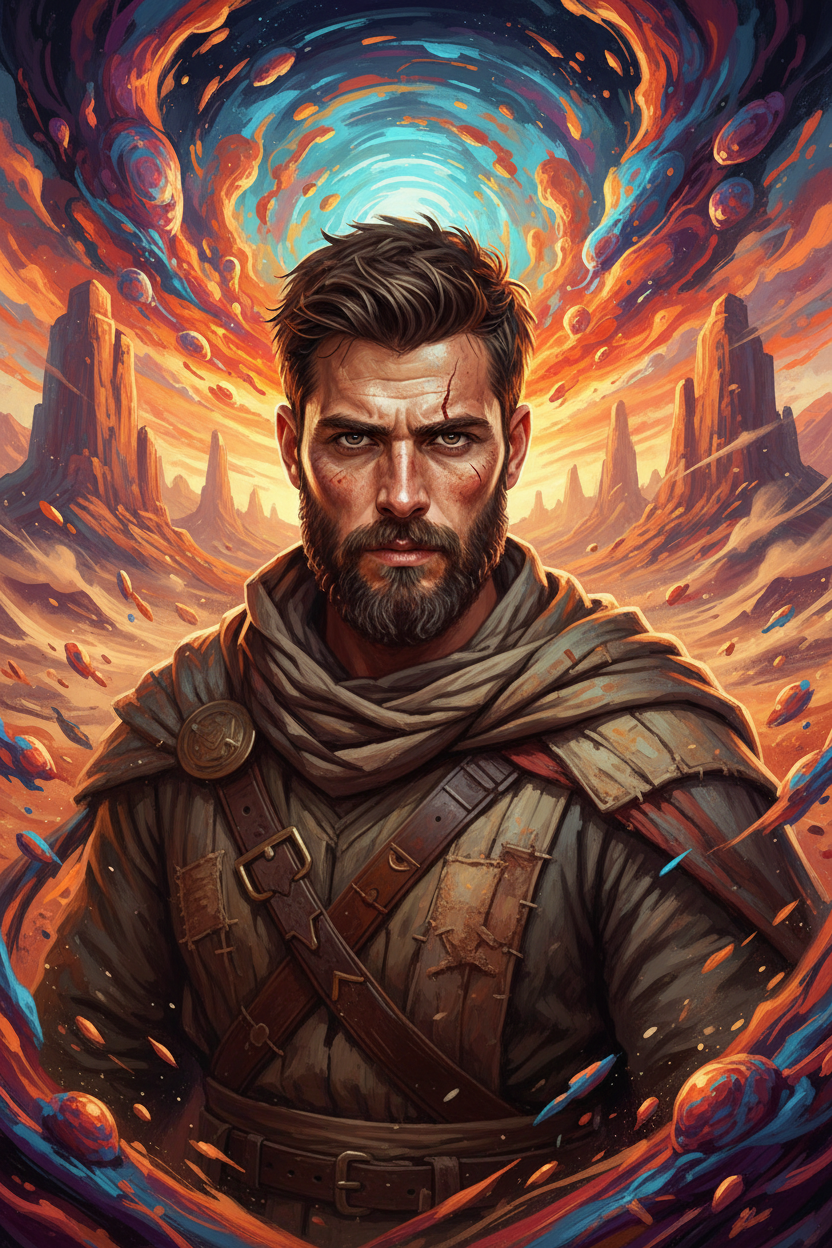
Psychedelic Desert Ascendant
- Model
- Nano Banana
- Image
- 832 × 1248 px
Prompt
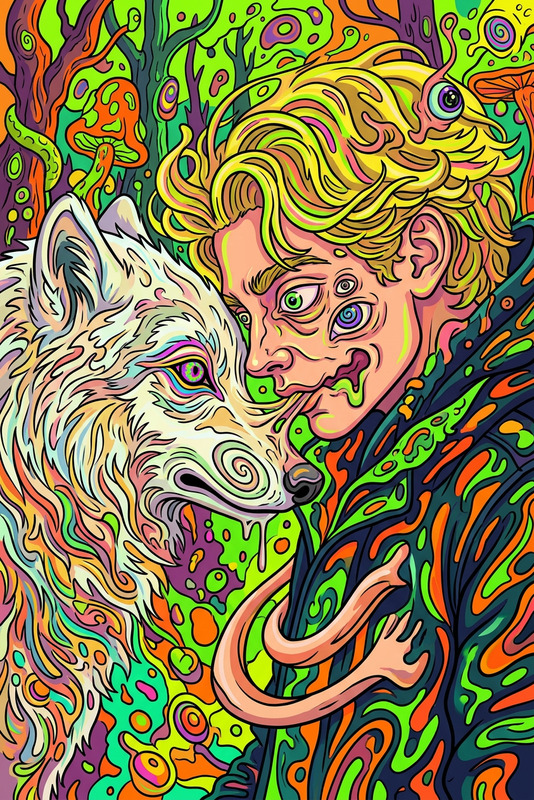
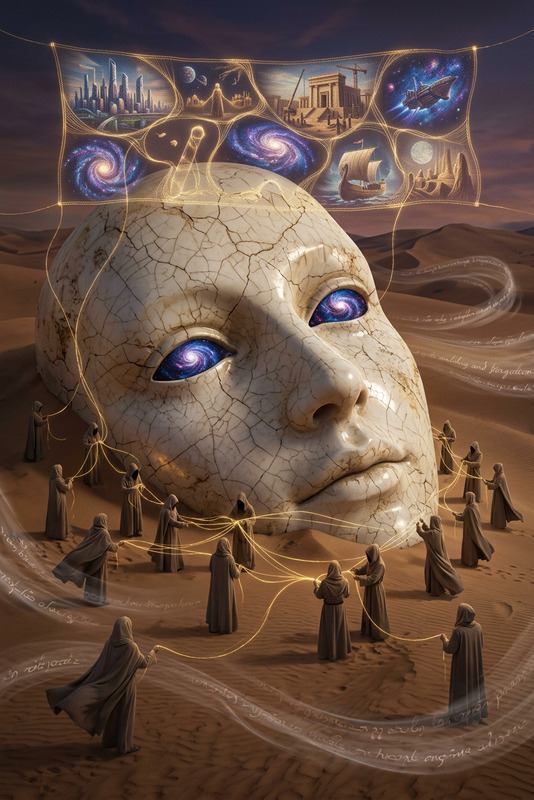
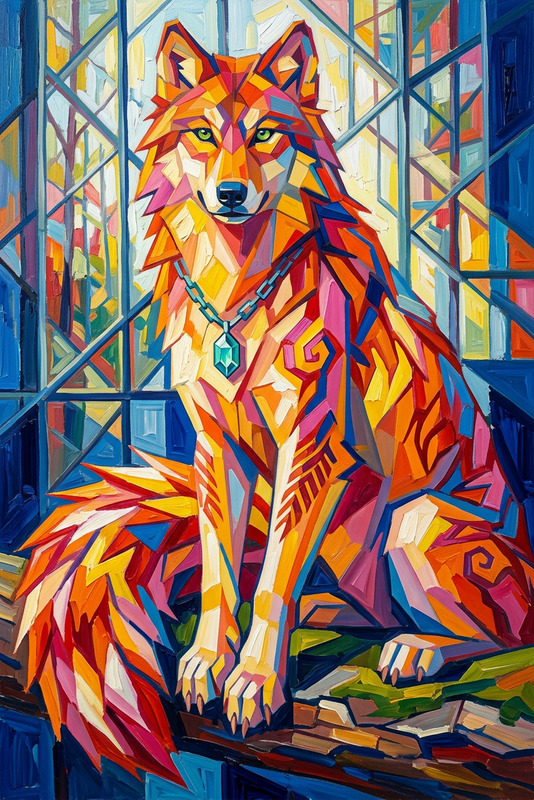
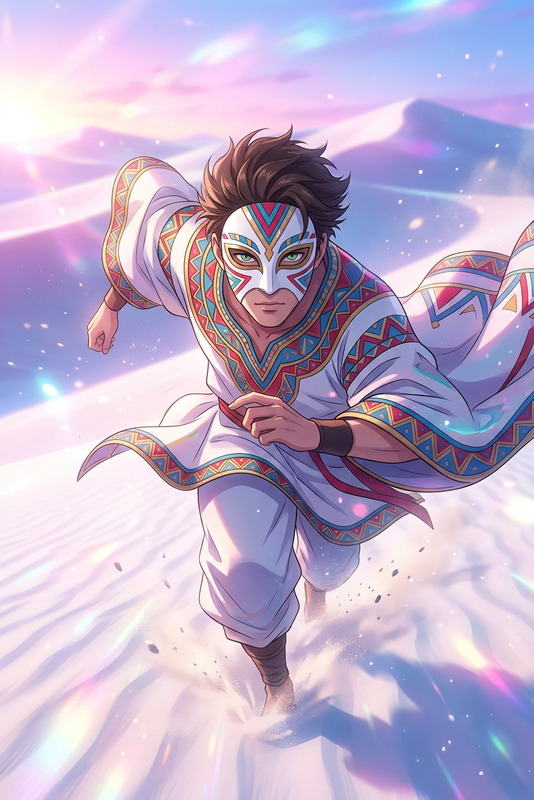
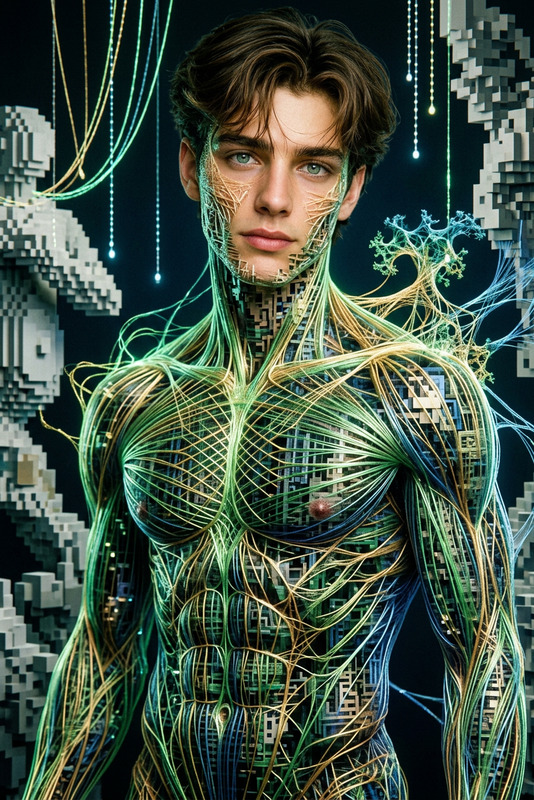
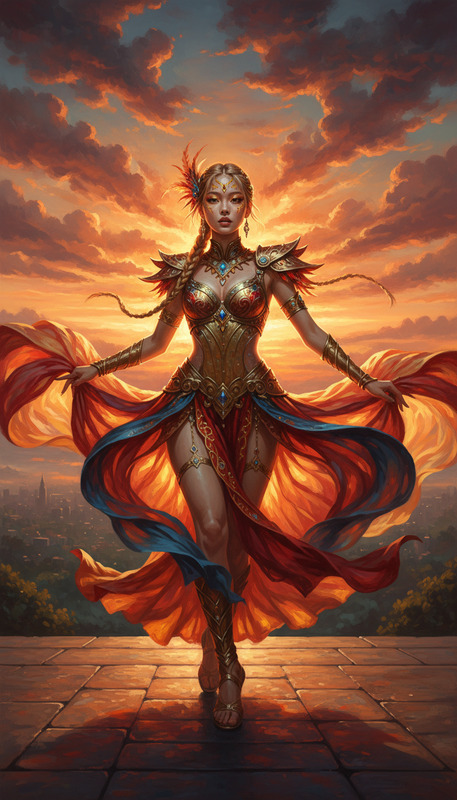
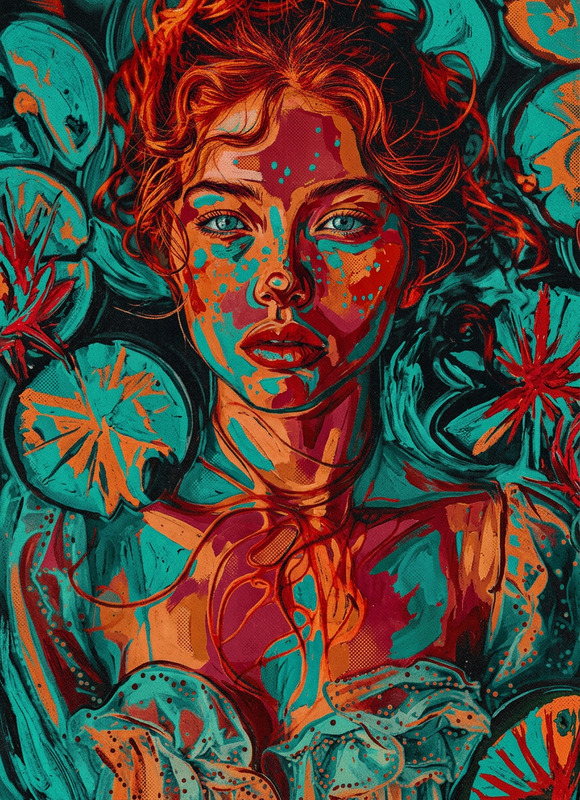
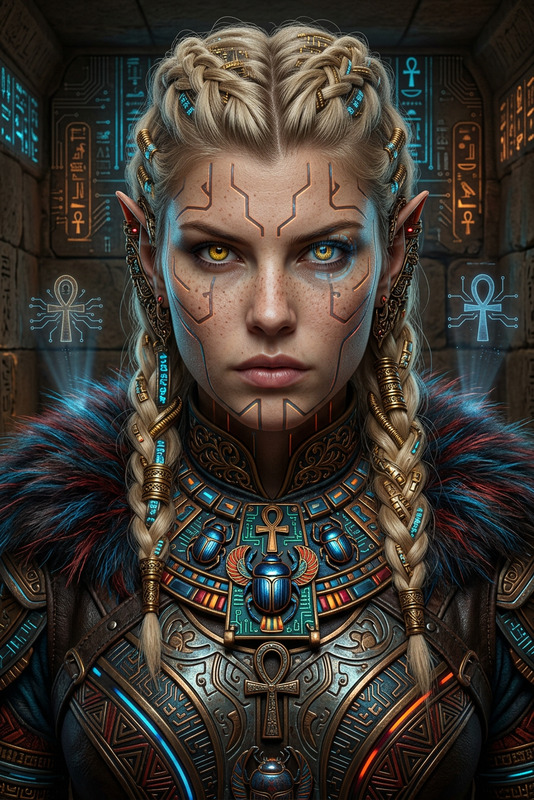
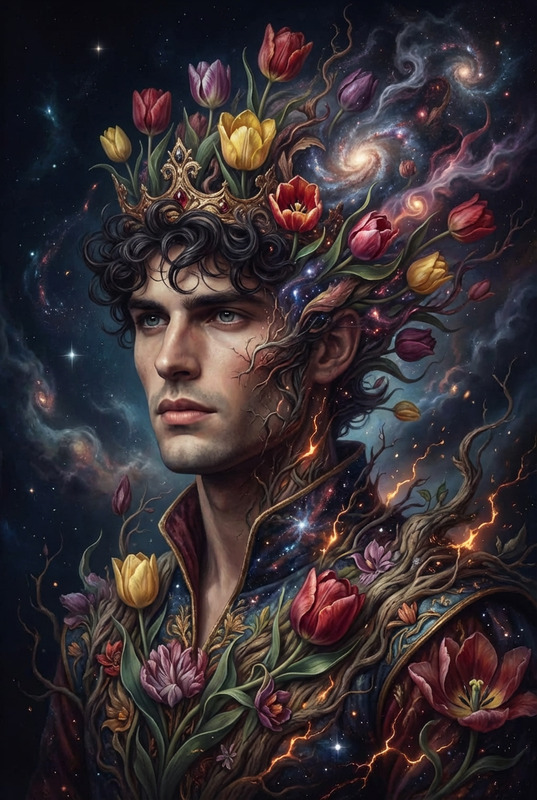
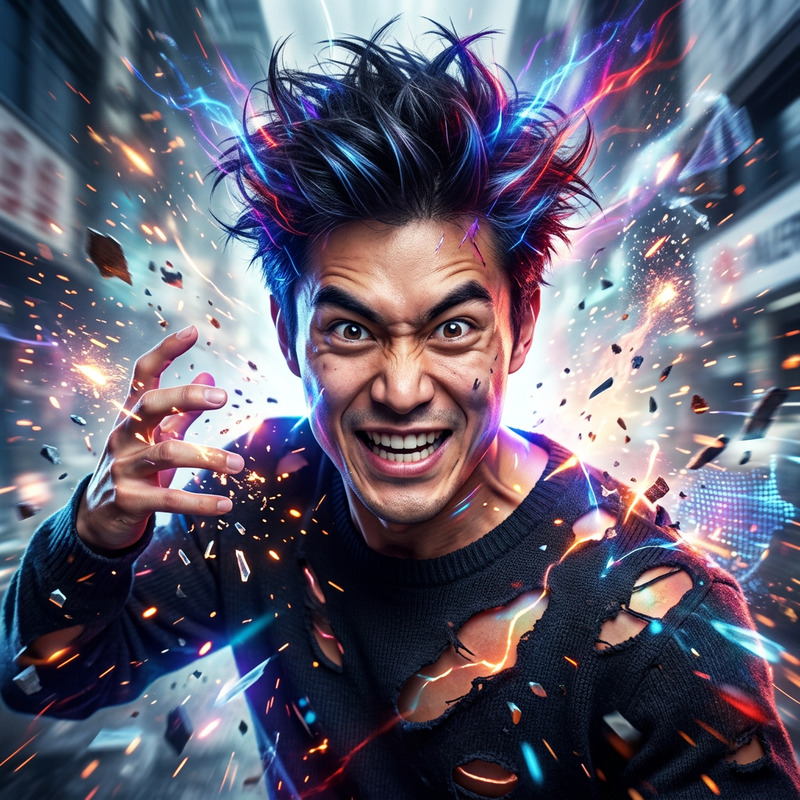
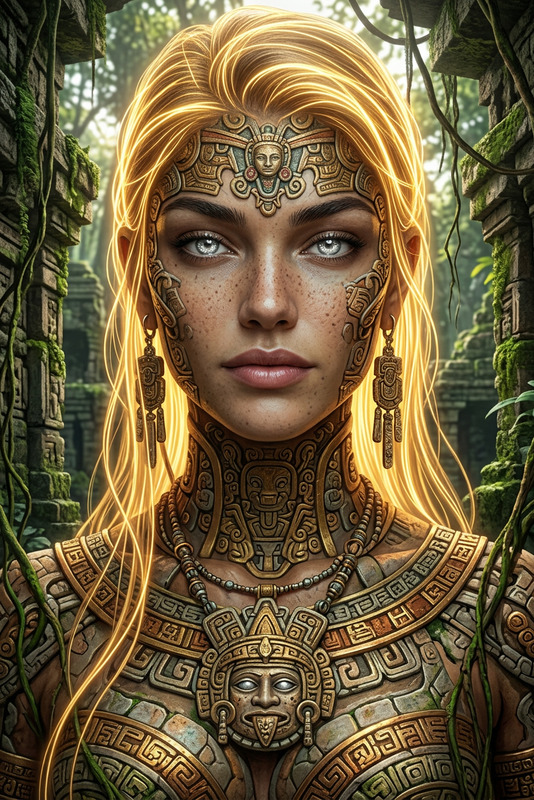
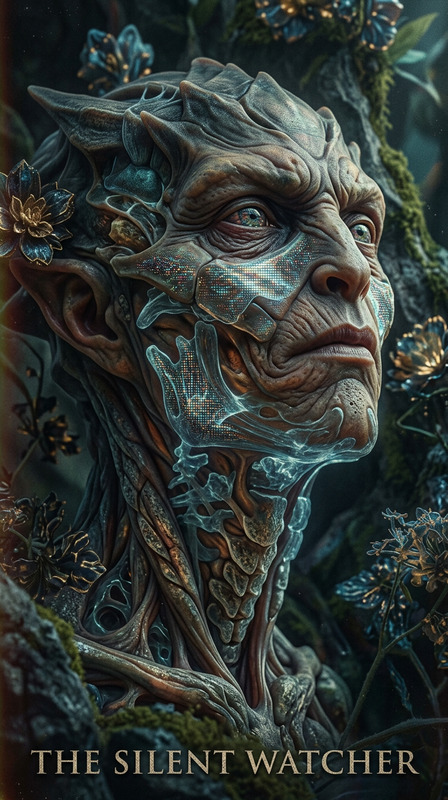
Subject transforms into a rugged desert figure in a centered cinematic portrait, with weathered features and an intense gaze. Highly detailed, painterly rendering with swirling psychedelic patterns and vivid colors surrounding subject. Subtle desert landscape elements with windblown sand and ethereal light in the background. Fusion of realism and surrealism, intricate composition, dramatic and mesmerizing atmosphere.
Any aspect ratio
Overview
The Psychedelic Desert Ascendant template in the AI Image Editor category empowers users to create stunning visuals by transforming subjects into captivating desert figures. With intricate details and vibrant, swirling psychedelic patterns, this template is perfect for those looking to blend realism with surrealism.
What It Does
This template is designed to modify images, emphasizing a cinematic portrait style with characteristics like a rugged desert figure, complete with weathered features and an intense gaze. It incorporates vivid colors and detailed rendering, creating a dramatic atmosphere that is both mesmerizing and thought-provoking. The surrounding landscape, including windblown sand and ethereal light, adds to the surreal experience.
Who It's For
Ideal for digital artists and creators looking to craft unique, visually arresting compositions, the Psychedelic Desert Ascendant template is a match for those in the advertising and entertainment industries. It also caters to individuals or businesses aiming to elevate their visual content with a distinctive touch. Additionally, it links well with the Image to Video transformation needs of multimedia projects.
Summary
Overall, the Psychedelic Desert Ascendant template is an excellent choice for users seeking to produce rich, painterly images featuring desert-themed surrealism. It's a fusion of art styles that brings out the rugged beauty of its subjects while engaging viewers with vivid, dynamic backdrops. Pair it with other tools like the AI GIF Generator for extended creative possibilities.
How-To
Choose the Template

Customize Your Input

Generate the Image

Use Cases
Artistic Visualization
- Painterly portraits
- Surreal desert scenes
Event Promotion
- Event posters
- Festival banners
Digital Advertising
- Banner ads
- Social media posts
Best Practices
Emphasize Contrast
Enhance the contrast between the subject and the background for a more dynamic look.Adjust Prompt Details
Experiment with different prompt details to get the ideal balance of realism and surrealism.Use High-Resolution Images
Start with high-quality, high-resolution images for the best results.