Golden Hour Retro Barbershop

Golden Hour Retro Barbershop

ai-image-editor

1 clip
213 uses

Any aspect ratio

Prompt

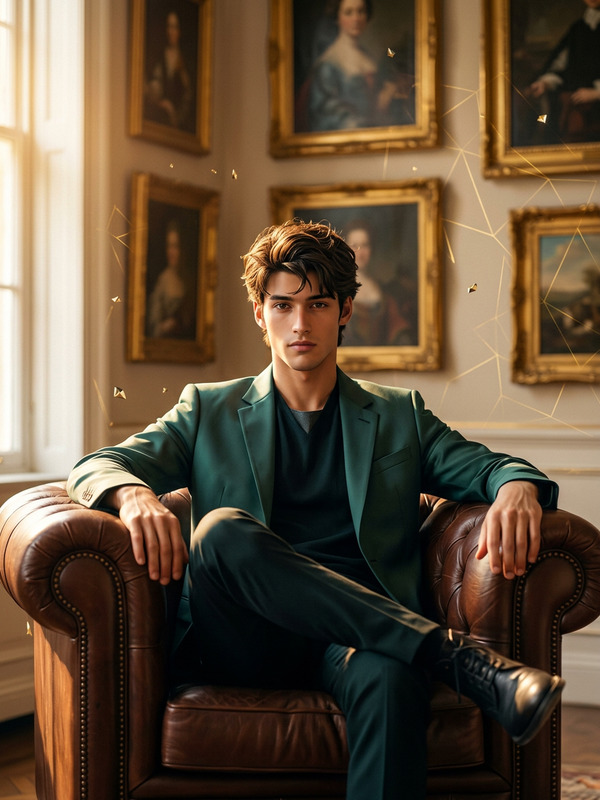
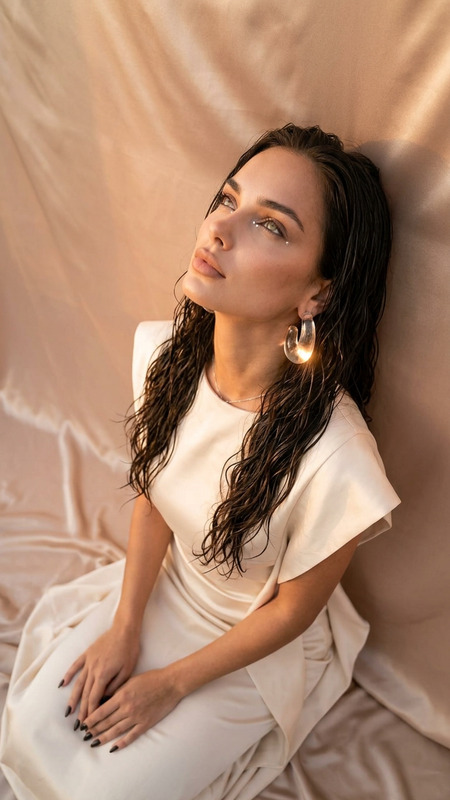
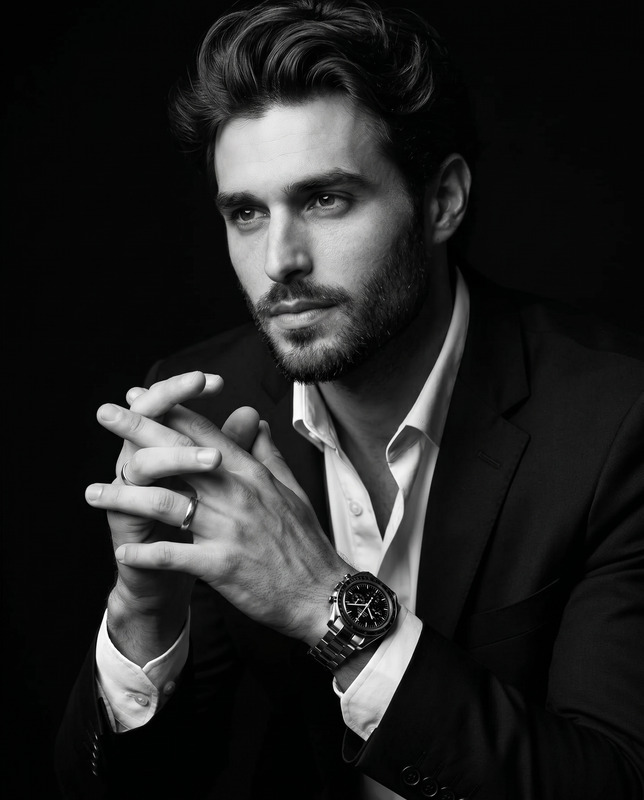
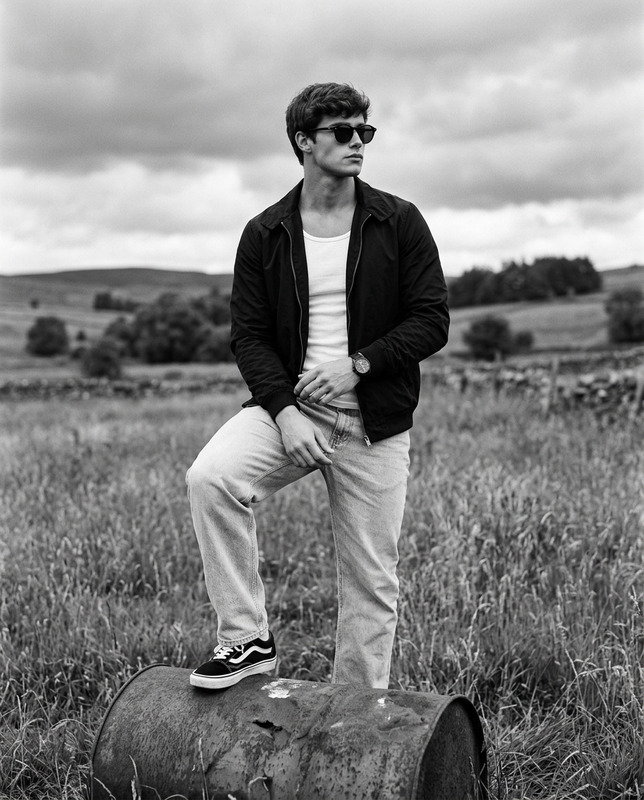
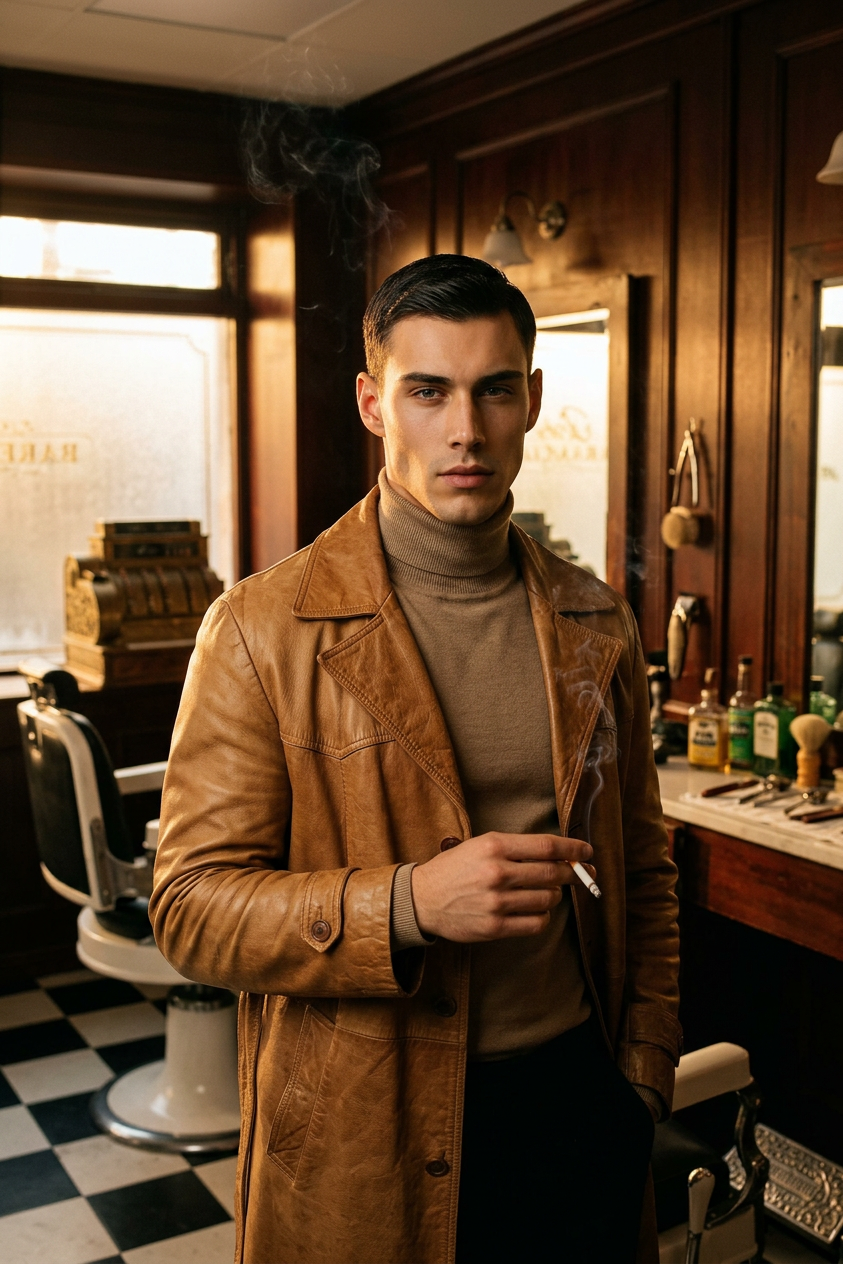
Generate a cinematic golden-hour portrait captured in rich, saturated Kodachrome tones, showing a subject standing with calm, unwavering confidence inside a meticulously preserved retro barbershop; the subject wears a smooth tan leather trench coat with visible natural grain, layered over a muted beige turtleneck that sits close to the neck, while neatly combed dark hair contrasts with a sharp jawline and steady, direct gaze into the camera; a cigarette is held loosely between fingers with relaxed nonchalance as thin smoke curls upward and softens into the warm light; the environment features checkerboard black-and-white flooring reflecting subtle highlights from vintage fluorescent lighting, along with dark wood-paneled walls in deep mahogany tones, cracked mirrors, worn barber chairs, and brass tools that add layered historical texture; warm amber light streams through a frosted window, shaping soft shadows and highlighting material contrasts between leather, fabric, and polished wood; shot at eye level using a 50mm lens with tight framing just below the waist, the composition centers the subject’s presence with understated intensity, while fine 35mm film grain (Kodak Tri-X aesthetic) enhances tactile realism, emphasizing skin texture, atmospheric haze, and a cinematic mood of quiet rebellion and timeless style.

AI Image Editor Template: Smart Image Cleanup for Fast, High-Quality Visuals

Use this AI Image Editor–based template to quickly clean up, refine, and repurpose images for campaigns, product launches, content marketing, and social posts—without opening Photoshop.

This page explains what the template is for, how to remix it in Magic Hour, and how to combine it with other AI tools (image, video, and voice) for complete creative workflows.


What this template is best for

This template is built on the AI Image Editor and is designed to help you:

  • Remove distracting objects, text, or logos from photos
  • Fix backgrounds or extend the canvas for better layouts
  • Clean up screenshots, UI mocks, and pitch deck images
  • Quickly generate variants for A/B tests and social formats
  • Update old assets with new branding or styles

It’s especially useful for:

  • Marketers & growth teams – landing page images, ad creatives, email headers
  • Founders & startup teams – pitch decks, product screenshots, one-pagers
  • Designers & creators – social content, thumbnails, portfolio updates
  • Developers & PMs – UI previews, product documentation, changelogs

You get the speed of automated editing, with enough control to keep brand quality high.


How to remix this template in Magic Hour

You can recreate or customize this template in a few minutes by “remixing” it with your own images and goals.

1. Start from your source image

Use any of these as your starting point:

  • Product photos or app screens
  • Portraits and team photos
  • Logos or brand assets
  • Old visuals you want to modernize

Upload them directly into the AI Image Editor.

2. Define your editing goal

Before you edit, be explicit about what you’re trying to achieve. Common goals:

  • “Clean ecommerce product shot on a neutral background”
  • “Investor-ready pitch deck slide image, no clutter”
  • “Social-ready portrait with subtle retouching, not over-processed”
  • “Before/after image for case study with clear focus on results”

Having this in mind will guide what you remove, enhance, or add.

3. Remove distractions and unwanted elements

To create your own version of this template:

  • Identify anything that pulls attention away from the subject
  • Use the editor to remove:
    • Random objects in the background
    • Watermarks, timestamps, or UI chrome in screenshots
    • Old logos, outdated copy, or stray text
  • If you’re cleaning photos at scale, you can also reference:

This gives you a “clean master” image that can be repurposed across formats.

4. Fix backgrounds and composition

Next, adjust the background or framing so the image works in multiple placements:

  • Extend background to add room for copy or UI overlays
  • Replace busy or mismatched backgrounds with on-brand colors or textures
  • Reframe the subject so it works for both horizontal and vertical layouts

For more advanced background work, you can also explore:

5. Enhance quality and sharpness

Once the composition looks right:

This is crucial if you’re preparing visuals for landing pages, paid ads, or presentations where artifacts degrade trust.

6. Create branded variants for different use cases

From your cleaned master image, generate variations tailored to channel and audience:

You can save your own “preset” workflow by reusing the same combination of tools and prompts each time, effectively creating a customized version of this template.


Example workflows you can build by remixing this template

Use the AI Image Editor as the core, then chain additional Magic Hour tools to build end-to-end pipelines.

1. Founder pitch visuals workflow

  1. Clean and simplify screenshots with the AI Image Editor.
  2. Remove extra UI elements using Remove Object from Photo.
  3. Upscale and sharpen assets with AI Image Upscaler.
  4. Generate diagram-style illustrations with AI Illustration Generator.
  5. Export for pitch decks, product one-pagers, and investor updates.

2. Performance ad creative workflow

  1. Start from a product or lifestyle photo in the AI Image Editor.
  2. Clean backgrounds and remove brand conflicts using AI Remover.
  3. Generate multiple creative styles with AI Art Generator or AI Fashion Generator.
  4. Prepare thumbnails and ad frames via Thumbnail Maker.
  5. Use the best variants in performance campaigns and iterate.

3. Content & thought-leadership workflow

  1. Edit your portrait or headshot in the AI Image Editor.
  2. Optionally generate fresh portraits with AI Headshot Generator or AI Selfie Generator.
  3. Create supporting illustrations or diagrams with AI Illustration Generator.
  4. Convert static images into explainer videos using Image to Video or Text to Video.
  5. Add subtitles via Auto Subtitle Generator for LinkedIn, YouTube, and X.

Leveling up: from edited images to dynamic video and interactive content

Once your images look right, you can repurpose them into animated or interactive formats without redoing the design work.

Turn edited images into videos

Make faces talk and move

If your images include people, you can build dynamic content on top:

To go further into video, you can also experiment with:

These let you reuse the “cleaned” images and visual style from this template in fully animated content.


Advanced creative directions for power users

If you’re a creator, marketer, or developer who wants to push further, you can remix this template with highly specific generators:

You can start with precise, brand-faithful images using this AI Image Editor template, then branch into bolder or more stylized outputs with these tools while keeping visual consistency.


Best practices for high-performing AI-edited images

To get results that hold up under scrutiny (especially for paid campaigns, product pages, and investor materials):

  • Stay consistent with your brand system

    • Reuse the same color palettes, lighting, and composition across all variants.
    • Consider generating a small internal “style guide” using AI Art Generator as reference imagery.
  • Prioritize clarity over novelty

    • For performance marketing, clear subject and legible text usually outperform overly complex effects.
    • Use advanced tools (anime, comics, fantasy, graffiti) only where they support the story, not replace it.
  • Test across channels

    • Validate your edited images in real placements: landing pages, mobile views, in-feed ads.
    • Use the Thumbnail Maker to preview how your visuals read at small sizes.
  • Iterate quickly

    • Treat each edit as a hypothesis: remove clutter, adjust background, test a new angle.
    • Use the AI Image Editor as the base, and swap in different generators to explore alternatives without rebuilding from scratch.

When to use this template vs. other Magic Hour tools

Use this AI Image Editor–based template when:

  • You already have images, screenshots, or photos you care about
  • You need to clean up, refine, or modernize them quickly
  • You want maintainable, brand-consistent outputs you can reuse

Use other tools first when:

In many workflows, you’ll generate a first pass with AI image tools, clean and refine with this template in the AI Image Editor, then publish or animate.


Build your own reusable editing “system”

Think of this template as a starting system, not a single preset. To make it your own:

  1. Define your recurring use cases

    • E.g., “weekly LinkedIn carousels,” “performance ad variations,” “feature launch screenshots.”
  2. Standardize your steps

    • Clean → Remove clutter → Fix background → Upscale → Channel-specific variants.
  3. Pick your supporting tools

  4. Save outputs as your internal template library

    • Keep a folder of “clean masters” and “ready-to-use variants” that you can drag into future campaigns or remix with other Magic Hour templates like Face Swap Video, Lip Sync, or Video-to-Video.

By doing this once, you get a repeatable, AI-assisted editing pipeline that any team member can use—without needing professional design tools.

More Like This

Insufficient credits