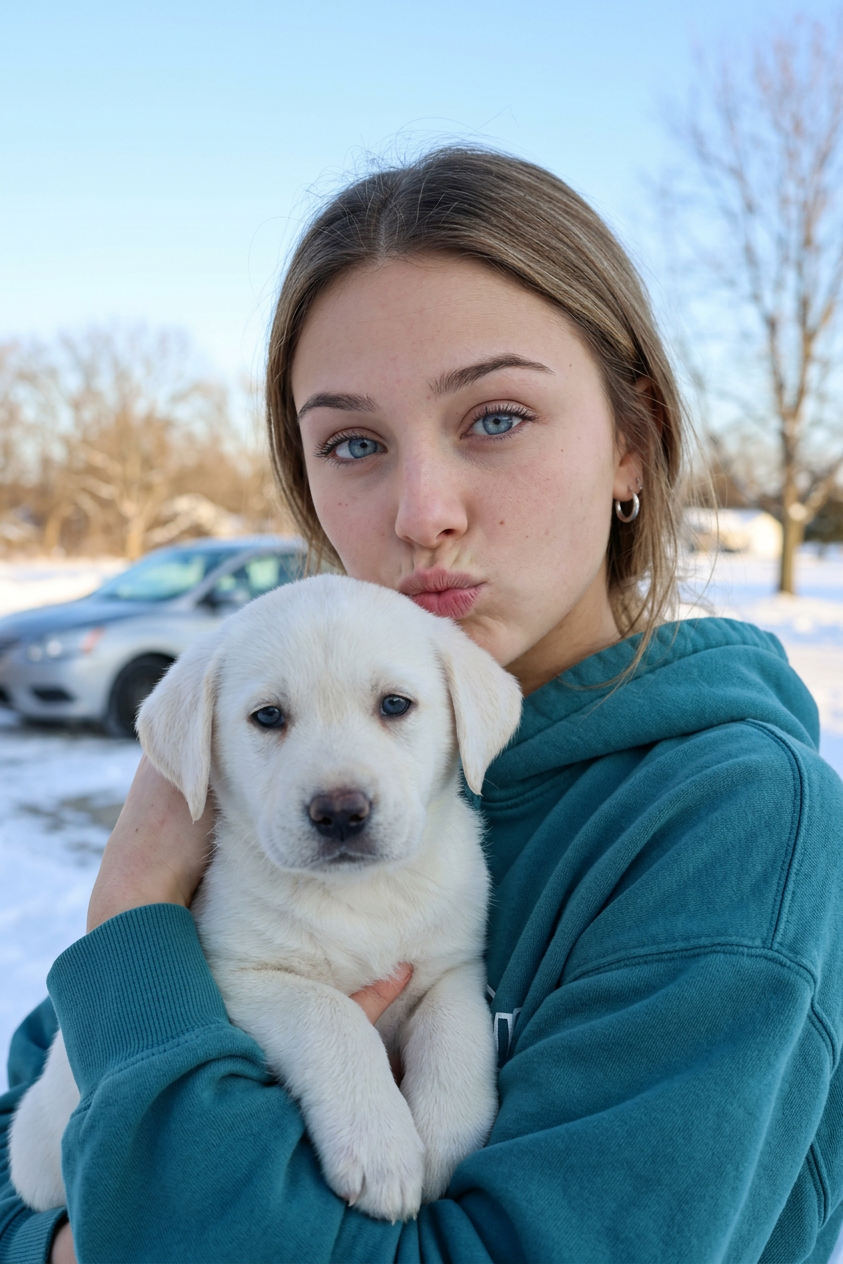
Winter Puppy Moment

Winter Puppy Moment

ai-image-editor

1 clip
3 uses

Any aspect ratio

Prompt

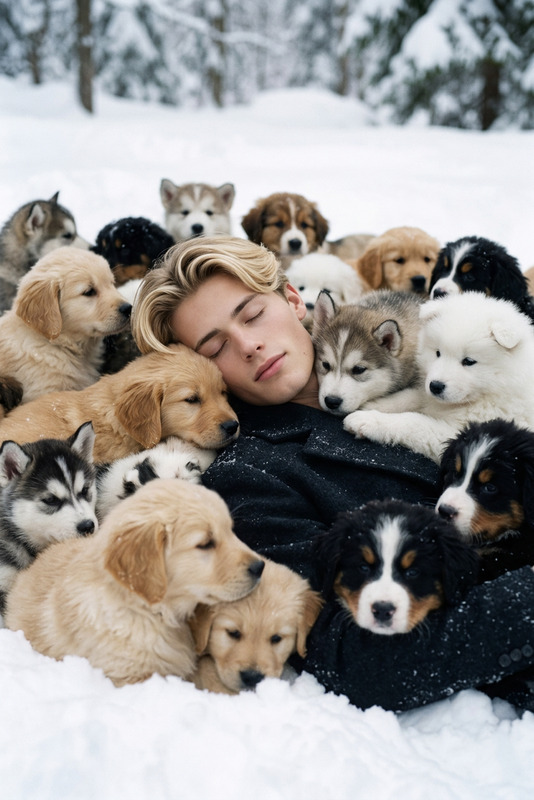
A close-up portrait of a subject, wearing a teal hooded sweatshirt, holding a small white puppy with light blue eyes. The subject makes a puckering face toward the camera while the puppy looks calmly forward. The scene is set outdoors in a winter environment with snow-covered ground, bare trees, a blurred silver car in the background, and a clear light blue sky.

Smart Object Replace – AI Image Editor Template

Effortlessly replace objects, products, and elements in your photos while preserving lighting, shadows, and perspective. This template is built on the [AI Image Editor] and is ideal for product visuals, UI mockups, marketing creatives, and rapid content experiments.


What this template is for

Use this Smart Object Replace workflow when you need to:

  • Swap in new products or packaging into existing lifestyle shots
  • Test different brand concepts (logos, labels, colors) without a reshoot
  • Localize content (different snacks, drinks, currencies, or signage per region)
  • Update UI or app screens in device mockups
  • Cleanly replace distracting or off-brand elements with on-brand assets

Because it’s powered by the [AI Image Editor], you can iterate quickly without manual masking or complex Photoshop-style workflows.


How to recreate or remix this template in Magic Hour

You can build your own version of this template directly in Magic Hour by remixing it:

  1. Start from the AI Image Editor

    • Go to the [AI Image Editor].
    • Upload your base image (product shot, scene, or mockup).
  2. Roughly select the object you want to replace

    • Use a loose selection around the target area (e.g., a soda can, t‑shirt print, poster, phone screen).
    • Don’t worry about being pixel-perfect—Magic Hour’s model refines the edges and blends with the background.
  3. Describe your replacement in natural language

    • Example prompts:
      • “Replace the can with a matte black energy drink can with neon green logo, same perspective.”
      • “Change the poster to a minimal, black-and-white movie poster with bold typography.”
      • “Swap the burger for a vegan burger with sesame bun and fresh vegetables.”
    • Be explicit about color, material, style, brand feel, and approximate size.
  4. Generate, compare, and iterate

    • Generate multiple variations and keep the versions that match your brand.
    • Refine your text prompt to control style (e.g., “studio lighting,” “street photography,” “flat lay,” “editorial”).
    • Re-run the editor as needed to fine-tune small details.
  5. Export for your workflow

    • Download your updated image for use in:
      • Landing pages and ads
      • A/B tests and multivariate creative experiments
      • Social content, pitch decks, and internal mockups

Once you’ve done this once, you can reuse the process as your own template: same base photo, same selection area, new prompts each time.


Practical use cases for teams

For marketers & growth teams

  • Run fast creative experiments without scheduling new shoots.
  • Create region-specific or audience-specific versions of the same hero image.
  • Maintain consistent composition and layout while testing offers or product variants.

Pair it with:

  • [AI Image Upscaler] to export higher-resolution ad creatives.
  • [Thumbnail Maker] to generate channel-specific thumbnails from your edited images.
  • [AI Meme Generator] to quickly adapt campaign imagery into on-brand memes.

For product teams & designers

  • Swap UI screens in device mockups for decks, case studies, and app store assets.
  • Test different colorways, labels, or hardware details using product renders.
  • Quickly visualize variants before committing to design or production.

Complementary tools:

  • [AI Photo Generator] or [AI Art Generator] to create realistic base scenes to edit.
  • [AI Logo Generator] and [Album Cover Generator] to produce brand assets or hero visuals to drop into scenes.

For startups & creators

  • Build investor deck visuals without a designer on call.
  • Keep product photos fresh across website, marketplaces, and social with minimal overhead.
  • Create consistent visual narratives across campaigns and channels.

You can also chain this with:

  • [AI Selfie Generator] or [AI Headshot Generator] to create on-brand founder photos, then use the [AI Image Editor] to adjust backgrounds or props.
  • [AI Background Generator] or [Image Background Remover] to redesign scenes around your updated object.

Tips for strong, reliable replacements

To get consistent, production-ready results:

  1. Use clear, specific prompts

    • Include: object type, color, material, style, lighting, and any brand constraints.
    • Example: “Glossy red perfume bottle with gold cap, centered, soft studio lighting, realistic reflections.”
  2. Respect the original perspective and lighting

    • Mention “same perspective as original object” or “keep lighting and shadows consistent” in your prompt.
    • This helps the model match the scene and avoid uncanny composites.
  3. Think in systems, not one-offs

    • Define a reusable prompt template for your team, e.g.:
      • “Replace [object] with [product name], [color/material], [brand style], same size and angle as original, photorealistic.”
    • Store prompt snippets in your internal docs so any team member can reproduce the look.
  4. Use AI Image Editor as the hub in a bigger pipeline

    • Generate base concepts with the [AI Image Generator] or [AI Photo Generator].
    • Refine or swap elements with the [AI Image Editor].
    • Upscale with [AI Image Upscaler], then use [Video Upscaler] or [Image-to-Video] if you move into motion.

Advanced remix ideas

You can extend this template for more complex workflows:

  • Dynamic product catalogs

    • Maintain a library of base lifestyle images, then use the [AI Image Editor] to swap new products into the same scenes as your catalog evolves.
  • Variant testing for DTC & e‑commerce

    • Replace labels, flavors, or packaging finishes to test what converts best before manufacturing.
    • Combine with [Book Cover Generator], [AI Fashion Generator], or [AI Clothes Changer] to iterate on designs visually.
  • Content localization at scale

    • Replace signs, menus, currency, or packaging copy in images to match different markets.
    • Use [AI QR Code Generator] to generate scannable QR codes and then place them into in-context scenes with the editor.
  • IP-safe creative exploration

    • Use [AI Character Generator], [Animated Characters Generator], or [AI Anime Generator] to create original characters, then composite them into product or lifestyle shots with the [AI Image Editor].

Related Magic Hour tools to explore

If you like this Smart Object Replace flow, you may also find these useful:

  • [AI Image Editor] – the core tool behind this template.
  • [AI Image Generator] – text-to-image for scenes and concepts.
  • [AI Image Upscaler] – boost resolution for print and high-end campaigns.
  • [AI Background Generator] – create new environments for your replaced objects.
  • [Remove Object from Photo] and [AI Remover] – cleanly remove distractions before replacing elements.
  • [Image-to-Video] and [Text-to-Video] – turn your edited scenes into motion assets.
  • [AI Talking Photo], [Face Swap], or [Face Swap Video] – bring edited faces and characters into video workflows.

By remixing this template in the [AI Image Editor], you get a flexible, repeatable way to:

  • Update product imagery without reshoots
  • Run structured creative experiments
  • Keep visual assets aligned with fast-changing products and campaigns

Start with one base scene, define how you want to replace objects, and turn that into your own internal “Smart Object Replace” system for ongoing creative production.

More Like This

Insufficient credits