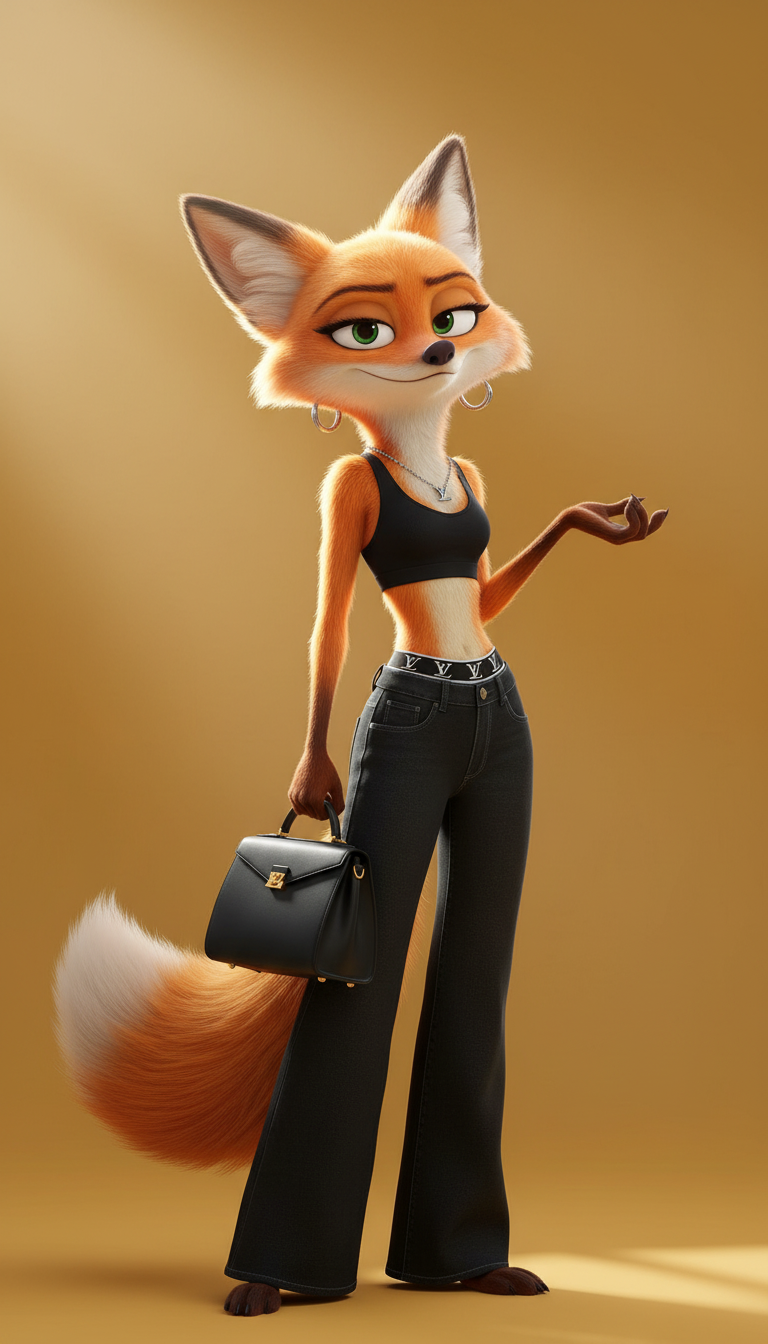
Street Muse
- Model
- Nano Banana
- Image
- 768 × 1344 px
Prompt
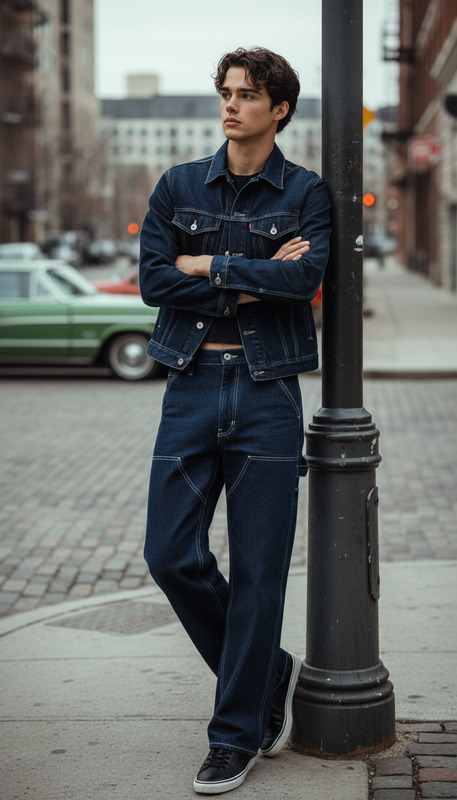
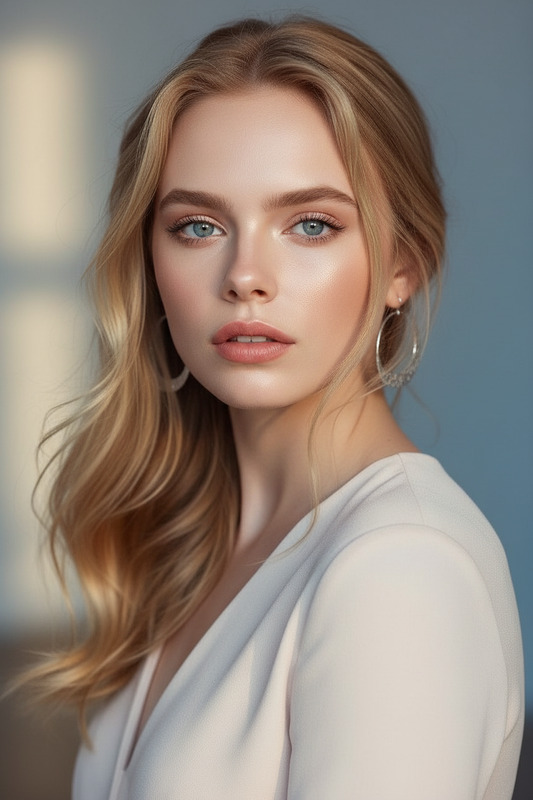
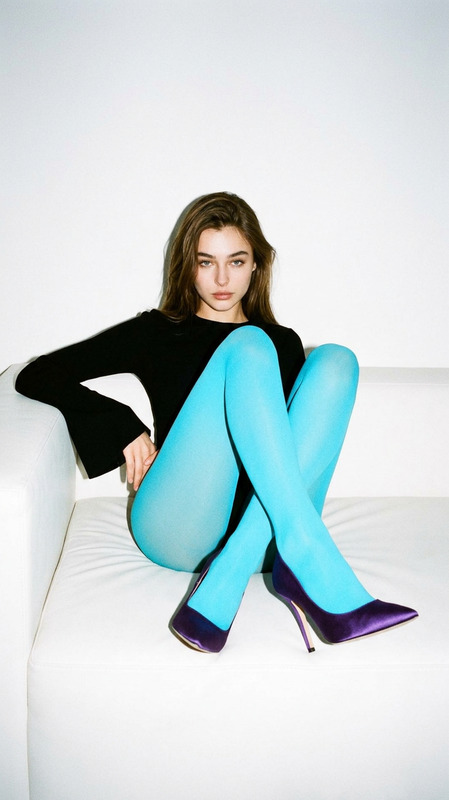
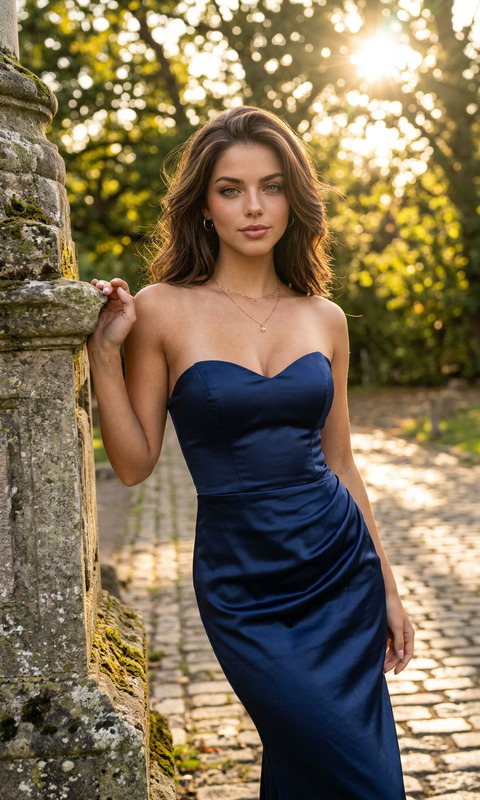
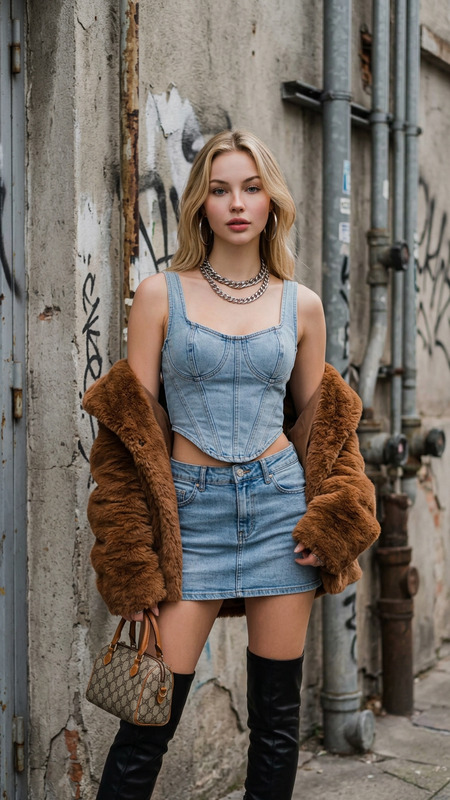
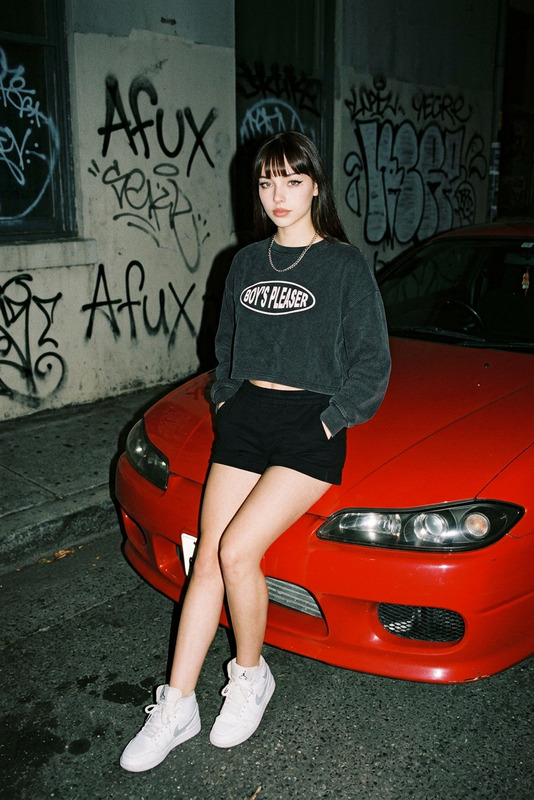
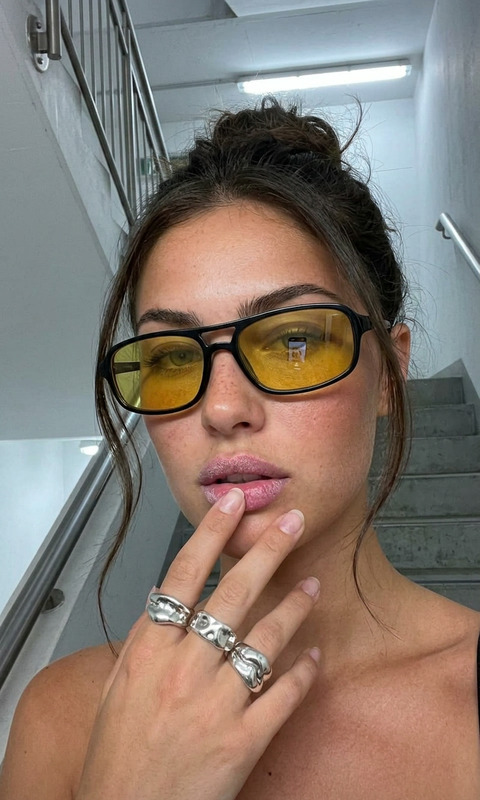
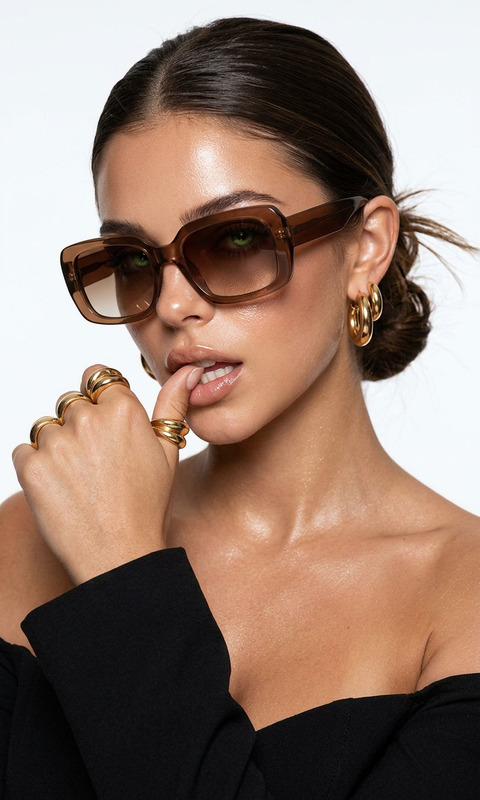
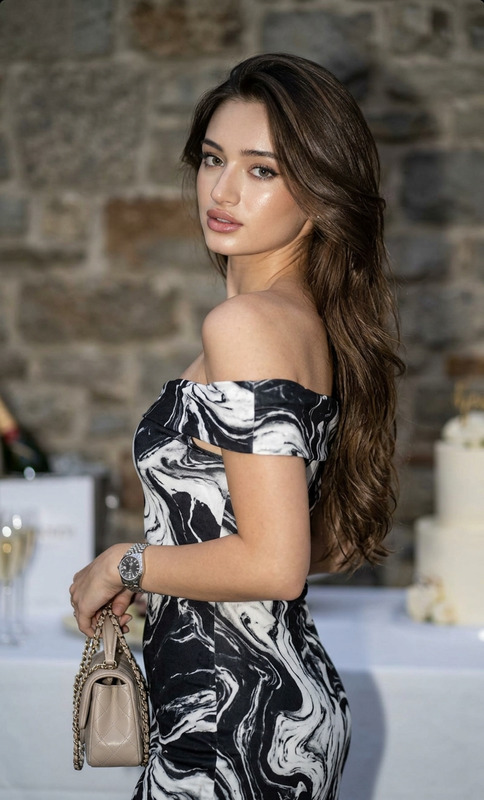
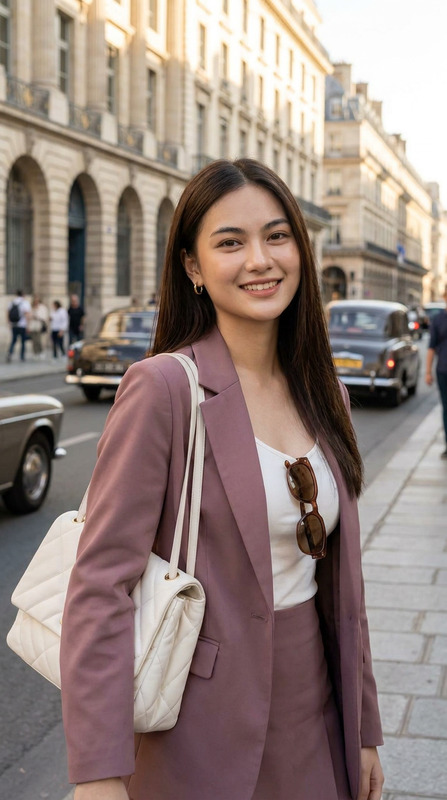
Subject in a black sports bra crop top and wide-leg black jeans with visible white designer waistband, accessorized with a silver short necklace (LV pendant) and small thick hoop earrings, holding a black City bag. Posed either sitting sideways resting chin on hand, talking on the phone naturally, or with right arm slightly lifted and left arm holding the bag. Dreamy, gentle elegance with a soft cinematic feel. Natural sunlight streaming from the left and front-side, creating sharp highlights on hair, cheeks, and nose tip against a slightly darkened background. High-fashion editorial, realistic portrait, 1:1.
Any aspect ratio
Overview
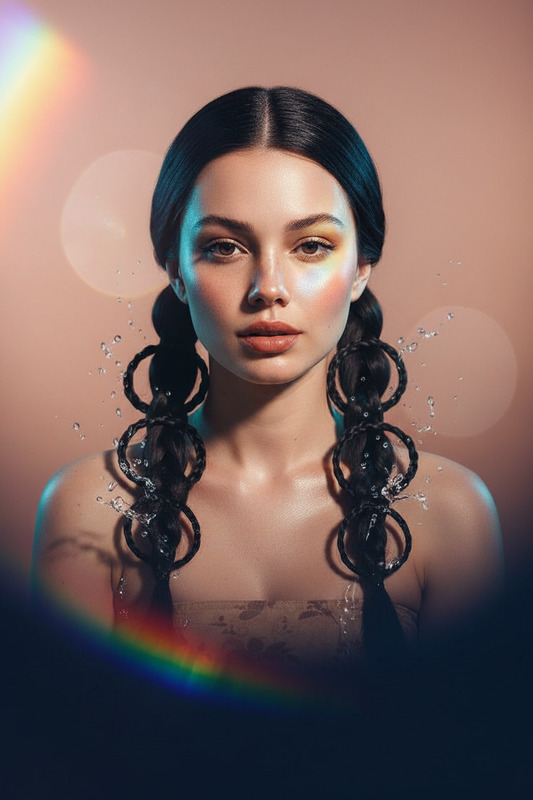
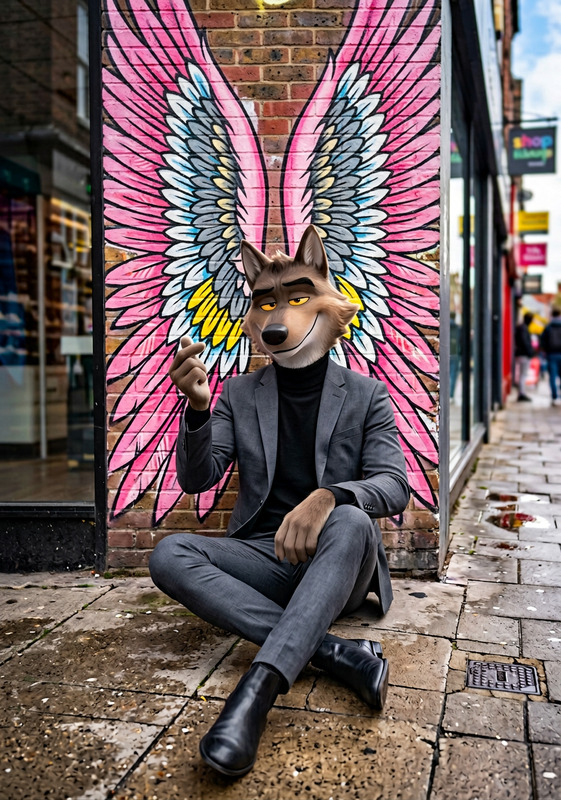
Street Muse is a versatile template designed for the AI Image Editor, perfect for bringing high-fashion street style to your creative projects. It uses the cutting-edge nano-banana model to transform your imagery into an elegant, cinematic portrait. Featuring a striking high-fashion look with an urban twist, it's ideal for anyone looking to create content exuding edgy yet sophisticated vibes.
What It Does
The Street Muse template is crafted to deliver stunning editorial-style portraits with a high-fashion feel. It focuses on enhancing the aesthetic of street-themed photography by altering lighting, accessorizing your subject, and creating a cinematic atmosphere with natural sunlight effects. The purpose is to give your images sharp highlights and shadows against subtly darkened backgrounds, turning them into showcase-worthy visuals.
Whether you're documenting urban landscapes or accentuating personal style, Street Muse offers an artful blend of realism and dream-like quality. For more creative exploration, consider the AI Product Photography product.
Who It's For
Street Muse is designed for creatives who want to infuse a touch of street glamour into their work. Ideal for fashion photographers, vloggers, and social media influencers who seek to produce engaging visual narratives that captivate and inspire. It's also an excellent tool for anyone in the fashion industry looking to elevate their product imagery and personal branding with high-fashion editorial quality.
If you're interested in other body modification features, you may also explore the Body Swap product.
Summary
Explore the urban elegance with Street Muse, an AI-powered template under Magic Hour's AI Image Editor offering. Leverage its capabilities to create high-fashion, cinematic portraits with a touch of street-smart aesthetics. With nano-banana's model integration, this tool is optimal for crafting engaging, elegant visuals that stand out in the fashion and creative sectors.
How to Use Street Muse
Choose the Street Muse Template

Customize Your Image

Generate Your Image

Use Cases
Fashion Photography
- High-fashion look
- Editorial style
- Realistic portrait
Vlogging
- Urban vibe
- Engaging visuals
- Audience appeal
Social Media Content
- Visual storytelling
- Brand elevation
- Increased followers
Best Practices
Focus on Composition
Ensure that your image composition aligns with the high-fashion, cinematic aesthetics for the best results.Optimal Lighting
Utilize the template's sunlight effects smartly to highlight your subject's features, enhancing the cinematic feel.Experiment with Accessories
Incorporate various accessories to add depth and personality to your portraits, aligning with the prompt's suggestions.