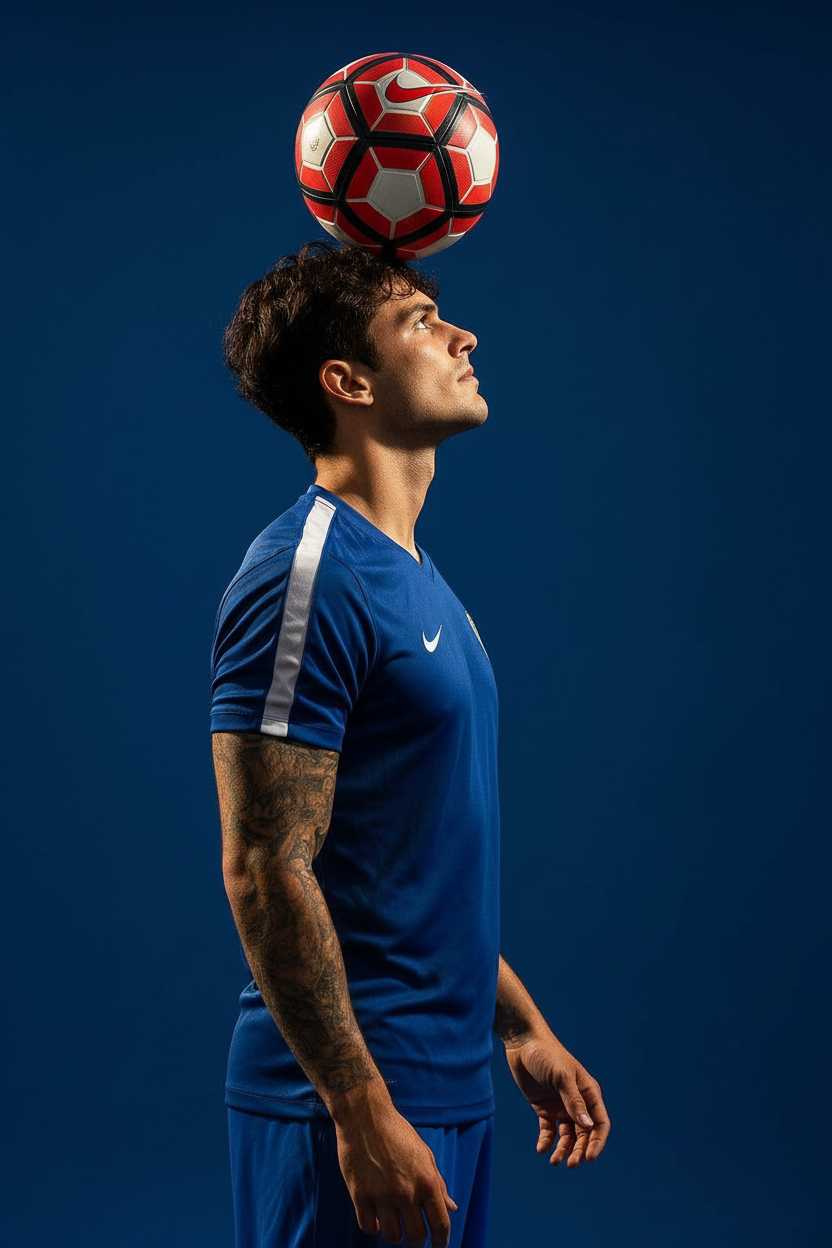
Balance in Focus

Balance in Focus

ai-image-editor

1 clip
6 uses

Any aspect ratio

Prompt

Portrait in profile view of the same subject, maintaining identical facial features and identity. The subject balances a red and white Nike soccer ball on their forehead, with an upright posture, elongated neck, closed lips, and a confident expression. They wear a professional soccer kit. Use a solid deep blue background with dramatic, high-contrast lighting and full, rich color rendering to emphasize form and precision

AI Image Editor Template – Turn Any Photo into a High-Impact Visual in Minutes

This template showcases what you can do with the AI Image Editor on Magic Hour: transform, clean up, and enhance any photo for marketing, product shots, UGC, social posts, or prototypes—without manual Photoshop work.

Use this page as both inspiration and a practical recipe you can remix inside Magic Hour.


What This Template Does

This template is built to help you:

  • Clean up or replace backgrounds for product, portrait, or lifestyle photos
  • Remove unwanted objects, logos, text, or people from an image
  • Add or swap in new visual elements (props, logos, UI mockups, merch designs, etc.)
  • Upgrade quality and sharpness for social, ads, landing pages, and decks
  • Generate multiple on-brand variations from a single source image

It’s ideal for:

  • Marketers preparing ad creatives and landing page images
  • Founders and PMs mocking up product visuals and experiments
  • Designers and content teams scaling image production
  • Creators and agencies producing client-ready assets at volume

Under the hood, it combines capabilities similar to inpainting/outpainting, background editing, and AI enhancement that you’d usually need multiple tools—or a designer—to achieve.


How to Remix This Template in Magic Hour

You can recreate or adapt this template inside Magic Hour using the AI Image Editor in a few steps:

  1. Open the AI Image Editor
    Go to the AI Image Editor and upload the photo you want to transform (product, selfie, team photo, banner, etc.).

  2. Define Your Goal Clearly
    Before editing, decide what this image is for:

    • Performance ad creative (Meta, TikTok, Google)
    • Hero image or section art for a landing page
    • Slide or deck visual for a pitch or investor update
    • Social content (LinkedIn carousel, Twitter/X graphic, Instagram post)

    A tight goal will help you make sharper decisions about what to remove, add, or emphasize.

  3. Remove or Clean Up Distractions
    Use the editor to erase:

    • Cluttered backgrounds
    • Random objects or people
    • Watermarks or overlapping UI elements
    • Text that needs to be replaced

    For heavier cleanup tasks, pair this with:

  4. Replace or Enhance the Background
    Turn a plain or messy photo into a polished scene that matches your brand or campaign.
    Combine AI Image Editor with:

    Once you’ve generated or cleaned a background, use the editor to seamlessly blend your subject into it.

  5. Add On-Brand Elements and Details
    Use the editor to integrate overlays, props, or design elements:

    If you don’t have assets yet, you can generate them first with the AI Image Generator or AI Art Generator, then compose everything together in the Image Editor.

  6. Improve Quality, Sharpness, and Consistency
    After you’ve done structural edits, finish with quality passes:

    This is especially valuable for ad creatives, homepage heroes, investor decks, and PDFs where compression often destroys detail.

  7. Create Multiple Variants for Testing
    With one source image, you can generate several versions tailored to channels and experiments:

    • Different crops and layouts for feeds vs. stories vs. banners
    • Variations by background, colorway, or environment
    • Persona-specific visuals (e.g., SMB office vs. enterprise boardroom)

    Use:


Advanced Remix Ideas for Creators and Teams

If you want to push this template further, here are some proven workflows used by marketers, founders, and creative teams:

1. Ad Creative Pipelines

2. Product & SaaS Mockups

3. Brand, Character, and Worldbuilding Visuals

If your product or campaign is more visual, narrative, or character-driven:

Then refine your scenes in the editor, ensuring consistent lighting, composition, and brand tone.

4. From Static Image to Video or GIF

Once you’re happy with your edited image, you can turn it into motion:


Example Use Cases This Template Supports


Tips for Better Results

  • Start from the highest-quality source image available. You’ll compound quality gains with AI Image Upscaler and Unblur Image.
  • Work backwards from the final context. Design the image specifically for the environment it will live in: landing page, ad format, PDF, or feed.
  • Separate structural edits from cosmetic ones. First handle removal, background, composition; then focus on polish and consistency.
  • Save “recipes” as internal standards. Keep a small set of repeatable patterns: one for LinkedIn carousels, one for performance ads, one for newsletters, etc., and remix this template to match each pattern.

Remix This Template for Your Workflow

This template is just one example of how to use the AI Image Editor as the central hub in your image pipeline. By combining it with targeted tools like:

you can build a flexible, reusable system for creating marketing-ready images in minutes, not days.

Open the AI Image Editor, upload your source image, and start remixing this workflow to match your brand, your funnel, and your next experiment.

More Like This

Insufficient credits