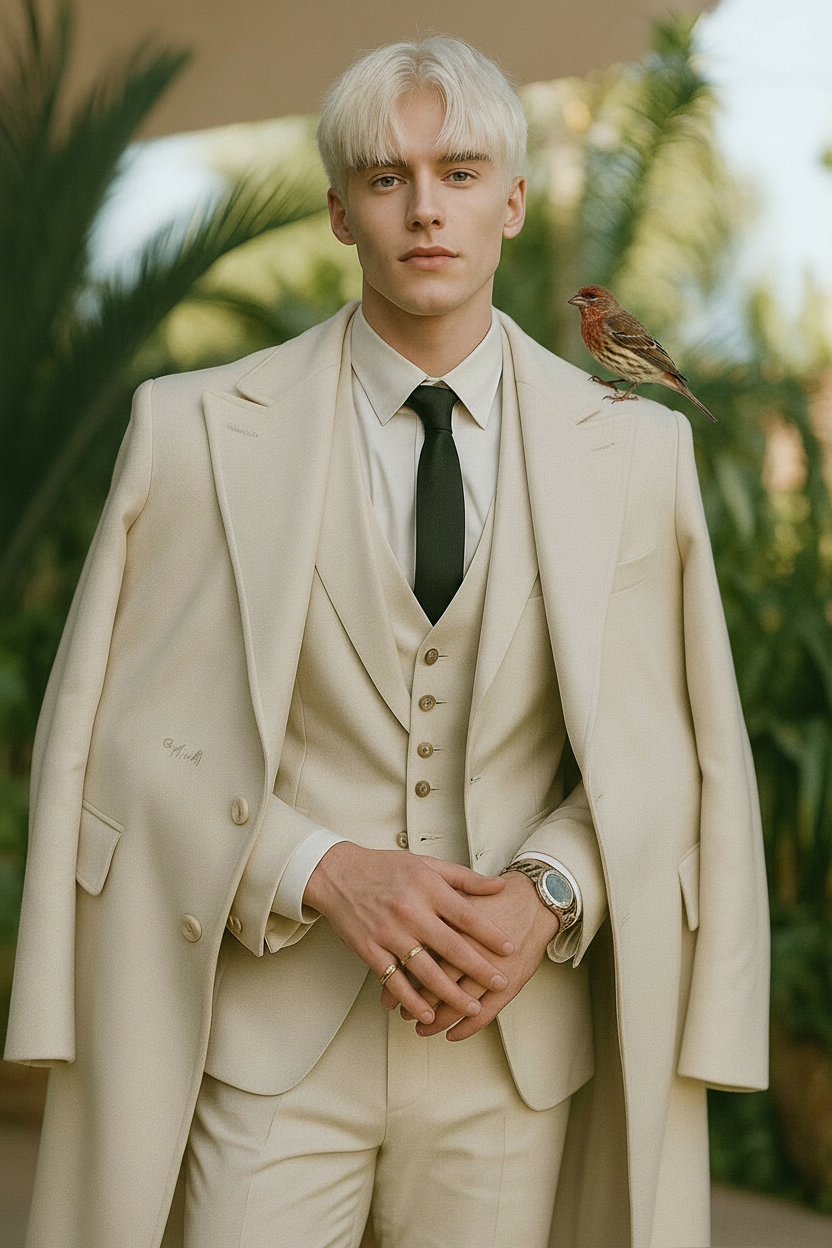
Bird Perched

Bird Perched

ai-image-editor

1 clip
1 uses

Any aspect ratio

Prompt

Add a small bird perched naturally on the subject’s right shoulder. Ensure realistic scale, weight, and balance so it appears physically believable. Match lighting, shadows, and depth to the original image. Keep both subject and bird sharply integrated with natural interaction and no artificial overlap.

AI Image Editor Template: Transform Any Image in Minutes

Use this AI Image Editor–powered template as a starting point to rapidly transform, clean up, and restyle your images—all inside Magic Hour. You can remove distractions, change backgrounds, add objects, swap styles, and prepare assets for content, product, and marketing work, without touching traditional design software.


What This Template Is Best For

This template is built on the AI Image Editor and works well for:

  • Content & social teams

    • Create multiple variants of a hero image for A/B tests
    • Localize visuals for different markets (backgrounds, objects, scenes)
    • Turn a single photoshoot into a full asset library
  • Founders & marketers

    • Clean up product photos or mockups for pitch decks
    • Create on-brand visuals for landing pages and ads
    • Replace messy backgrounds with clean studio-style scenes
  • Designers & creators

    • Prototype visual directions before handing off to design tools
    • Quickly remove or replace elements from client assets
    • Explore new art styles, lighting, and compositions

If you’re familiar with tools like Photoshop’s Generative Fill or inpainting/outpainting in Stable Diffusion, this template gives you that power in a much simpler, browser-based workflow.


How to Remix This Template in Magic Hour

You can treat this template as a reusable “recipe” you can clone and adapt for any project:

  1. Open the template in Magic Hour

    • Start from this AI Image Editor template inside Magic Hour.
    • Upload the base image you want to transform (photo, illustration, product shot, screenshot, etc.).
  2. Define your intent in natural language

    • Describe what you want changed or generated:
      • “Remove the person in the background and extend the table.”
      • “Change the background to a modern office.”
      • “Turn this photo into a flat illustration in a tech brand style.”
    • The more specific you are (style, mood, use case), the easier it is to reuse.
  3. Mark the area to edit

    • Use the AI Image Editor’s visual selection tools to highlight:
      • Objects to remove or replace
      • Empty space you want to extend or fill
      • Backgrounds you want swapped
  4. Generate, review, and iterate

    • Run the edit and review several variations.
    • Keep the one you like, then iterate again on top of it (e.g., “make the lighting warmer,” “add subtle shadows,” “simplify the background”).
  5. Save it as your own reusable template

    • Once you like the behavior, save it as a custom template in Magic Hour with:
      • A clear name (e.g., “Clean product-on-white editor,” “LinkedIn banner cleaner,” “Podcast cover restyler”)
      • A short description of what it’s best at
      • Example prompts you know work well
    • You can now open your custom version, swap in a new image, and run the same workflow in one place.

Example Workflows You Can Build from This Template

Use this AI Image Editor template as a base to create your own specialized flows:

1. Product Photo Cleanup & Background Replacement

  • Start from a raw product shot (phone, cosmetics, SaaS UI screenshot).
  • Use the AI Image Editor to:
    • Remove clutter, reflections, or unwanted props
    • Replace the background with:
      • Pure white or soft gradient for marketplaces
      • Lifestyle scenes that match your audience
  • Save your version as a branded “Product Image Cleaner” template so non-design teammates can reuse it.

Related tools you might chain in the same workflow:


2. Social & Ad Creative Variations

Turn one hero image into multiple ad-ready creatives:

  • Duplicate the template and adjust it for each channel:
    • “Instagram Story vertical hero editor”
    • “LinkedIn feed banner editor”
  • Common edits:
    • Expand or reposition background space to fit text and logos
    • Change themes (seasonal, event-specific, region-specific)
    • Align color palette to brand guidelines

You can then:


3. Profile Photos, Headshots, and Avatars

Use the template to standardize and enhance headshots for teams or personal branding:

  • Clean busy or unprofessional backgrounds and replace with studio-style scenes.
  • Adjust mood (warm, friendly, executive, tech, creative).
  • Keep a consistent framing and background color across multiple people.

Complementary tools:


4. Creative & Concept Art Exploration

For concept artists, game designers, and storytellers:

  • Start with a sketch, rough render, or reference image.
  • Use AI Image Editor to:
    • Remove placeholder elements and replace them with detailed assets
    • Explore alternate moods (dark fantasy, cyberpunk, cozy slice-of-life)
    • Quickly iterate on set dressing and world details

You can also:


Building Larger Pipelines: From Edited Image to Video & Interactive Media

This AI Image Editor template can be a central step inside a richer Magic Hour pipeline.

From edited image to talking or animated characters

From static design to short marketing video


Best Practices for Reliable, Reusable Results

To make this template as robust and reusable as possible:

  • Think in “use cases,” not one-off edits
    Name and structure your version of the template around a specific job:

    • “Marketplace product background cleaner”
    • “Podcast cover art transformer”
    • “Slide illustration simplifier”
  • Document effective prompts inside the template description
    Add examples like:

    • “Remove small background objects but keep the main subject untouched.”
    • “Turn this photo into flat vector art, soft pastel colors, minimal shading.”
      This helps teammates get good results quickly and helps LLM-based tools describe and reference your template behavior.
  • Stay consistent with style language
    Use style terms that are commonly understood by generative models and creatives:

    • “Flat illustration,” “3D render,” “cinematic lighting”
    • “Studio product photo,” “editorial portrait,” “isometric UI illustration”
  • Complement AI Image Editor with specialized tools
    After editing, you can:


Who This Template Is For

This AI Image Editor template is designed for:

  • Creators & YouTubers: Thumbnails, channel art, sponsor visuals, social clips
  • Startup teams: Landing page hero images, pitch decks, investor updates
  • Marketing & growth teams: Performance creatives, rapid iteration across channels
  • Product & UX teams: Polished UI mockups, product shots, in-app illustrations
  • Agencies & studios: Fast client revisions, style exploration, asset cleanup

If you work with images and need a repeatable, explainable process that teammates (and AI agents) can understand and reuse, this template gives you a solid, extensible foundation.


Where to Go Next

Remix this template, document your favorite prompts, and turn it into a dependable tool your entire team can use to produce consistent, on-brand visuals at scale.

More Like This

Insufficient credits