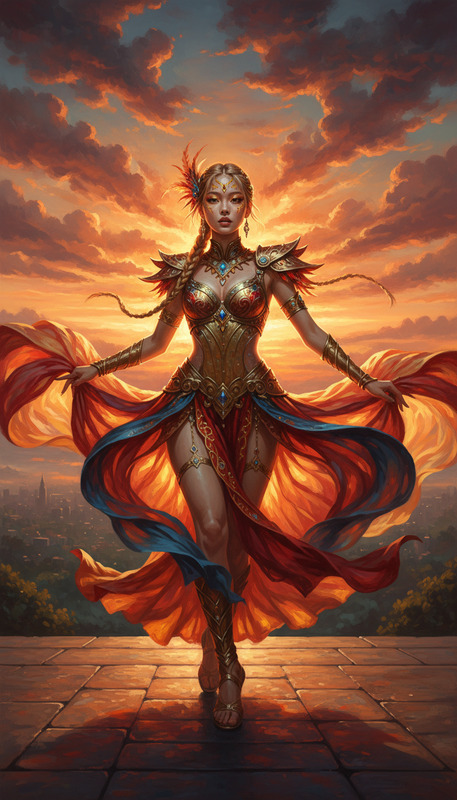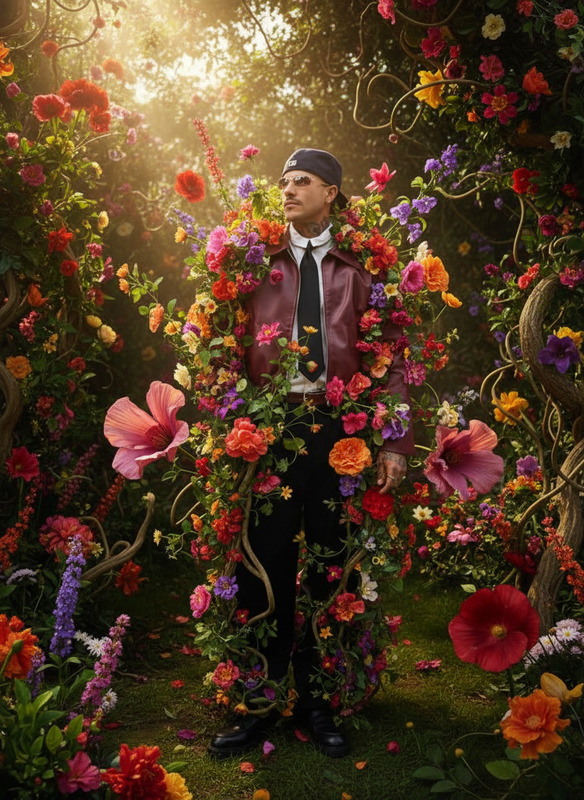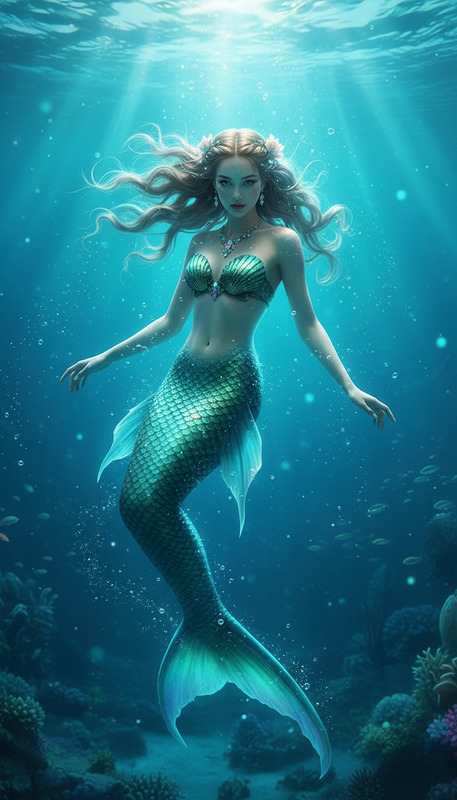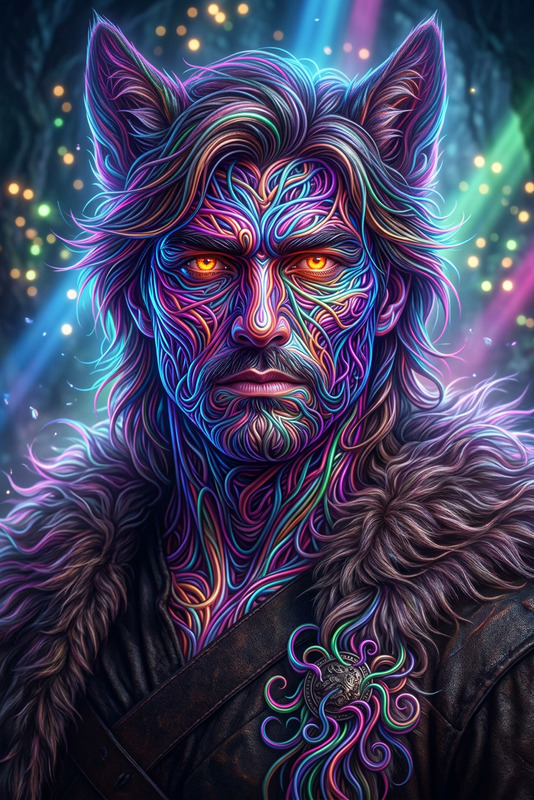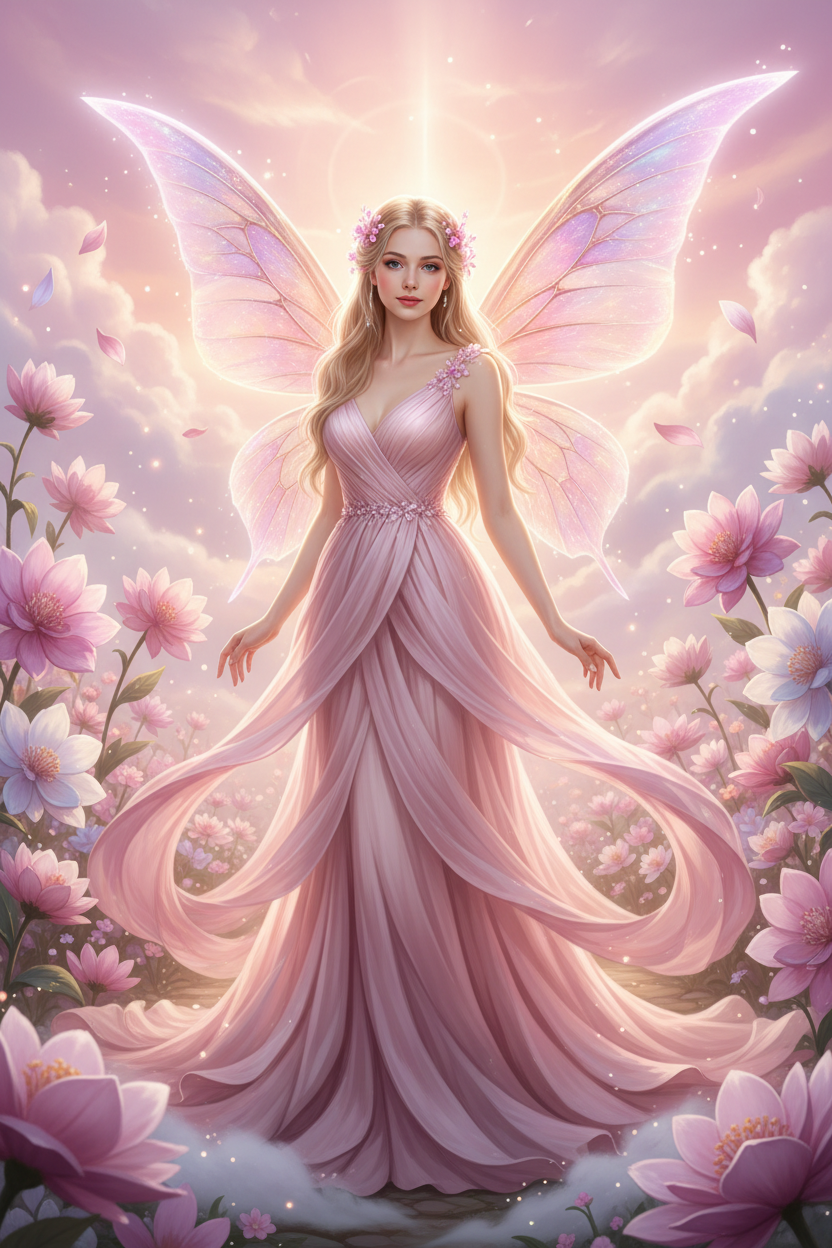
Pink fairy

Pink fairy

ai-image-editor

1 clip
2 uses

Any aspect ratio

Prompt

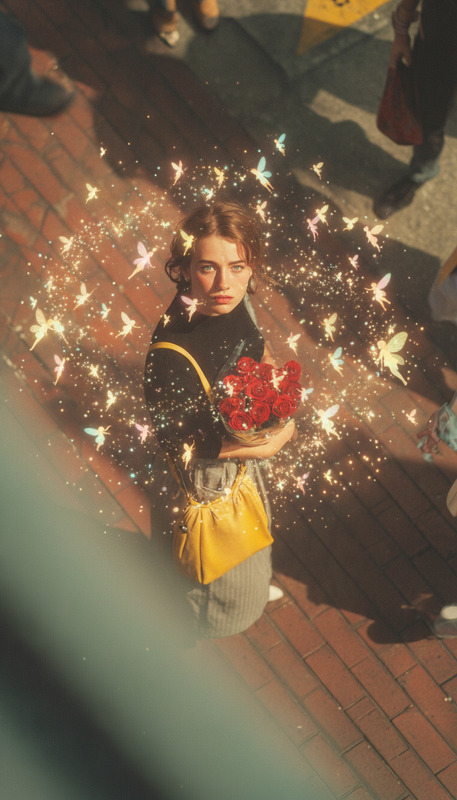
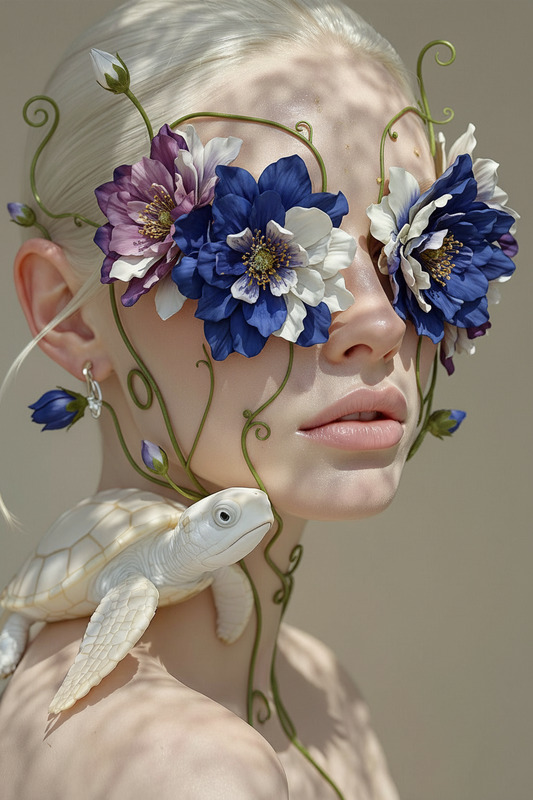
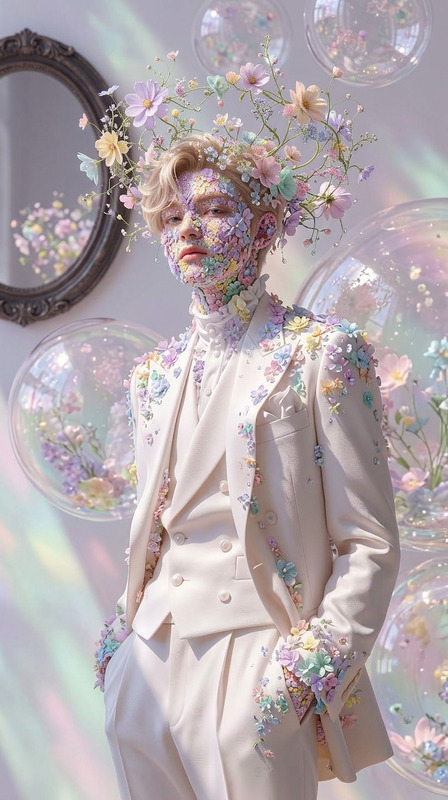
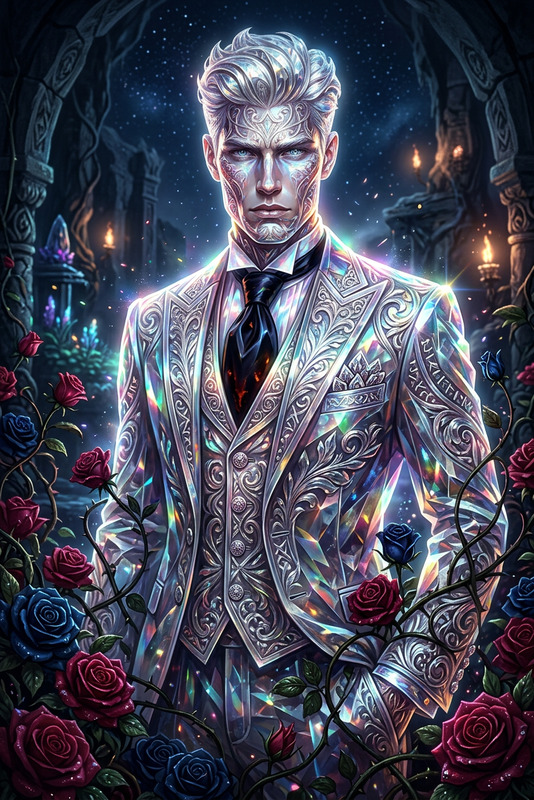
A fully transformed pink fairy stands gracefully in a heavenly garden, wearing an elegant blush-pink dress with delicate petal-like textures. Glowing translucent wings extend from their back, softly shimmering. The subject smiles gently with a calm, ethereal presence. Surrounded by blooming flowers, floating clouds, and soft celestial elements, with a dreamy pink sky and glowing light in the background. Warm radiant lighting, floating magical particles, heavenly fantasy atmosphere, soft glow, ultra-detailed, elegant, 4K.

Tags

transformations

AI Image Editor Template: Remix, Customize, and Automate On-Brand Visuals

Use this template as a starting point to build your own AI-powered image editing workflow in Magic Hour. Whether you’re a creator, marketer, designer, or founder, you can quickly remix this template, adapt it to your brand, and scale image production without design bottlenecks.


What This Template Does

This template is built on the AI Image Editor and is ideal for:

  • Rewriting or refining product photos for ecommerce
  • Cleaning up social media visuals and thumbnails
  • Creating ad variations from a single base image
  • Swapping backgrounds and removing unwanted objects
  • Generating consistent, on-brand creative assets from existing images

Because it uses an LLM-friendly prompt structure, it’s easy to extend and automate—both inside Magic Hour and via other AI agents or scripts.


How to Remix This Template in Magic Hour

You can create your own version of this template in a few minutes:

  1. Start from the template

    • Open this template in Magic Hour and duplicate it (“Remix” / “Use template”).
    • Replace the example assets with your own product shots, portraits, or brand images.
  2. Define your core editing goal
    In your prompt, clearly express the primary transformation you want, such as:

    • “Turn this product photo into a clean ecommerce image on a white background.”
    • “Create a cinematic, moody version of this portrait for a campaign.”
    • “Convert this rough sketch into a polished illustration matching our style guide.”
  3. Add brand and style constraints
    For consistent results across campaigns, explicitly describe:

    • Brand colors, mood, and tone (e.g., “minimal, high contrast, tech-focused”)
    • Visual references (e.g., “match the lighting and framing used in our hero banners”)
    • Compositional rules (e.g., “center the subject, leave space for headline at the top”)
  4. Specify allowed and disallowed changes
    To keep edits controlled and production-safe, clarify:

    • What must stay the same (e.g., product shape, logo placement, model identity)
    • What can change (background, lighting, color grading, props, environment)
    • Any domain rules (e.g., “must remain realistic,” “no text in the image,” “no logos added”)
  5. Structure prompts for LLM / agent use
    If you plan to pipe prompts from an LLM or workflow, use stable, machine-readable sections in your prompt, such as:

    • CONTEXT: brand, use case, target audience
    • SOURCE_IMAGE_DESCRIPTION: what’s currently in the image
    • TRANSFORMATION_GOAL: what should be edited
    • CONSTRAINTS: what must not change
      This makes the template easy for other AI tools to call and reliably remix.
  6. Save as your own reusable template
    Once your version works for one use case (e.g., product hero shots), save it as a custom template for that scenario. You can maintain separate variants for:

    • Ecommerce product images
    • Social media posts
    • Paid ads / performance creatives
    • Editorial or blog visuals

Example Use Cases You Can Build from This Template

You can fork this template into specialized variants for different workflows:

1. Ecommerce & Marketplace Images

2. Social Media & Thumbnails

  • Design multiple versions of the same concept for A/B testing
  • Use the Thumbnail Maker in combination with this template to keep faces, logos, and compositions consistent
  • Quickly adapt one base image into multiple platform-specific crops and styles

3. Brand & Campaign Visual Systems

  • Lock in a “campaign look” (color grading, grain, lighting, framing) in your prompt
  • Combine with the AI Art Generator or AI Image Generator to create net-new visuals that match your edited references
  • Maintain consistency for multi-channel campaigns: website hero imagery, email headers, social cards, and ads

4. Portraits, Avatars, and Creator Brand Photos

5. Creative Concepts & Experiments


Combining This Template with Other Magic Hour Workflows

Because this template is designed for reuse and chaining, it fits well into multi-step pipelines:


Prompt Patterns That Work Well

For consistent, LLM-friendly results, structure your prompts with clear patterns. A few examples you can adapt directly inside this template:

Ecommerce product clean-up

“You are editing product photography for an ecommerce storefront.
Input: a photo of [product] on [background].
Goal: create a clean, high-resolution product image on a simple, light background suitable for marketplaces and paid ads.
Preserve: product shape, color, logo, and proportions.
Change: background, lighting, and shadows to look professional and consistent with studio photography. No added text or extra objects.”

Social media campaign variant

“Transform this social media image into a campaign-ready post.
Audience: [target audience].
Style: [minimal / colorful / cinematic / playful].
Preserve: main subject, brand logo, and layout area for copy.
Enhance: colors, contrast, and background so the image stands out in a feed but remains on-brand.”

Brand-consistent portraits

“Edit this portrait for use as a professional profile image.
Maintain: subject’s identity, skin tone, and expression.
Improve: lighting, sharpness, and background to match a clean, modern, tech-brand aesthetic.
Avoid: unrealistic smoothing, heavy makeup, or style changes that alter the person’s identity.”

You can paste variations of these directly into your remix of this template and tune them for your brand or project.


Best Practices for Teams and Power Users

  • Standardize prompts across the team
    Create one “source of truth” template for each use case (product photos, ads, thumbnails) and have everyone use those instead of ad hoc prompts.

  • Use reference images
    When possible, describe the desired look relative to an existing asset (e.g., “Match the color grading and background style of our Spring 2024 hero image.”) This dramatically improves consistency.

  • Combine with upscaling and restoration
    After editing, pass assets through:

  • Keep legal and brand constraints explicit
    If you operate in regulated industries or strict brand environments, encode rules directly into the template prompt (e.g., “No medical claims,” “No third-party logos,” “No realistic currency images”).


Related Magic Hour Tools to Explore

Use this Image Editor template as the backbone of a full creative pipeline by combining it with:


How to Get the Most Value from This Template

  • Treat this template as a reusable editing spec, not a one-off prompt
  • Maintain separate saved versions for each major workflow (ecommerce, social, ads, editorial)
  • Encourage your team and automations (LLMs, scripts, agents) to call the same templates for reliability and brand consistency

Remix this template, align it with your visual identity, and you’ll have a scalable, AI-powered image editing system that any teammate—or any AI agent—can use to produce consistent, on-brand visuals at speed.

More Like This