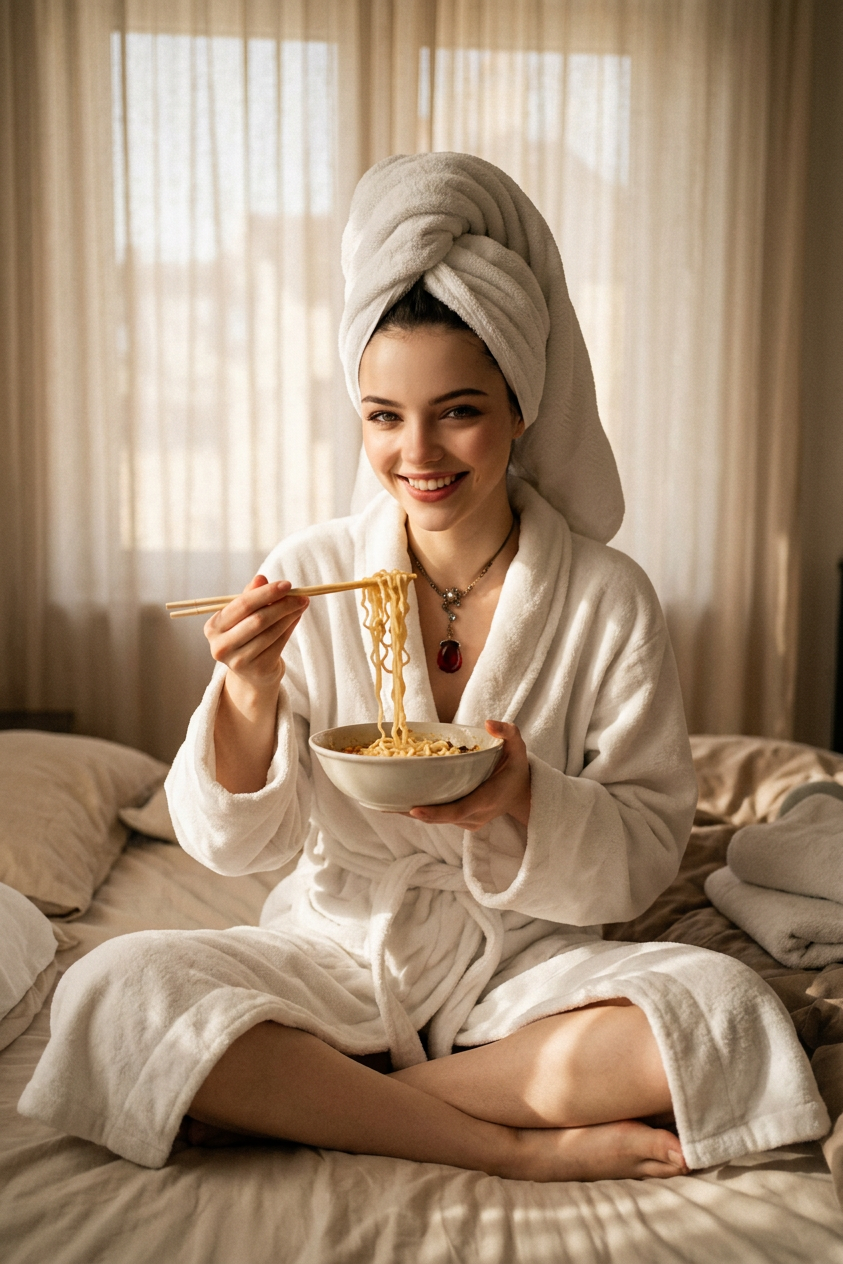
Bathrobe Snapshot

Bathrobe Snapshot

ai-image-editor

1 clip
0 uses

Any aspect ratio

Prompt

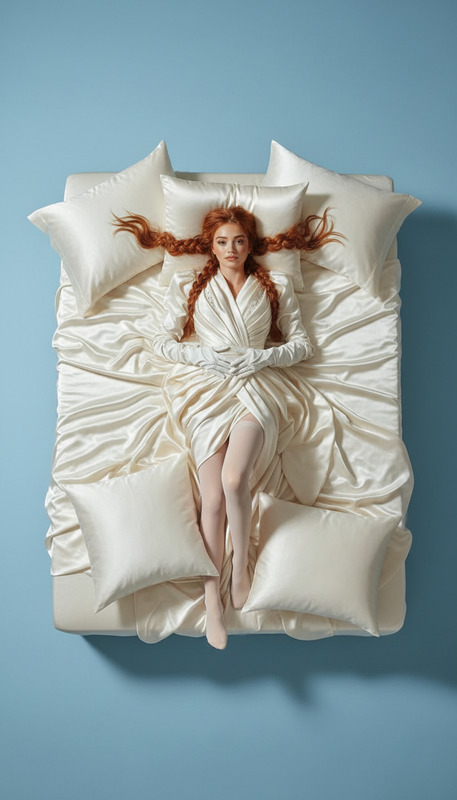
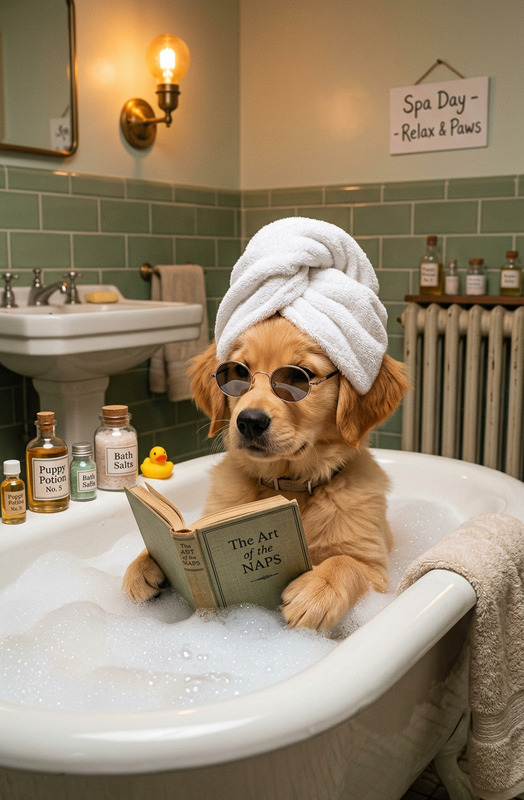
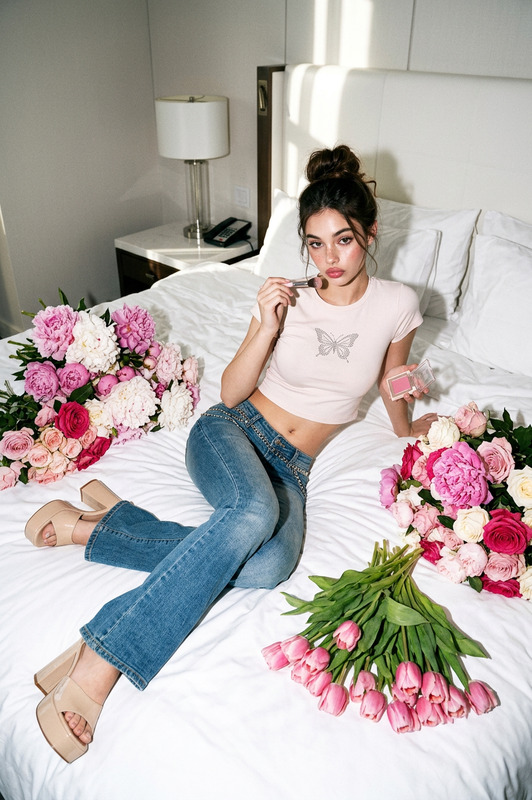
A cozy snapshot of a subject in a white bathrobe and towel turban, sitting cross-legged on a bed while eating noodles. Warm ambient lighting diffuses through sheer curtains, creating a soft glow. The scene blends spa-like relaxation with a casual, intimate moment. Subtle grain, warm highlights, and soft shadows enhance the candid, unfiltered aesthetic.

AI Image Editor Template: Turn Any Photo Into a Clean, On‑Brand Visual in Minutes

This template shows how to take a raw photo and transform it into a polished, on‑brand image using the AI Image Editor. It’s designed for creators, marketers, founders, and teams who need production‑quality visuals fast—without design overhead.

Use it to:

  • Clean up product photos for landing pages and ads
  • Replace messy backgrounds with clean, branded scenes
  • Fix small issues in photos (distractions, objects, blemishes)
  • Adapt one “master” asset into multiple channel‑specific variants (social, email, app store, thumbnails)

What This Template Does

With this AI Image Editor–based template, you can:

  • Remove or change backgrounds
    Instantly isolate your subject and drop it into a new environment (studio background, lifestyle scene, gradient, brand color, etc.). For deeper control, combine it with the image background remover and AI background generator.

  • Edit or remove unwanted objects
    Clean up distractions (logos, people, clutter) with the AI remover or the dedicated remove object from photo tool, then refine with the editor.

  • Enhance and upscale images
    Sharpen, denoise, and enlarge images for high‑resolution exports (landing pages, print, app stores) using the AI image upscaler and unblur image tools.

  • Style and restyle visuals for different use cases
    Take one base shot and generate multiple outputs:

    • Ad creatives vs. product detail pages
    • Social tiles vs. email headers
    • Organic “UGC”‑style vs. premium studio shots

For brand‑heavy workflows, you can also generate fully new scenes and composites with the AI art generator, AI image generator, or AI photo generator, then fine‑tune them in AI Image Editor.


How to Remix This Template in Magic Hour

You can create your own version of this template (or adapt it to your brand) in a few minutes. Here’s a practical, repeatable workflow:

  1. Start from the original template

    • Open this template in Magic Hour.
    • Click “Remix” (or the equivalent action in your workspace) to clone it into your own project.
    • This gives you a safe copy you can modify without affecting the original.
  2. Swap in your own input image(s)

  3. Define your “target” look and constraints
    Use the prompt area in the AI Image Editor to describe the output you want. Be explicit about:

    • Style: “Clean studio lighting, soft shadows, minimalistic, no clutter.”
    • Brand cues: “Use background color close to #0F172A; avoid bright reds; modern tech‑SaaS look.”
    • Framing: “Centered subject, enough negative space on left for text overlay.”
    • Consistency: “Match previous images from this campaign; same perspective and lighting.”

    If you don’t have a brand style yet, you can prototype one quickly using:

  4. Iterate visually, not just verbally

    • Generate a first pass, then visually inspect:
      • Are edges clean?
      • Does the background compete with the subject?
      • Are colors aligned with your brand?
    • Refine your instructions in short, specific lines:
      • “Less contrast, softer shadows.”
      • “Background more muted; remove reflections.”
      • “Keep hands and product fully visible.”
    • Repeat until it hits your quality bar. For performance creatives, this is where you can branch off multiple variants for A/B testing.
  5. Create reusable “recipes” for your team
    Once you have an image you like:

    • Save it as a new template in your Magic Hour workspace.
    • Add example prompts in the template description (e.g., “Use this for social posts” / “Use this for App Store screenshots”).
    • Document when to use this template vs. others (e.g., “Launch campaign hero” vs. “Retention lifecycle emails”).

    Over time, this evolves into a lightweight design system that anyone on your team can use—founders, PMs, growth, content—without bottlenecking design.


Smart Ways Creators and Teams Use This Template

For marketers and growth teams

  • Build and test multiple ad creatives from a single product shot
  • Localize imagery for different markets (backgrounds, props, environments)
  • Create consistent social, blog, and email visuals at campaign speed
  • Turn static images into motion assets via image to video or AI GIF generator

For product teams and startups

  • Rapidly prototype UI mockups and product shots for decks and landing pages
  • Generate polished app screenshots, then reuse them in video explainer content with text to video or image to video
  • Clean up investor deck visuals without a dedicated designer

For creators and personal brands


Combine With Other Magic Hour Tools for Advanced Workflows

You can chain this template with other Magic Hour tools to build more complex, automated workflows:


Best Practices for High‑Quality, On‑Brand Outputs

  • Start with the highest‑quality input you have
    Use uncompressed or high‑resolution images where possible. If your source is low‑res, run it through the AI image upscaler or old photo restoration first.

  • Be explicit, not poetic, in prompts
    Clear constraints beat vague aesthetics. For example:

    • Instead of: “Make this look cool and modern.”
    • Use: “Neutral background, minimal shadows, no extra objects, tech brand aesthetic, cool color palette (blues/greys).”
  • Design for the destination channel
    Decide upfront where the image will live:

    • Performance ads: high clarity, clear subject, bold contrast
    • Landing pages: more negative space for copy, softer contrasts
    • App store: legible on small screens, simplified backgrounds
  • Standardize as you scale
    Once you find a combination that works (prompt + type of input photo + editing steps), capture it as:

    • A saved template in Magic Hour
    • A short internal “playbook” so others can reuse it consistently

When to Use This Template vs. Other Magic Hour Tools

Use this AI Image Editor–based template when:

  • You already have a photo and need it cleaned, fixed, or adapted
  • You care about brand consistency and production quality
  • You want repeatable outputs your whole team can reproduce

Reach for other tools when you need to:

In many cases, the most effective workflow is generate → edit → animate, with this template providing the “edit” layer that keeps everything clean and on‑brand.


Get Started

  1. Open this template in Magic Hour.
  2. Remix it into your workspace.
  3. Swap in your own images, refine the prompt, and save your version as a reusable template.

From there, you can connect it with other Magic Hour tools—like image to video, text to video, or the animation template—to turn your edited images into full campaigns, product demos, or marketing assets in a single workflow.

More Like This