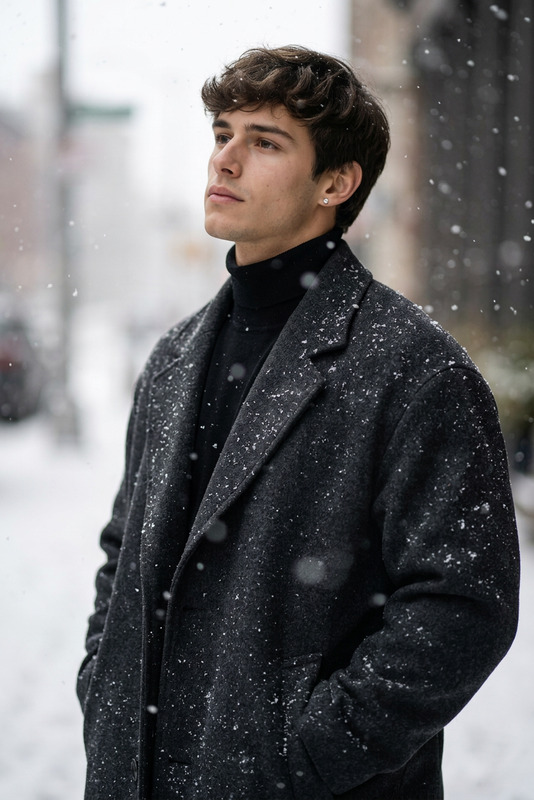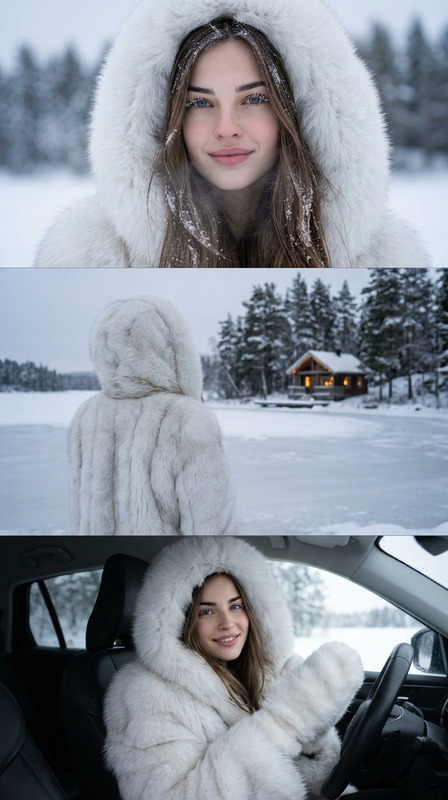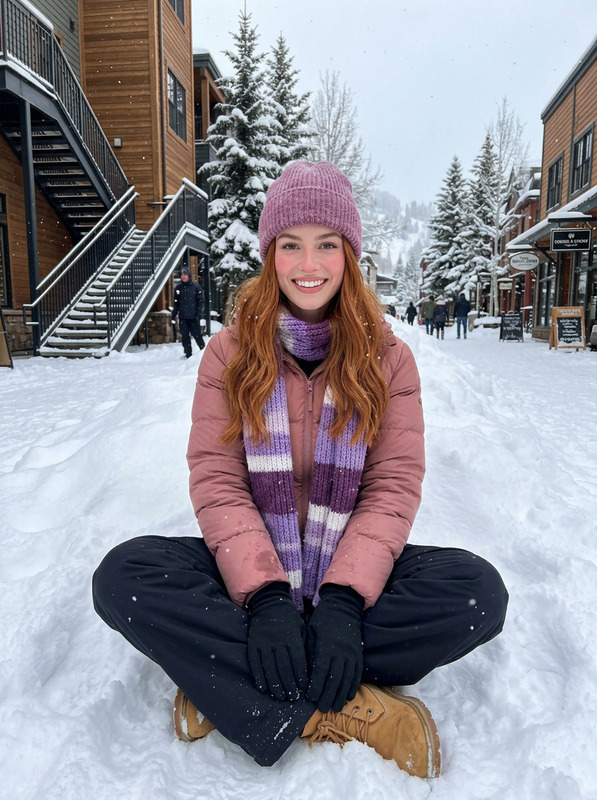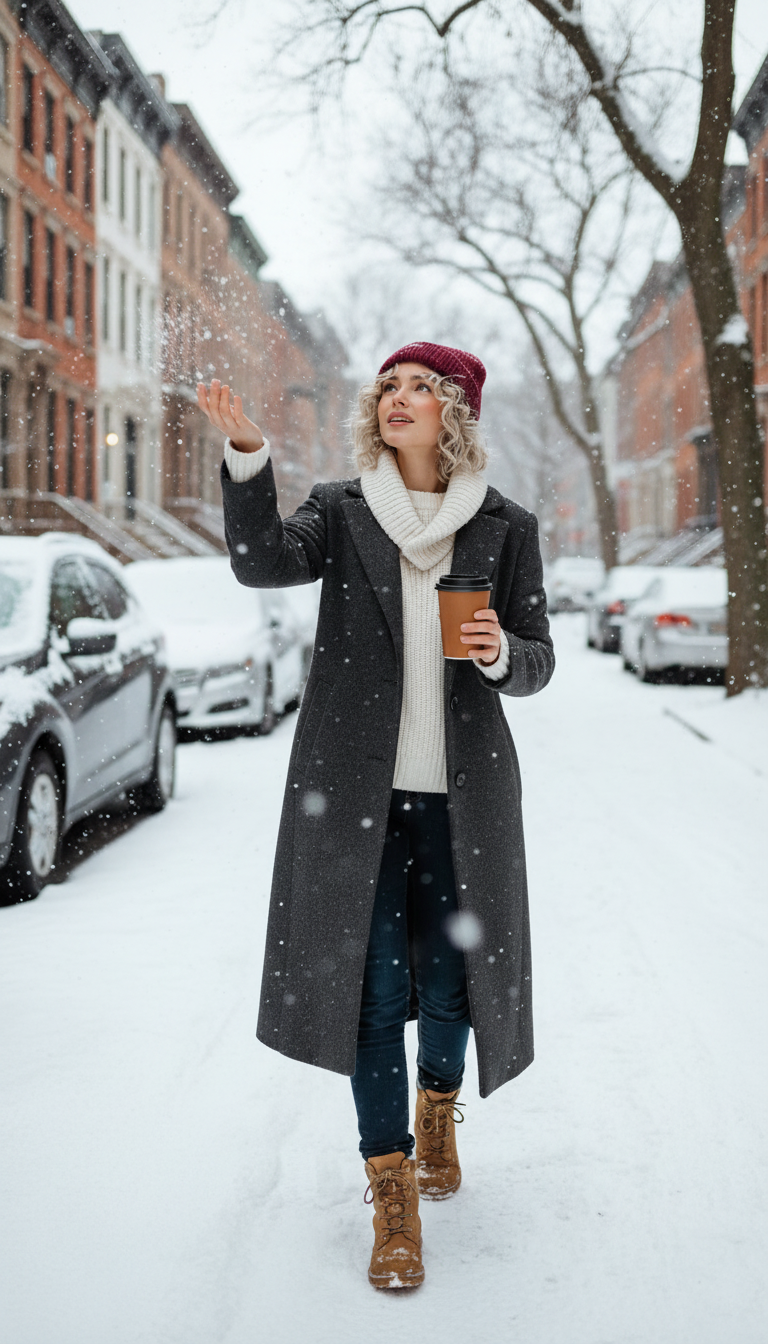
First snow coffee walk
ai-image-editor
Any aspect ratio
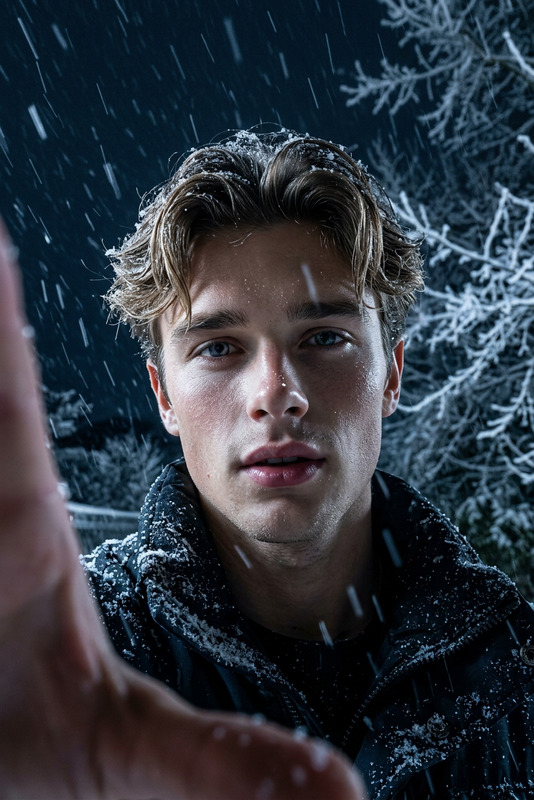
Subject walking along a quiet residential street during the first light snowfall, catching snowflakes on an outstretched palm while holding a ceramic keep-cup in the other hand. Wearing a long charcoal wool coat over a thick cream fisherman-knit sweater with a rolled collar, dark indigo jeans, and tan lace-up winter boots with light snow accumulation. Burgundy wool beanie pulled low, blonde hair in loose waves underneath. Street covered in fresh untouched snow, parked cars lightly dusted, brownstone stoops frosted, bare trees lined with snow. Soft overcast lighting with muted tones, warm window glows and amber cup adding contrast. Captured mid-step looking up at falling snow with a calm, wonder-filled expression, visible snow streaks near lens, candid natural photography style.
Realistic Face Replacement for Images (Template)
Transform any photo by swapping faces in seconds using the Magic Hour AI Image Editor. This template is designed for creators, marketers, and founders who need fast, realistic face replacement for campaigns, prototypes, and content experiments—without touching Photoshop.
What this template does
This template shows you how to:
- Replace a face in an image with another person’s face (photo or AI-generated)
- Preserve lighting, pose, and expression for a realistic result
- Clean up edges, adjust background details, and upscale the final image
- Remix the template to build your own specialized workflows (e.g., ads, product shots, thumbnails)
You can use it for:
- Marketing & ads – test different models or personas in the same visual
- Product & landing pages – localize faces for different regions or audiences
- Content & UGC – anonymize faces while keeping body, setting, and style
- Pre‑visualization – pitch concepts before booking shoots or talent
- Design & creative – experiment with different characters in the same scene
How to remix this template in Magic Hour
You can recreate and extend this template entirely inside Magic Hour with the AI Image Editor:
Start from this template
- Open this template in Magic Hour.
- Duplicate it to create your own “remix” version so you can edit freely.
Swap in your own base image
- Replace the example background or portrait with your own uploaded image.
- Choose photos where the subject’s face is reasonably visible (frontal or ¾ view works best).
Add your target face
- Upload your target face photo (e.g., model, team member, influencer, persona).
- For consistent identity across images and videos, consider pairing this with:
- Face Swap for general face replacement
- AI Face Generator to create synthetic faces
- AI Selfie Generator for stylized portraits
Use AI Image Editor to perform the swap
- In the AI Image Editor, select the face region you want to replace.
- Apply the face swap transformation so the new face matches the original lighting, angle, and style.
- If needed, refine edges (jawline, hairline, ears) by re‑masking a smaller area around the face.
Refine, clean up, and enhance
- Remove unwanted artifacts, text, or logos with:
- Fix or change the background with:
- Sharpen and upscale the final result using:
Save your version as a reusable template
- Once your workflow is dialed in, save it as your own template inside Magic Hour.
- Reuse it with new faces and base images to keep your brand visuals consistent.
Best practices for realistic face swaps
Modern face-swapping and image-editing systems build on generative models such as StyleGAN and diffusion-based architectures (see, e.g., Karras et al., “StyleGAN,” NVIDIA; Rombach et al., “High-Resolution Image Synthesis with Latent Diffusion Models,” CVPR 2022). To get results that look natural and production‑ready, follow these practical guidelines:
1. Choose strong source images
For both the base image and the target face:
- Use high‑resolution photos where the face is not heavily compressed or blurred.
- Prefer consistent angles: a ¾ view face onto a ¾ view base image looks more natural.
- Keep expressions compatible: swapping a neutral face onto a laughing pose can look off.
If you don’t have the perfect face reference, generate one using:
- AI Face Generator for custom identities
- Avatar Generator for stylized profiles
- AI Headshot Generator for professional portraits
2. Match style and context
For convincing composites:
- Align lighting and color temperature between the two images.
- Keep art style consistent (photo on photo, illustration on illustration, anime to anime).
- If you want stylized faces, first create them with:
3. Clean edges and surrounding details
Subtle cues around the face often reveal a fake. In the AI Image Editor:
- Include hairline, ears, and part of the neck in the edited area when needed.
- Use object removal tools to fix overlapping artifacts (glasses, jewelry, stray hair).
- If clothing or style needs to change as well, pair with:
Going beyond still images
If you like how the face swap looks in a single image, you can extend the same identity across motion and campaigns.
- Turn your edited portrait into a talking character with:
- Face-swap in motion for short clips or memes:
- Sync your edited face to audio or voiceovers:
- Turn static art or character designs into motion:
This makes it possible to prototype full campaigns—image, video, and voice—around a synthetic or anonymized persona, directly in Magic Hour.
Example workflows this template enables
1. Marketing localization
- Start with a core product shot.
- Use the AI Image Editor to swap in faces representing different regions or demographics.
- Adjust clothes or styling with AI Clothes Changer.
- Generate localized variants of the same creative with minimal design overhead.
2. Creator thumbnails & social content
- Swap yourself or collaborators into trending formats and reference shots.
- Combine face swaps with:
- Maintain visual consistency by saving and reusing your own remix of this template.
3. Privacy‑preserving visuals
- Replace real faces with synthetic ones to protect identities in case studies or internal decks.
- Generate synthetic but realistic people with AI Face Generator.
- Use AI Remover and Watermark Remover to clean sensitive details and overlays.
Related Magic Hour tools for advanced use cases
If you’re building more complex creative pipelines, this template pairs well with:
Content creation & ideation
Brand & identity systems
Character and world-building
Photo enhancement & repair
Ethical and practical considerations
Face editing and swapping are powerful and should be used responsibly:
- Obtain consent from people whose faces you use, especially in commercial contexts.
- Disclose synthetic or heavily edited media in ads, investor decks, and public content.
- Avoid misleading or harmful uses, such as deepfakes intended to impersonate real individuals.
Many responsible‑AI guidelines from organizations and researchers (e.g., Partnership on AI’s “Responsible Practices for Synthetic Media”) emphasize transparency, consent, and context. Building your workflows around this template makes it easier to standardize those practices inside your team.
How to get started
- Open the template in Magic Hour.
- Remix it by swapping in your own base image and target face.
- Use the AI Image Editor plus the linked tools above to refine and extend your workflow.
- Save your customized version as a reusable template for your team or project.
Use this page as a reference whenever you want to build or adapt high‑quality, realistic face‑replacement flows directly in Magic Hour.