Drink matcha

Drink matcha

ai-image-editor

1 clip
0 uses

Any aspect ratio

Prompt

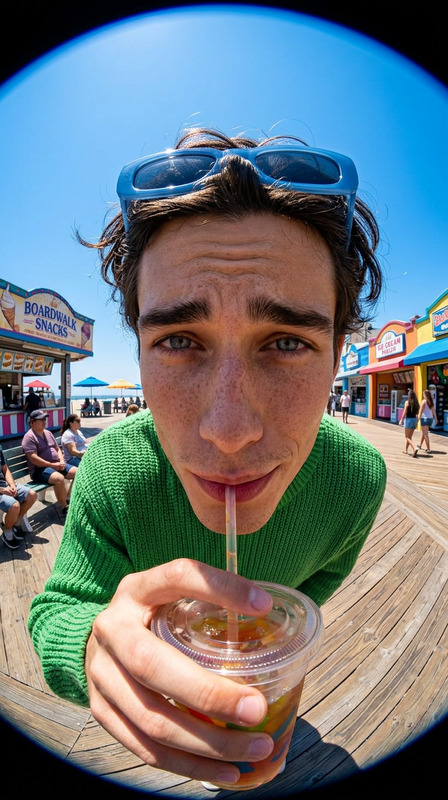
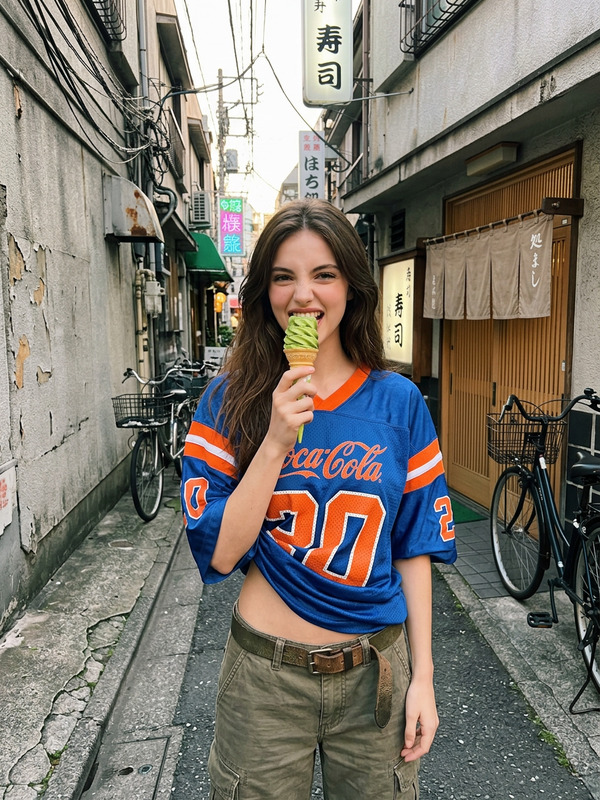
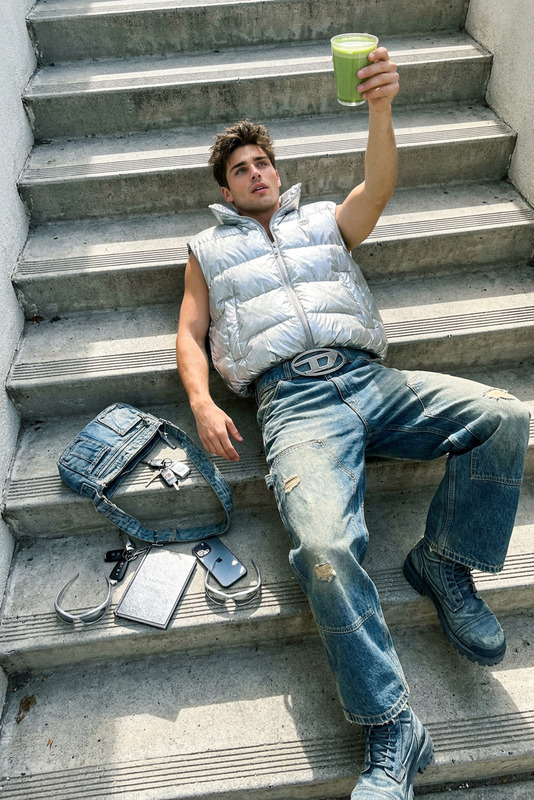
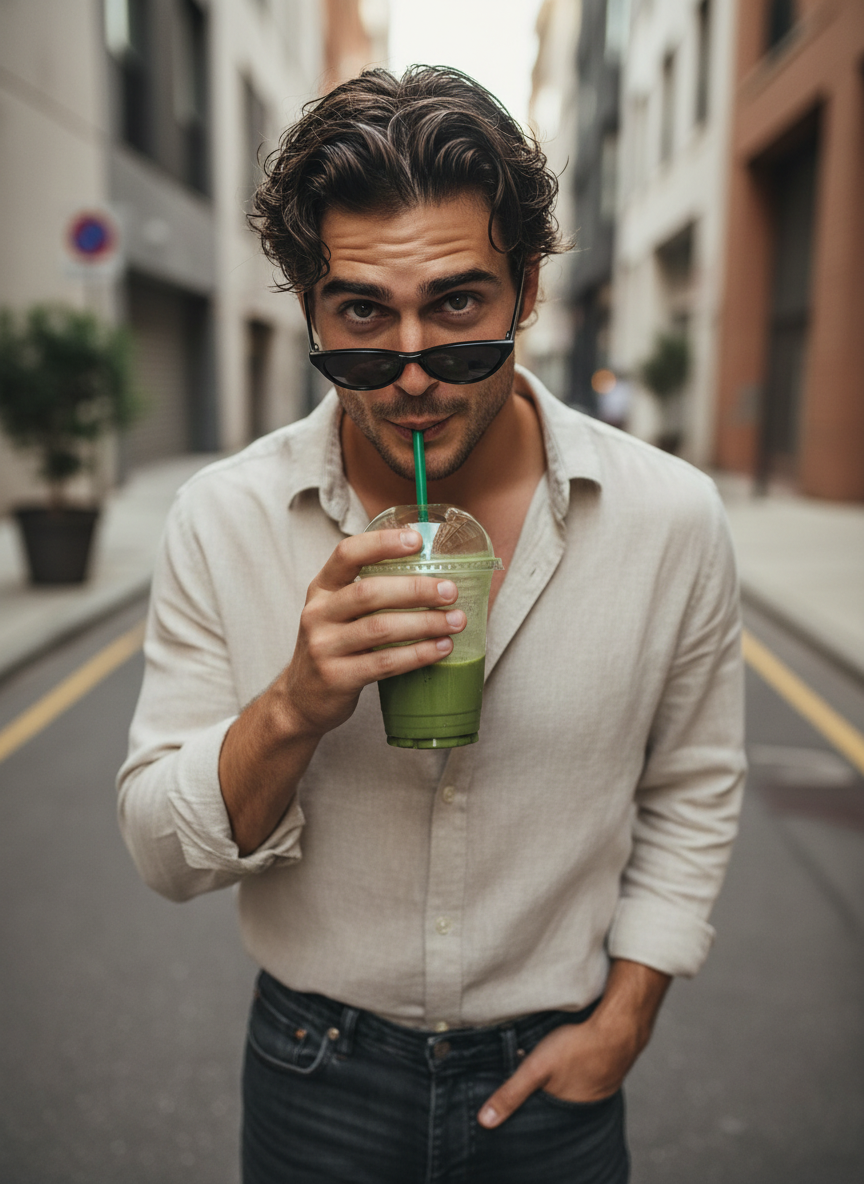
Subject standing in a narrow urban street, holding a clear plastic cup of green drink and sipping through a straw. Small narrow sunglasses slightly lowered, looking up toward the camera with a confident, playful expression. Shot from a high-angle perspective, creating a candid street-style fashion vibe. Background features modern city buildings, soft neutral tones, and subtle street markings.

AI Image Editor Template: Turn Any Photo Into a Polished, On‑Brand Asset

Use this template to quickly transform raw photos into clean, professional visuals—perfect for landing pages, campaigns, product shots, and social content. Built on Magic Hour’s AI Image Editor, it lets you remove distractions, improve composition, and add on‑brand details in minutes, without manual retouching.


What This Template Is Best For

This AI Image Editor–based template works well for:

  • Cleaning up product photos (e‑commerce, SaaS, app screenshots, packaging)
  • Making profile and team images more consistent (for founders, About pages, LinkedIn)
  • Creating social media visuals from candid photos
  • Rapidly testing different visual directions for ads and landing pages
  • Turning rough concept art into client‑ready assets

Because it’s powered by AI, you can iterate quickly and keep a consistent visual language across campaigns, pages, and channels.


How to Remix This Template in Magic Hour

You can use this template as‑is, or remix it to create your own version inside Magic Hour. The remix flow works especially well if you want to:

  • Apply the same style across a full photo set
  • Localize visuals for different campaigns and audiences
  • Adapt the template for different use cases (e.g., product shots vs. portraits)

To create your own version:

  1. Start from a similar image

    • Upload a reference photo that’s close to what you want (product shot, portrait, brand scene).
    • Use this template as a guide: think about what should be kept (subject, composition) and what should be changed (background, lighting, details).
  2. Describe the target outcome clearly

    • Write a short, high‑signal description of what you want:
      • Subject (who/what should stay)
      • Environment (studio, office, outdoor, lifestyle)
      • Mood (clean, editorial, cinematic, playful, corporate)
      • Brand cues (colors, texture, references to your product category)
    • Avoid vague goals like “make it better” and instead be specific: “clean studio background, soft shadow, muted neutral tones, web‑ready hero image.”
  3. Iterate with controlled changes

    • Make one change at a time: background, color palette, style, then composition.
    • Save versions that work well so you can reuse them as mini‑templates for future edits.
    • Once you like a direction, run a small batch of similar images through the same approach to check consistency.
  4. Build a reusable visual system

    • Write down your best prompts and decisions so your team can reuse them.
    • Keep 2–3 “house styles” (e.g., dark mode hero, bright lifestyle, neutral product close‑up) and remix from those for future campaigns.

Recommended Workflows With Other Magic Hour Tools

To get more value from this template, combine it with other Magic Hour products:

  • Generate original images to edit

  • Clean and enhance existing photos first

    • Fix blur and low resolution with AI Image Upscaler or Unblur Image before styling them in the editor.
    • Remove unwanted people or objects using AI Remover or Remove Object From Photo, then rebuild the background with this template.
    • Remove logos or branding artifacts—then rebuild on‑brand elements with the editor and your own brand rules.
  • Create consistent faces and portraits

    • Use AI Face Editor or AI Face Generator for realistic, consistent faces, then refine lighting and scenes in the AI Image Editor.
    • For professional headshots, pair this template with AI Headshot Generator to keep a uniform look across your team page and investor decks.
  • Style for specific formats

    • For avatars and social profiles, generate bases with Avatar Generator and use this template to adjust backgrounds, colors, and framing to each platform.
    • For campaign visuals (YouTube, TikTok, email), finalize artwork and then adapt it to thumbnails using Thumbnail Maker or to album‑style creative using Album Cover Generator.
  • Extend edited images into video and motion


Use Cases for Creators, Marketers, and Builders

Startup founders & marketers

  • Rapidly generate on‑brand hero images for landing pages, pricing pages, and feature sections.
  • Align ad creative, social posts, and email graphics to a single visual language without a full design team.
  • A/B test different background styles, moods, and framing to see what converts better.

Content and social teams

  • Turn behind‑the‑scenes or phone photos into polished content suitable for LinkedIn, X, Instagram, and newsletters.
  • Create multiple visual variations from a single shoot—different crops, moods, and environments—without reshooting.
  • Build recurring series (e.g., weekly tips, feature drops) that share a consistent look.

Designers and creative leads

  • Use the template as a fast “first pass” to explore art directions before committing to manual retouching.
  • Prototype visual directions for campaigns or product launches and use AI outputs as references for final design work.
  • Use AI Illustration Generator or Comic Book Generator for illustrative styles, then refine details with the Image Editor.

Developers & technical teams

  • Generate consistent product imagery for docs, in‑app help, and dashboards.
  • Maintain visual alignment across multiple micro‑sites or feature launches with a small shared set of remixed templates.
  • Use AI‑generated assets as placeholders or test content during product development.

Tips for High‑Quality Results

  • Use strong source images. Higher‑quality inputs give you more reliable outputs. Clean framing, clear subjects, and reasonable resolution work best. If needed, run assets through Old Photo Restoration or Photo to Sketch before re‑building them here.
  • Be explicit about what should stay vs. change. Clearly separate:
    • What must remain (e.g., product shape, person’s identity, layout)
    • What can change (e.g., background, lighting, color, style)
  • Use brand anchors. Name key colors, materials, and references (e.g., “matte black, subtle gradients, modern SaaS landing page style”) so the editor can better align with your identity.
  • Iterate in small steps. Save intermediate versions so you can roll back to earlier directions that worked. This also gives your team “visual checkpoints” they can remix later.

Going Further: Specialized Visual Generators

If you like this template and want more specialized variants, consider:


Why Use Magic Hour’s AI Image Editor as Your Base Template

By centering your visual workflow on this AI Image Editor template, you get:

  • A reusable system for turning raw assets into clean, on‑brand visuals
  • Fast iteration without needing complex design software
  • Easy collaboration: your team can remix and extend the same visual logic
  • A bridge between one‑off experiments and a coherent brand style

Remix this template, connect it with the other Magic Hour tools above, and you’ll have a scalable, AI‑powered pipeline for generating and maintaining high‑quality imagery across your product, marketing, and content stack.

More Like This