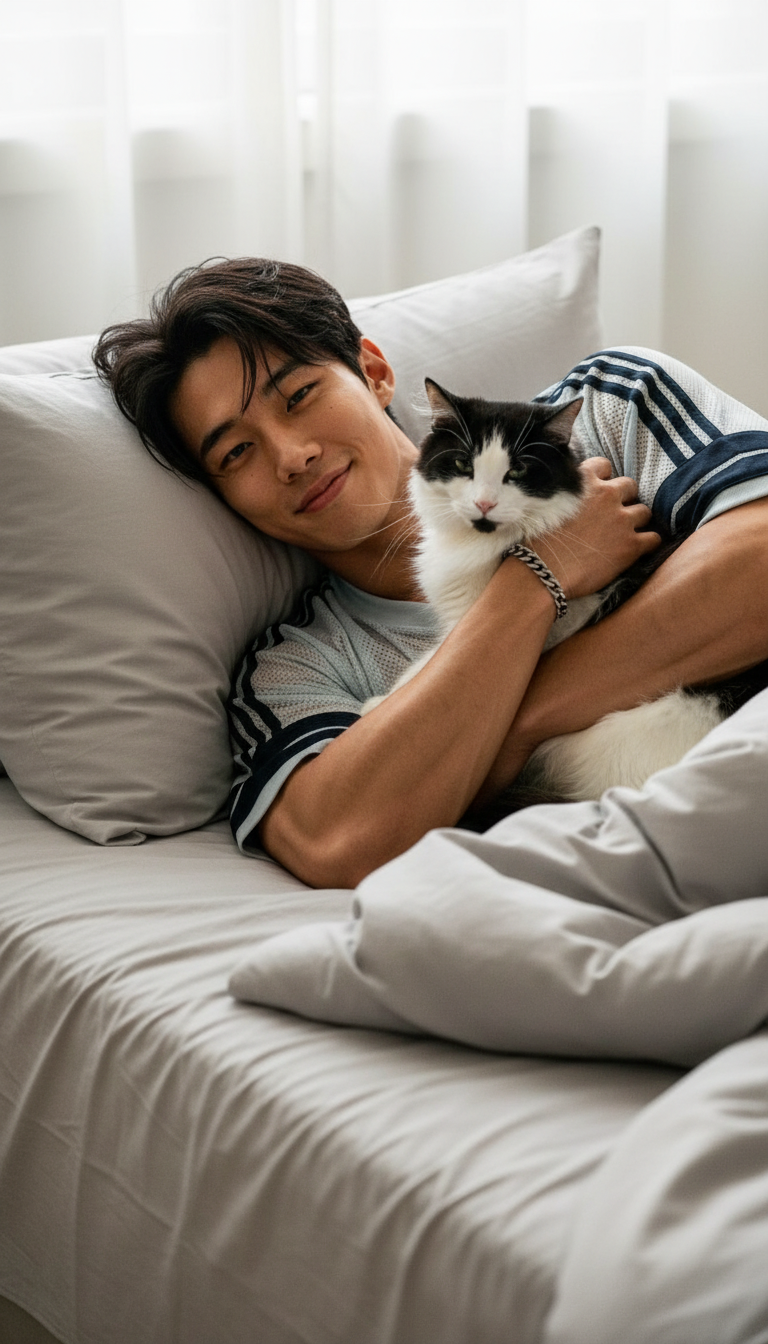
Cat Cuddling

Cat Cuddling

ai-image-editor

1 clip
0 uses

Any aspect ratio

Prompt

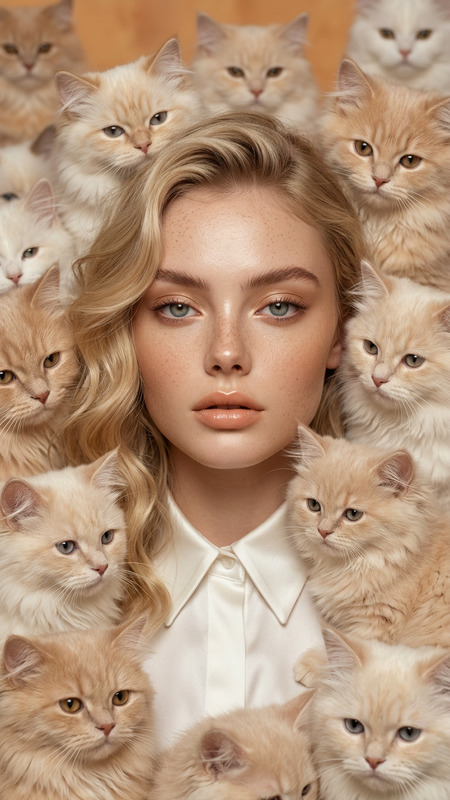
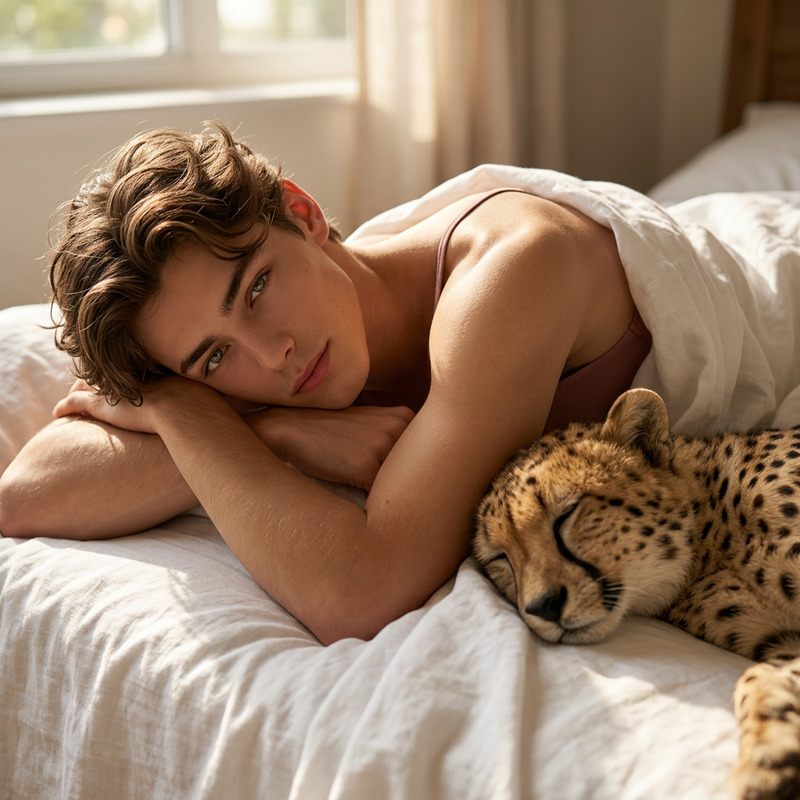
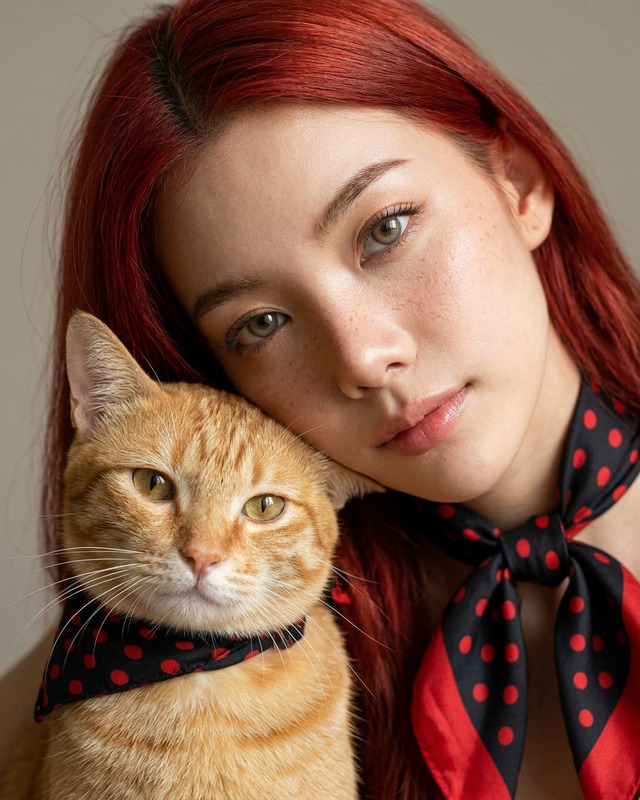
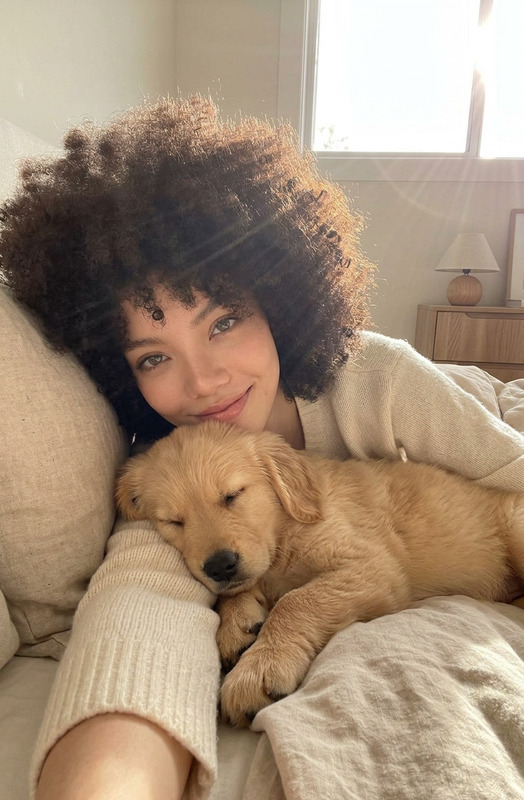
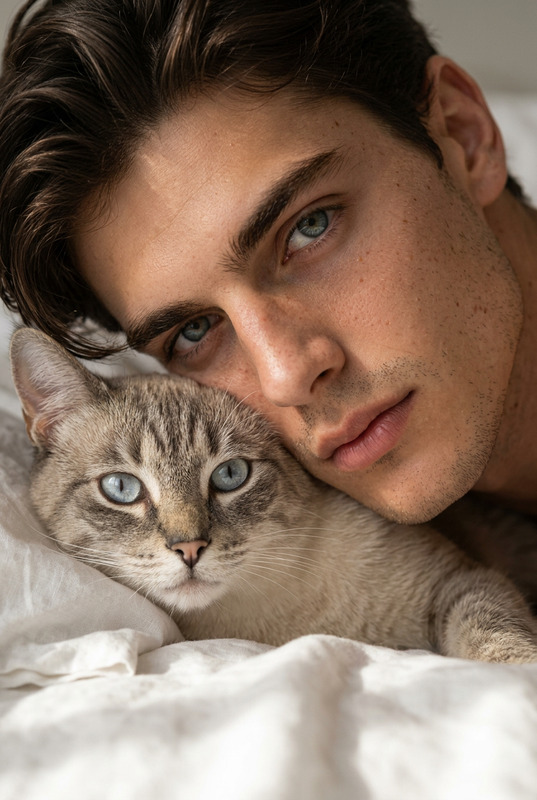
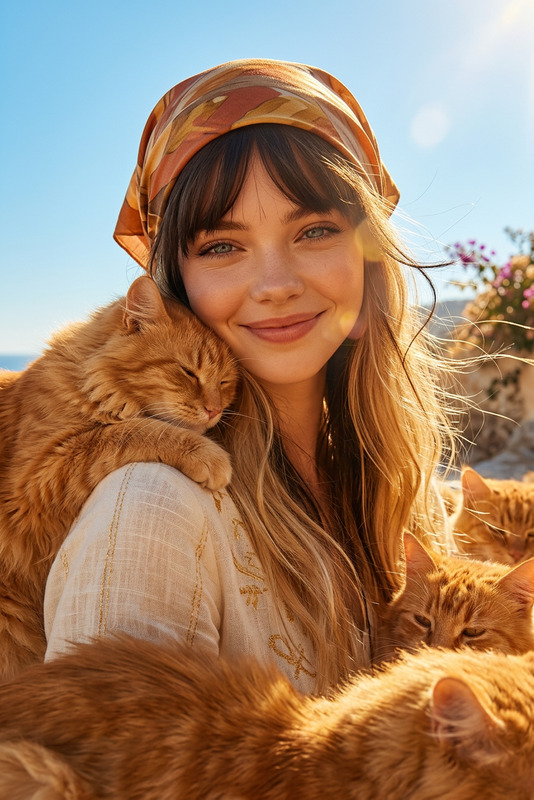
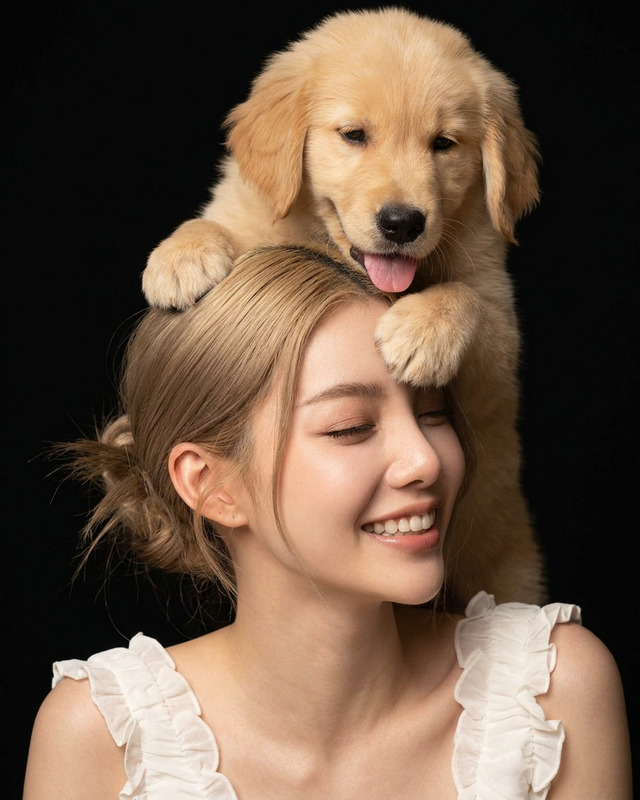
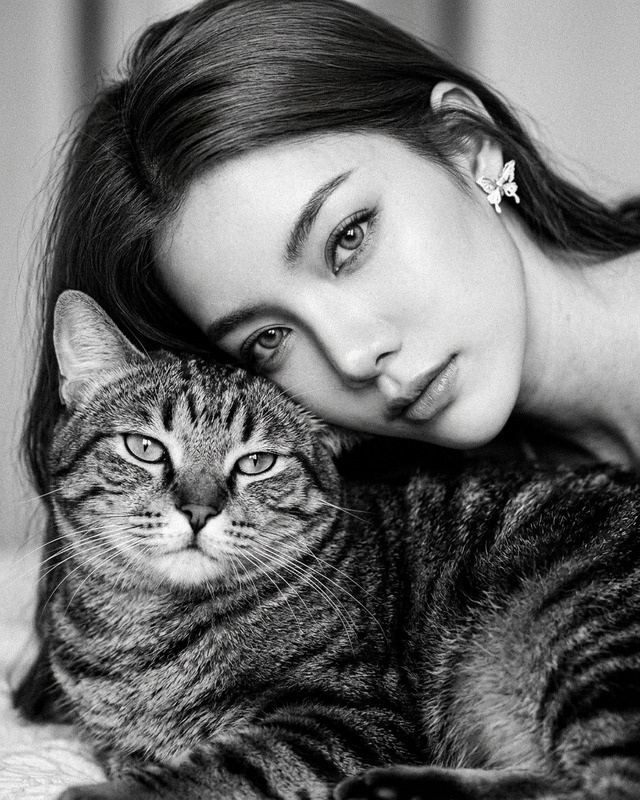
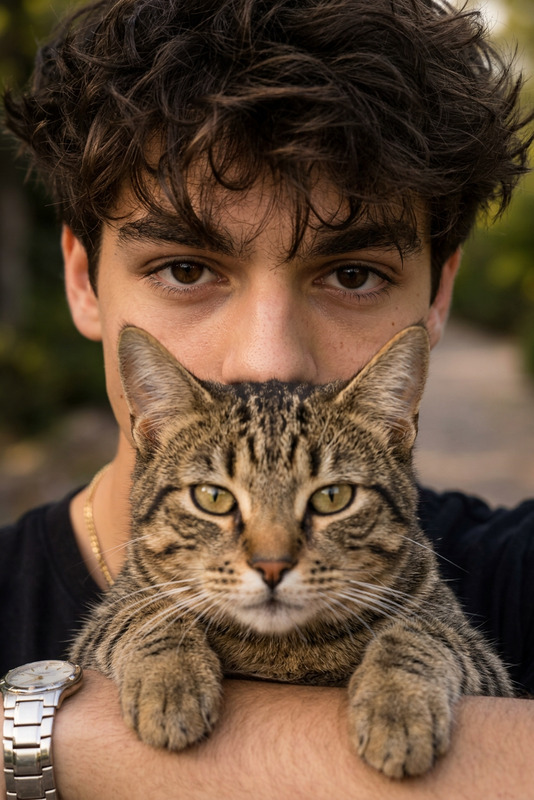
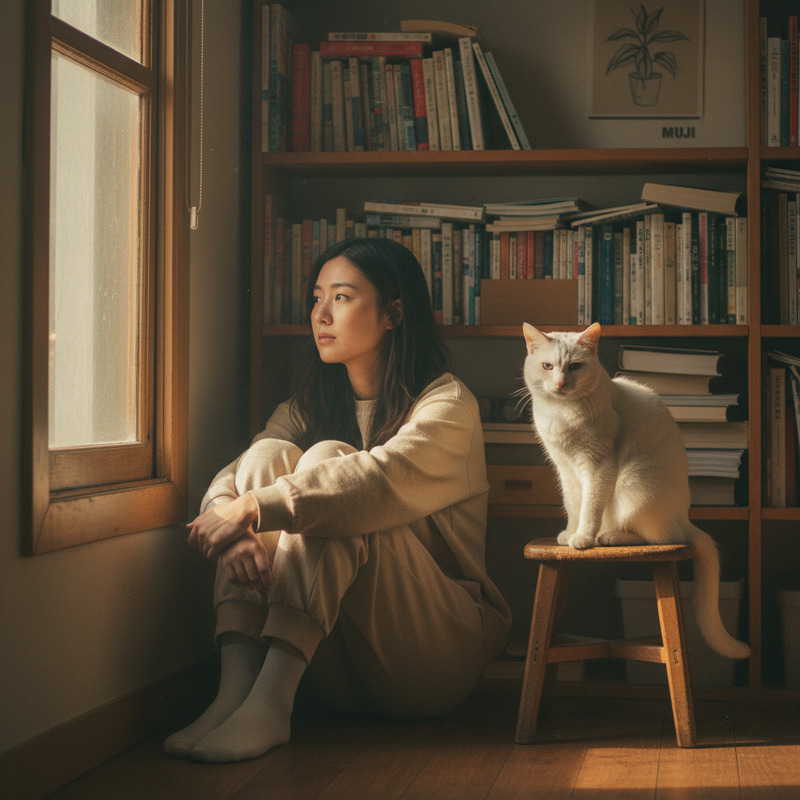
The subject lying on a soft bed with light gray sheets, gently hugging a black-and-white cat, the subject smiling warmly at the camera, cozy and intimate atmosphere, natural soft lighting, relaxed candid moment, the cat resting comfortably in the subject’s arms with a calm expression, close-up composition, high detail textures (fur, fabric, skin), warm tones, shallow depth of field, ultra realistic, lifestyle photography, 4K

Cinematic Portrait Reskin – AI Image Editor Template

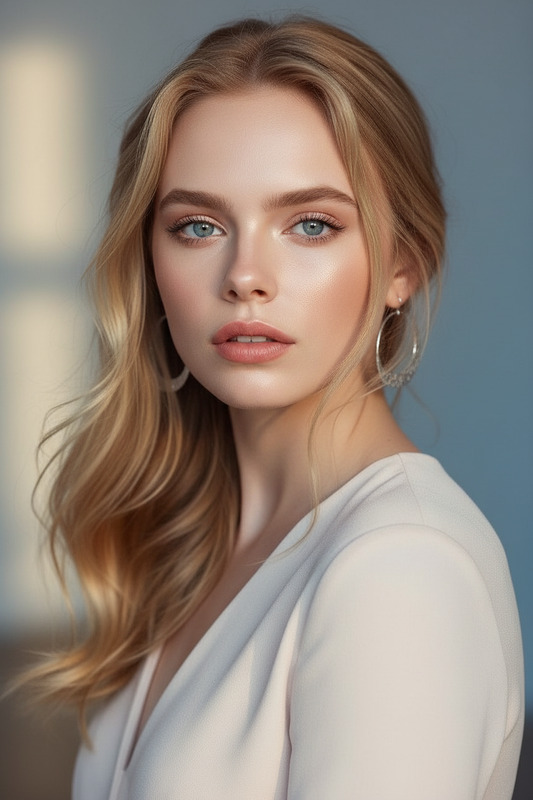
Transform any portrait into a polished, cinematic look in a few clicks. This template uses the AI Image Editor to reskin faces and backgrounds while preserving identity, lighting, and core composition—ideal for thumbnails, hero images, social campaigns, and product launches.


What this template does

This template is designed for:

  • Cinematic portraits – add filmic color grading, depth, and mood
  • Professional profile shots – upgrade casual photos into studio-quality headshots
  • Marketing creatives – generate consistent, on-brand visuals across campaigns
  • Content thumbnails – YouTube, LinkedIn, and newsletter hero images
  • Visual experiments – quickly A/B test different styles on the same base photo

Under the hood, it uses the AI Image Editor to:

  • Keep the face identity and core structure intact
  • Edit backgrounds, styling, and mood with text prompts
  • Apply consistent color, lighting, and contrast in one pass
  • Reduce the need for manual Photoshop work or retouching

If you’re familiar with tools like Photoshop or Lightroom, think of this as a smart, prompt-based layer system on top of your original photo.


How to remix this template in Magic Hour

You can create your own version of this template by remixing it directly in Magic Hour. Here’s a practical workflow you can follow:

  1. Start from the base image

    • Upload a clean portrait with a clear face, good lighting, and minimal obstructions (no heavy filters).
    • Higher resolution works better; you can optionally enhance inputs with the AI Image Upscaler before editing.
  2. Open it in AI Image Editor

    • Go to the AI Image Editor.
    • Load your image and use the editor as the core environment for this template.
  3. Define your cinematic style via prompt
    Use descriptive, production-style language. For example:

    • “Cinematic portrait, soft volumetric light, shallow depth of field, muted teal and orange grade, 35mm film look”
    • “Studio headshot, softbox lighting, high-end magazine retouch, neutral tones, subtle film grain”
    • “Moody noir portrait, hard side lighting, high contrast black and white, dramatic shadows”

    The more specific you are about lighting, mood, color, and medium, the more consistent your results.

  4. Control what stays vs. what changes

    • Emphasize that you want to preserve identity: “same face, same person, keep facial structure”
    • Specify what can change: “change background to cinematic bokeh city lights,” “upgrade clothing to simple dark blazer,” “apply subtle skin retouching”
    • If you want to lock the facial structure even more, you can combine workflows later with AI Face Editor or AI Headshot Generator.
  5. Iterate and save variants

    • Generate multiple versions with slightly different prompts to explore tones and moods.
    • Save the best ones as a reusable style reference you can apply across your team’s photos.
  6. Optional: build a multi-asset pipeline
    After you like your core cinematic portrait look, you can:


Best practices for strong results

To get consistently high-quality cinematic portraits:

  • Use sharp, well-lit source photos

  • Write structured prompts
    A good prompt often includes:

    • Subject: “young professional, mid-shot portrait, straight-on angle”
    • Lighting: “soft window light, softbox, rim lighting, golden hour, studio light”
    • Color and grade: “muted tones, teal and orange, pastel, high-contrast monochrome”
    • Medium and style: “cinematic film still, editorial photography, magazine cover, documentary portrait”
  • Keep brand consistency

    • Decide on a core color palette (e.g., cool, neutral, or warm) and repeat similar language across prompts.
    • For editorial or brand campaigns, you can create a visual system by remixing the same base portrait style on multiple people.
  • Respect authenticity and ethics

    • For corporate or professional use, avoid over-smoothing or extreme reshaping that misrepresents the person.
    • If you experiment with character-like versions, clearly separate those from real, official profile imagery.

For deeper visual consistency, you can pair this with the AI Art Generator or AI Illustration Generator to generate supporting visuals with similar tones and moods.


Example use cases for creators, marketers, and startups

This cinematic portrait template is especially useful for:

  • Startup founders & teams

    • Quickly generate consistent team headshots for your website, pitch decks, and LinkedIn without hiring a photographer.
    • Use AI Headshot Generator to create on-brand, professional portraits from casual photos.
  • Content creators & YouTubers

  • Marketing teams & agencies

    • Produce consistent campaign visuals by applying the same cinematic style across multiple faces and settings.
    • Use AI Meme Generator or AI GIF Generator to spin off fast social content variations from the same portrait set.
  • Game, anime, or fantasy projects


Extending this template into a full AI content stack

If you like the cinematic reskin this template gives you, you can evolve it into an end-to-end workflow:


How this differs from other Magic Hour templates

This Cinematic Portrait Reskin template is:

  • Image-first – built around the AI Image Editor, not starting from text or video.
  • Identity-preserving – focused on maintaining who the person is while changing mood, setting, and finish.
  • Style-consistent – tuned for repeatable, cinematic results that you can apply across many images.

If you need:


Building your own version from scratch

To create a personalized variant of this template in Magic Hour:

  1. Choose a reference look: film stills, magazine covers, or brand photography that capture the cinematic style you want.
  2. Analyze them for:
    • Lighting type (soft vs. hard, direction, intensity)
    • Color palette (warm, cool, teal-and-orange, monochrome)
    • Contrast and grain (clean digital vs. filmic)
  3. Translate those into a prompt formula in the AI Image Editor, such as:
    • “Cinematic portrait, [lighting type], [color grade], [medium: film still / editorial photo], [texture: clean / subtle grain]”
  4. Test on 3–5 very different faces (skin tones, ages, environments) to make sure the style generalizes.
  5. Save your best-performing wording as your internal style standard and reuse it whenever you remix new portraits.

Because the template is prompt-based, your “version” of it is just a repeatable combination of prompt language, input photo choice, and adjacent tools (upscaling, talking photo, thumbnails, etc.).


Use this template as your starting point, then refine it until it produces portraits that look like they came from your own dedicated photo team—without leaving your browser.

More Like This