Selfie "hi"

image-to-video

1 clip
11 uses

Any aspect ratio

Prompt

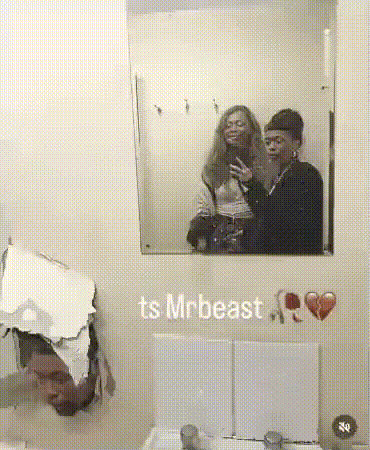
The subject raises two fingers and says hi — a photo snaps. Then the subject makes a playful duck face — another photo snaps. Finally, the subject winks at the mirror — one more photo snaps

Tags

transformationspopular

Turn a Single Image into a High-Impact Video with Image-to-Video on Magic Hour

Bring static visuals to life in seconds. This template uses Magic Hour’s Image-to-Video technology to transform a single image into a smooth, eye-catching video — perfect for social clips, product showcases, trailers, and animated visuals for marketing or content.

Use this template as-is, or remix it to create your own version directly in Magic Hour.


What This Template Does

This template demonstrates how to:

  • Start from a single image (photo, illustration, design, frame, or mockup)
  • Generate a short, animated video that:
    • Preserves the original style, composition, and key details
    • Adds motion, camera movement, and depth
    • Feels natural and coherent from start to finish

Typical use cases:

  • Social media content (TikTok, Reels, Shorts)
  • Product and feature teasers
  • Motion posters and animated cover art
  • Concept art fly-throughs
  • Character or scene reveal animations
  • Startup pitch visuals and hero-section motion for landing pages

If you already have high-quality source imagery, this is one of the fastest ways to produce premium video assets without a dedicated motion design team.


How to Remix This Template in Magic Hour

You can create your own version of this template by starting from an image and following a simple flow inside Magic Hour:

  1. Prepare a strong source image

    • Use a clear, high-resolution image with a distinct subject and clean composition.
    • Ideal sources:
      • Product renders or lifestyle photos
      • Character art (illustrations, anime, game art)
      • Scene concepts (environments, interiors, architecture)
      • Brand visuals, key art, or thumbnails

    If you don’t have an image yet, you can generate one first with:

  2. Upload your image to Image-to-Video

    • Go to Image-to-Video.
    • Upload the image you want to animate.
    • This template is built exactly on that flow: a single high-quality image → fully generated video.
  3. Describe the motion you want
    In your prompt, be explicit about:

    • Camera movement: e.g., “slow zoom-in on the character’s face,” “cinematic orbit around the product,” “push-in from wide shot to close-up.”
    • Type of animation: e.g., “subtle breathing and hair movement,” “parallax depth with moving background,” “dynamic sci-fi energy effects,” “loopable motion.”
    • Mood and pacing: e.g., “slow, cinematic, dramatic,” “energetic and fast-paced,” “smooth and minimal.”

    Example prompts you can adapt:

    • “Cinematic slow zoom-in through a futuristic cityscape at night, subtle camera drift, neon lights flickering, smooth parallax depth, dramatic but controlled motion.”
    • “Product hero shot: rotating around a sneaker on a pedestal, soft studio lighting, gentle camera orbit, crisp focus on logo and details, social-media-ready.”
    • “Fantasy character close-up with subtle hair and fabric motion, faint particle effects in the background, gentle camera push-in, loop-friendly.”
  4. Generate and iterate quickly

    • Generate a first version, then refine: adjust your description of motion, perspective, or mood and re-run.
    • For a series of videos with a consistent style (e.g., a whole product catalog or character lineup), reuse the same wording for motion and mood across multiple images.

Tips for Getting the Best Image-to-Video Results

To maximize visual quality, conversion, and engagement:

1. Start with the strongest possible image

High-quality in → high-quality out. For better results:

  • Use images with:
    • Clear subject separation (foreground vs background)
    • Good lighting and contrast
    • Minimal compression artifacts or blur
  • If needed, clean or enhance your image first using:

2. Design specifically for motion

If you’re generating images with Magic Hour before animating them:

3. Match the video to your channel and goal

Align your motion style to where the video will live:

  • Social media (TikTok, Reels, Shorts)

    • Eye-catching motion in the first 1–2 seconds
    • Vertical framing from your original image if possible
    • Works well combined with:
  • Product and landing pages

  • Pitch decks and presentations

    • Motion that can be exported and embedded into slides
    • Subtle cinematic camera moves over diagrams, mockups, or product UI
    • Works well with:

4. Combine with other Magic Hour video tools

Once you have an image-to-video base, you can extend it:


Example Remix Workflows

Here are a few practical pipelines you can replicate:

1. Product Motion Clip for a Launch

2. Animated Character Reveal for a Game or Story

3. Cinematic Motion Poster for Marketing


Who This Template Is For

This template is optimized for:

  • Creators and marketers who need fast, on-brand motion content without motion design teams
  • Startup builders and product teams validating ideas and building launch assets quickly
  • Developers and technical users prototyping AI-powered creative pipelines and automation flows
  • Designers and art directors who want to add motion to concept art, moodboards, and key visuals

If you’re already using static AI imagery in your workflows, adopting Image-to-Video is a straightforward way to increase engagement and production value with minimal extra effort.


Related Magic Hour Tools to Explore

To build more advanced or automated creative systems around this template, you may also want to explore:


Use this template as a starting point, then remix it: swap in your own imagery, describe the motion you need, and chain it with other Magic Hour tools to build a repeatable, scalable image-to-video pipeline tailored to your brand and workflow.

More Like This