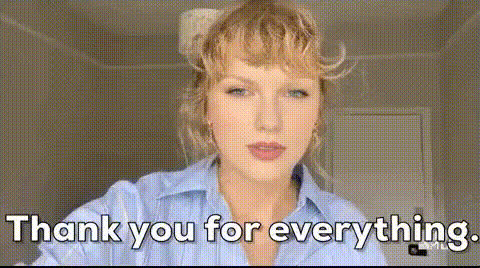
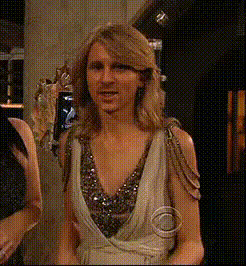
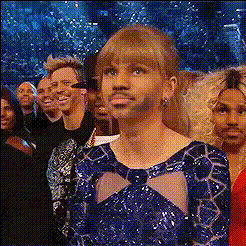
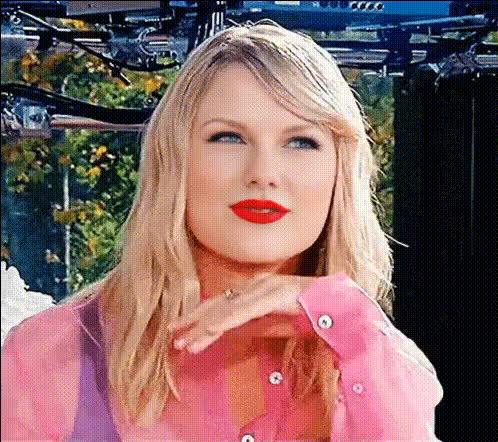
The old Taylor transition

face-swap

1 clip
1 uses

Any aspect ratio

Tags

tiktoktransition

“The Old Taylor Transition” – Face Swap Video Template

Turn Yourself Into Every Era of “Old Taylor”

“The Old Taylor Transition” is a face swap video template built for fans who want to step directly into Taylor-style era transitions. Using AI-powered face swap from Magic Hour, you can transform your own footage into a polished, era-hopping montage that feels like a professional edit—without needing editing skills or complex software.

This template runs on the same core tech that powers Magic Hour’s Face Swap Video templates, so you get high‑quality, frame‑accurate swaps that hold up on TikTok, Reels, Shorts, and YouTube.

What This Template Does

At a high level, this template:

  • Uses AI to map your face onto a reference video featuring multiple “eras” or looks
  • Maintains realistic lighting, expressions, and head movement frame-by-frame
  • Outputs a ready-to-post vertical or horizontal edit that works for short‑form or long‑form platforms

Under the hood, Magic Hour’s AI face editor and video upscaler stack help keep the swaps sharp and consistent, even when the source footage includes fast cuts, transitions, or complex lighting.

How Face Swap Works (In Plain English)

AI face swap combines several computer vision techniques:

  • Face detection & tracking – The model detects your face and tracks it as it moves across frames.
  • Feature mapping – It identifies key landmarks (eyes, nose, mouth, jawline) and aligns them with the face in the target video.
  • Neural rendering – A generative model synthesizes a new face that matches the angle, lighting, and expression of the original frame but uses your identity.
  • Compositing – The AI blends the generated face back into the original frame so it looks natural in motion.

This is similar in concept to modern “deepfake” pipelines described in research like Nirkin et al., ICCV 2019 and recent diffusion-based video editing approaches—but packaged into an interface you can use without touching code or ML frameworks.

If you want to explore adjacent tools, Magic Hour also offers:

How to Remix This Template in Magic Hour

You can either use “The Old Taylor Transition” as-is, or treat it as a blueprint and build your own, era-style face swap video in a few steps.

1. Start from a Face Swap Video Flow

Begin in Magic Hour’s Face Swap Video template. This gives you a guided workflow optimized for multi-shot edits and transitions.

  • If you have an existing “Taylor eras” style edit (yours or one you have the rights to use), upload that as the base video.
  • If you’re starting from scratch, you can first create a stylized base clip with Video to Video or Text to Video, then face swap yourself into it.

2. Choose or Upload the Face to Swap In

For ethical and legal reasons, we recommend:

  • Using your own face, or
  • Using faces you have explicit permission to use (friends, collaborators, actors, UGC creators)

If you’re building a “Taylor-inspired” transition, you can:

  • Use yourself styled in different eras (outfits, makeup, settings)
  • Create stylized “era” characters with the AI Character Generator or Anime Generator, then swap yourself into them

3. Build the Era Transition Structure

The core idea of the “Old Taylor Transition” is a sequenced set of visually distinct eras stitched together. To replicate or expand on this:

  • Storyboard the eras – e.g., “Era 1: country / acoustic”, “Era 2: pop / neon”, “Era 3: dark / cinematic”.
  • Use different clips per era – Each segment should visibly change outfit, color palette, or setting.
  • Keep timing tight – Short, punchy segments (1–3 seconds each) perform well on TikTok and Reels.

If you don’t have footage for every era:

4. Apply Face Swap Across All Segments

Within the face swap video flow, apply the swap so your chosen identity is consistently mapped across each era segment. This creates the sense of one continuous “you” traveling through multiple looks and timelines.

For memes, brand content, or creator collabs, the same technique works: replace “Taylor eras” with your own:

  • Founder story eras
  • Brand design evolutions
  • Streamer or creator glow-up timelines

5. Enhance With Lip Sync, Animation, or Text

To level up the template for different use cases:

  • Make it sing – Use Lip Sync with your licensed audio (original vocals, covers, royalty-free tracks) to animate the face to the music.
  • Add subtle motion – If you start from still images, animate them first with Animation or AI Talking Photo, then apply face swap.
  • Use on-screen text – Add era titles, dates, or lyric snippets in your editing tool of choice, or combine with clips generated from the Thumbnail Maker for YouTube.

6. Polish and Export for Your Platform

Once your face swap is complete:

Best Practices and Legal Considerations

Face swap and “era” content can be powerful, but you should be deliberate about rights and ethics.

  • Rights to likeness – Only swap in faces you own or have permission to use (yourself, collaborators, performers). Public figures often have rights of publicity that restrict commercial use of their likeness.
  • Music and video licenses – Make sure you have the right to use any audio, concert footage, or music videos in your edits. For public releases or brand work, consider royalty‑free or licensed tracks.
  • Label content clearly – For some platforms and jurisdictions, it’s good practice (and increasingly a requirement) to label synthetic/AI-modified media.
  • Platform policies – TikTok, Instagram, and YouTube all maintain policies around synthetic and impersonation content. Review their latest guidelines before running paid campaigns or high‑reach posts.

For more experimental or stylized, non‑photoreal uses, consider leaning into obviously artistic forms with tools like the AI Art Generator, Comic Book Generator, or Illustration Generator.

Advanced Use Cases for Creators, Marketers, and Builders

While “The Old Taylor Transition” is fan-focused, the underlying pattern is widely usable:

  • Creator timelines – Show your channel, brand, or personal evolution through eras with consistent face swaps and changing aesthetics.
  • Campaign storytelling – For marketers, create era-based campaigns (e.g., v1 → v2 → v3 product launches) using the same spokesperson across stylized eras.
  • Prototyping avatars – Combine AI Selfie Generator, Avatar Generator, and AI Voice Generator to build recurring “era” characters that carry your brand story across videos.
  • UGC and fan activations – Invite your community to remix a base eras template using Face Swap Video, then stitch their outputs into a compilation.

Related Magic Hour Tools Worth Exploring

To go beyond this template and build your own variations from scratch, pair face swap with:

Why This Template Works So Well

Era-transition edits perform strongly because they combine:

  • Recognizable narrative structure – A clear “before → after → glow‑up → now” story arc.
  • High replay value – Viewers rewatch to catch each era’s details.
  • Personalization – Face swap makes the viewer (or creator) the protagonist of that narrative.

By remixing “The Old Taylor Transition” in Magic Hour, you get a repeatable pattern you can adapt to any artist, creator, brand, or storyline you have rights to depict—without rebuilding your pipeline each time.

Get Started

To create your own version of “The Old Taylor Transition”:

  1. Open the Face Swap Video template in Magic Hour.
  2. Upload your base “era” video or generate one using tools like Video to Video or Image to Video.
  3. Swap in your face (or another authorized identity) across all eras.
  4. Optionally add lip sync via Lip Sync and polish with Video Upscaler.
  5. Export and publish to TikTok, Instagram Reels, YouTube Shorts, or wherever your audience lives.

From there, you can duplicate, tweak the eras, and keep iterating—turning a single fan‑style template into a reusable, high‑impact storytelling format for your content or brand.

More Like This