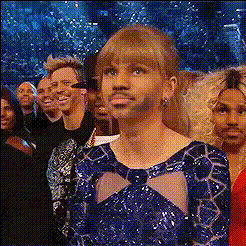
Taylor Swift "Look what you made me do" Edit
face-swap
Any aspect ratio
Tags
music videoTaylor Swift “Look What You Made Me Do” Face Swap Edit
Create your own version of Taylor Swift’s iconic “Look What You Made Me Do” music video using AI face swap. This Magic Hour template lets you drop your face (or a character, client, or influencer) into a dramatic, high-production music video look—no manual VFX work required.
This page explains what the template is, why this video is culturally important, and how to quickly remix it in Magic Hour using AI tools like Face Swap Video and related products.
What This Template Does
The “Taylor Swift ‘Look What You Made Me Do’ Edit” template is a pre-built AI video project that:
- Uses AI face swap to replace the original performer’s face with yours (or any face you provide).
- Keeps the original performance, timing, camera moves, and lighting, so you instantly get a cinematic, music-video look.
- Works entirely in the browser with Magic Hour’s AI Face Swap technology—no traditional editing software required.
It’s ideal for:
- Creators making short-form content for TikTok, Instagram Reels, and YouTube Shorts.
- Marketers testing “AI cameo” concepts with influencers or brand mascots.
- Developers and startup teams prototyping AI video experiences or personalized fan content.
How to Remix This Template in Magic Hour
You don’t need to download or edit project files. To create your own version inside Magic Hour:
- Start with Face Swap Video
Open Face Swap Video. This is where you’ll load the template video and apply your face (or any target face). - Upload the base video
Use the template’s base clip (or a similar performance video you have rights to). Magic Hour will use this as the “source” performance while swapping the face. - Add your face
Upload a clear, front-facing photo or short video of the face you want to insert. For best results:- Use a sharp, well-lit image with your full face visible.
- Avoid heavy sunglasses, extreme angles, or motion blur.
- Match the general vibe of the video (expressive, dramatic, or neutral).
- Generate the face-swapped video
Run the face swap and preview the output. You can iterate quickly by trying:- Different selfies or character faces.
- Different base clips with similar lighting and framing.
- Polish and extend (optional)
Depending on your creative direction, you can enhance the result using other Magic Hour tools:- Video Upscaler to improve resolution for social or campaign use.
- Auto Subtitle Generator to add captions for silent autoplay feeds.
- Lip Sync if you want to sync your AI performance to alternate audio or different language tracks.
- Video-to-Video if you want to stylize the clip (cartoon, cinematic, anime, etc.) while preserving motion.
Once you’re happy with the result, export and share across your channels—or reuse the same setup with different faces for campaigns and A/B tests.
Background: “Look What You Made Me Do” and Its Visual Story
“Look What You Made Me Do” was released in 2017 as the lead single from Taylor Swift’s album reputation. The song and video marked a sharp stylistic shift from her earlier country and pop work, leaning into darker, self-referential themes about media narratives, public feuds, and reinvention.
The music video, directed by Joseph Kahn, is packed with visual symbolism and pop-cultural references, including:
- A “zombie Taylor” emerging from a grave, referencing her public “cancellation” and comeback.
- Multiple versions of Taylor confronting each other, representing her past eras and personas.
- Imagery tied to the highly publicized conflicts surrounding Kanye West, Kim Kardashian, and the broader media response.
On release, the video broke YouTube records for single-day views and quickly became a subject of extensive fan analysis on platforms like Reddit, Tumblr, and YouTube breakdown channels. For creators, it’s a rich template: dramatic lighting, bold costume design, and deliberately theatrical performance all translate well into AI face swap experiments.
Why Face Swap Works So Well for Music Video Edits
AI face swap is especially powerful in stylized, high-energy music videos because:
- The performance is already strong. You don’t need to act, dance, or lip-sync perfectly—the base video handles that.
- Lighting and sets are production-grade. You instantly inherit cinematic lighting, camera movement, and choreography.
- Short, looping moments perform well. A few seconds of high-impact face-swapped footage can be repurposed into memes, GIFs, and shorts.
If you want to explore deeper customization beyond this template, consider combining face swap with:
- AI Talking Photo to generate close-up lip-synced shots from still images.
- AI Image Generator and AI Photo Generator to create original characters or stylized “alter egos” before swapping them into video.
- Image to Video to animate a single portrait into motion, then extend the narrative with face swap sequences.
Creative Use Cases for This Template
Smart creators and teams use this kind of template for more than just fan edits. Common use cases include:
- Creator promos and channel intros
Swap yourself into a high-drama sequence and use it as an intro or “channel trailer” segment, then extend it with Thumbnail Maker for matching cover art. - Campaign concepts and pitch decks
Agencies and startups can quickly visualize “personalized music video” or “fan cameo” concepts using AI face swap mockups, then test engagement before investing in full productions. - Character and brand experimentation
Combine this template with:- Avatar Generator or AI Character Generator to design fictional personas.
- AI Anime Generator or Animated Characters Generator to test stylized character designs in motion.
- Social experiments and meme formats
Pair the dramatic tone of “Look What You Made Me Do” with:- AI Meme Generator for captioned meme exports.
- Face Swap GIF and AI GIF Generator to turn short clips into endlessly shareable loops.
Best Practices for High-Quality Face Swaps
To get convincing, production-ready results from this template and similar projects:
- Use strong source imagery
Start with a high-resolution, well-lit image of the face you want to swap:- Face centered in frame, neutral or slightly expressive.
- Minimal obstructions (no heavy shadows, masks, or extreme hair covering the face).
- Match emotion and angle where possible
If the base video is intense or angry (as in many “Look What You Made Me Do” shots), use a source image where your expression is at least somewhat aligned. This improves realism and reduces visual artifacts. - Optimize for the final platform
For TikTok, Reels, and Shorts, you’ll usually want:- Tight, dramatic segments (3–15 seconds).
- Vertical crops or variants you can generate via Video Upscaler workflows.
- Readable captions using Auto Subtitle Generator.
- Respect rights and platform policies
Always ensure you have the right to use the base footage and music in your jurisdiction and on your chosen platforms. When using real people’s faces (clients, collaborators, or public figures), obtain appropriate permissions as required by law and platform terms.
Related Magic Hour Tools to Explore
If you like this template, you can build an entire pipeline around AI-native music and performance content using:
- Lip Sync – Map speech or lyrics onto static or generated faces for talking/singing shots.
- AI Voice Generator and AI Voice Cloner – Generate or clone voices to pair with your visuals.
- Text-to-Video – Prototype new scenes and concepts from prompts, then refine with face swap and video-to-video transformations.
- AI Headshot Generator and AI Selfie Generator – Create polished, stylized source faces specifically optimized for clean swaps.
- AI Face Editor and Gender Swap – Experiment with alternate versions of yourself (different age, style, or gender presentation) before inserting them into the template.
Get Started
To create your own “Taylor Swift ‘Look What You Made Me Do’ Edit”:
- Open Face Swap Video.
- Upload the base performance clip inspired by the original music video.
- Add your face (or a character’s face) as the swap target.
- Generate, iterate, and refine with supporting tools like Lip Sync, Video-to-Video, and Video Upscaler.
In a few minutes, you’ll have a personalized, cinematic AI music video edit ready for fans, stakeholders, or your next campaign.