Taylor Swift Singing Live
face-swap
Any aspect ratio
Tags
music videoTaylor-Style Live Performance Face Swap Template
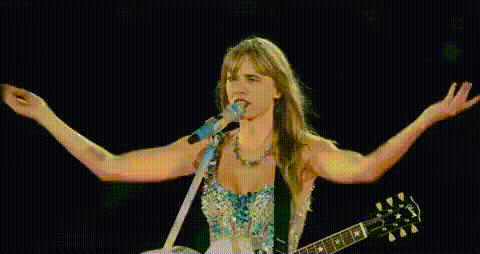
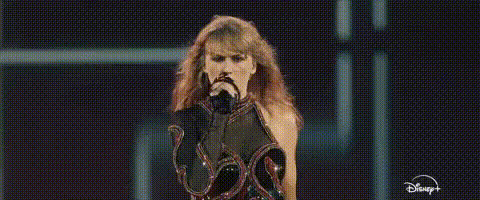
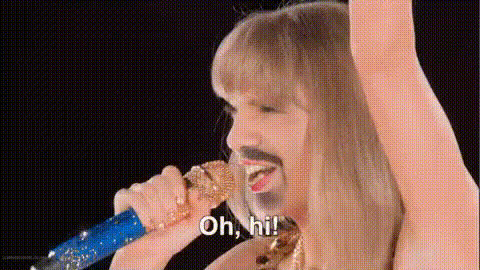
Create a high-energy “stadium tour” performance where your face replaces the singer’s in a live concert video. This template uses Magic Hour’s AI Face Swap to give you a professional, music-video-style result in just a few minutes — perfect for short-form content, fan edits, promos, and concept tests.
What This Template Does
This template lets you:
- Swap your face onto a performer in a live concert clip (front-facing, side angles, or moving shots).
- Preserve original lighting, expressions, and camera moves for a realistic result.
- Quickly generate multiple variants to test different outfits, eras, or aesthetics.
- Export ready-to-post content for TikTok, Reels, Shorts, or music promo campaigns.
Under the hood, the template is powered by the same core technology behind Magic Hour’s Face Swap Video tool and can be remixed into your own custom workflow.
How to Remix This Template in Magic Hour
You can clone the logic of this template in a few minutes using Face Swap Video. A typical remix flow:
- Start from Face Swap Video
Open Face Swap Video to launch a new project based on Magic Hour’s face swap engine. - Upload a Concert Clip
Use any live performance video (your own concert footage, a royalty-free stage performance, or a custom clip you’ve shot). For best results:- Use 720p or higher resolution.
- Choose shots where the performer’s face is clearly visible for at least a few seconds.
- Avoid heavy motion blur or extreme darkness.
- Add Your Source Face
Upload a clear photo or video of the face you want to insert:- Face looking toward the camera (or matching the angle of the performer).
- Good, even lighting (no strong shadows across the face).
- Avatar Generator for profile or creator avatars.
- AI Character Generator for fictional or branded personas.
- AI Face Generator for realistic but synthetic faces (safer for commercial work).
- Run the Face Swap
Apply the face swap and let Magic Hour align expressions, head turns, and lighting with the original concert footage. The model automatically tracks the performer frame-by-frame. - Export and Refine
Download your video or chain it into other Magic Hour tools:- Use Video Upscaler for higher-resolution output.
- Use Auto Subtitle Generator to add lyrics or captions.
- Convert short clips into looping memes or reactions with the AI GIF Generator.
Best Practices for Realistic Concert-Style Face Swaps
Whether you’re recreating a stadium tour vibe or building a concept for a music campaign, these guidelines will improve quality and consistency:
- Match Angles and Emotion
Choose a source face that matches the energy of the performance – smiling, intense, or neutral – to keep expressions believable. - Use Stable, Well-Lit Footage
Fan-cam clips with heavy shake or grain are harder to swap convincingly. Professional or tripod shots typically produce the best results. - Leverage Synthetic Faces for Commercial Use
If you’re creating ads or client work, consider using AI-generated faces from: This helps avoid rights-of-publicity issues when using real celebrities. - Enhance the “Live Show” Atmosphere
After swapping the face, you can:- Add crowd shots or cutaways generated via the AI Image Generator.
- Create stylized title cards or tour posters with the Album Cover Generator or Thumbnail Maker.
Advanced Workflows for Creators and Teams
For creators, marketers, and startup teams, this template can be a building block inside larger AI video pipelines:
- Concept Testing for Music & Branding
Prototype new artist personas or visual identities by:- Generating outfits with the AI Outfit Generator or AI Clothes Changer.
- Combining them with performance clips via Face Swap Video.
- Talking & Singing Portraits
Turn a static artist image into a singing or talking performance:- Use AI Talking Photo to animate still images.
- Sync to vocals or commentary with AI Voice Generator or AI Voice Cloner.
- Extend with Lip Sync for more precise mouth movement with your audio.
- Full AI-Generated Performance
Build an end‑to‑end AI concert sequence:- Create background scenes and stages with the AI Background Generator.
- Generate character art with AI Anime Generator or Animated Characters Generator.
- Animate scenes using Video-to-Video or Image-to-Video.
- Apply face swaps to keep a consistent “performer” across shots.
Legal and Ethical Considerations
Face swap technology is powerful and should be used responsibly:
- Rights of Publicity & Likeness
Many jurisdictions give individuals — especially public figures and artists — control over commercial use of their image and likeness. If you’re planning to publish or monetize content using a recognizable celebrity or private individual, consult legal guidance and obtain necessary permissions. - Copyright & Source Footage
Always ensure you have the right to use:- The original concert video.
- Any images you upload as source faces.
- Clear Labeling
When appropriate, label content as AI‑generated or modified. This is increasingly recommended by platforms, regulators, and industry groups.
Who This Template Is For
- Creators & Influencers testing music-related content, fan edits, and “what if I were on stage” concepts.
- Music marketers & labels rapidly prototyping visual ideas for campaigns, lyric video concepts, and social snippets.
- Startups & product teams exploring AI entertainment, virtual idols, and interactive concert experiences.
Extend This Template
Once you’re comfortable with this concert-style face swap, you can branch into related Magic Hour tools:
- Text-to-Video – generate entirely new music video concepts from prompts, then apply face swaps.
- Animation – turn illustrated or stylized characters into animated performers.
- AI Meme Generator – turn short clips into shareable reaction memes and inside jokes.
- AI Logo Generator and Album Cover Generator – build cohesive branding around your virtual performer.
Get Started
Open Face Swap Video, drop in a concert clip, upload your face, and you’ll have a live-performance-style video in minutes. From there, remix, iterate, and plug it into your broader creative stack — whether you’re shipping content this week or testing the next wave of AI-native music experiences.