Selfie

image-to-video

1 clip
26 uses

Any aspect ratio

Prompt

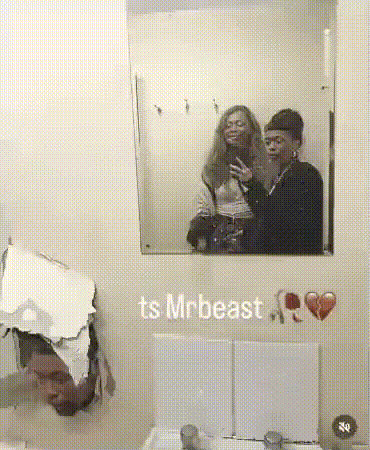
The subject raises two fingers and says hi — a photo flash snaps. Then the subject makes a playful duck face — another photo flash snaps. Finally, the subject winks at the mirror — one more photo flash snaps

Tags

transformations

Turn Any Image into a Cinematic Video (Image-to-Video Template)

Bring static images to life in seconds. This template uses Magic Hour’s Image-to-Video technology to turn a single image into a smooth, dynamic video that’s ready for social, ads, product demos, or storytelling.

Because it’s fully remixable, you can use this template as a starting point, swap in your own visuals, and generate a new version in just a few clicks.


What This Template Does

This Image-to-Video template:

  • Takes a single image (photo, illustration, AI-generated art, product shot, etc.)
  • Generates a short, continuous video with realistic camera motion and temporal consistency
  • Preserves the core composition of your original image while adding depth, movement, and atmosphere
  • Outputs a share-ready video that works across platforms (social, web, presentations, and more)

Under the hood, it builds on the same class of diffusion and generative video models described in recent research such as Google’s Image-to-Video and Meta’s Emu Video, adapted for creators and marketers who need fast, controllable outputs rather than research tooling.


How to Remix This Template in Magic Hour

You can recreate and customize this template directly in Magic Hour:

  1. Start from this template

    • Open this template in Magic Hour (from the template gallery).
    • Click “Remix” to duplicate it into your own workspace.
  2. Replace the source image

    • Upload a new image you want to animate (product photo, portrait, artwork, UI mockup, logo, etc.).
    • Or generate a fresh image first using the AI Image Generator or AI Photo Generator, then feed it into Image-to-Video.
  3. Adjust motion intent via prompt and imagery

    • Describe the kind of movement you want in natural language (e.g., “slow cinematic dolly-in on a tech product,” “subtle parallax on a fantasy landscape,” “gentle camera orbit around a character”).
    • Select or refine an input image that visually supports that motion (clear subject, foreground/background separation, strong depth cues).
  4. Generate and iterate quickly

    • Run the template to create a first pass video.
    • Duplicate the remix, slightly tweak your prompt or swap the image, and generate multiple variants for A/B testing.
  5. Export for your use case

    • Download your video and plug it into your ad creative, landing page, product launch, pitch deck, or social content pipeline.
    • Optionally upscale with the Video Upscaler if you need higher resolution for large displays or premium campaigns.

Because this is a template-based flow, you can standardize your creative system: same structure, different images and prompts, consistent output quality.


High-Impact Use Cases

This Image-to-Video template is designed for practical, production-level work, not just experiments. Common use cases:

1. Product and SaaS marketing

  • Turn static product shots into short hero videos for landing pages.
  • Animate UI mockups or dashboards with subtle camera moves.
  • Pair with AI Voice Generator and Auto Subtitle Generator to create complete product explainers from almost no source material.

2. Brand social content and ads

  • Convert brand illustrations or campaign key visuals into motion posts.
  • Reuse static campaign art across TikTok, Reels, and YouTube Shorts without a full video shoot.
  • Combine with AI Meme Generator or AI GIF Generator for fast-moving campaigns.

3. Creators & storytellers

4. E‑commerce and fashion

  • Animate lifestyle or catalog photos to increase engagement on product pages and ads.
  • Pair with AI Clothes Changer or AI Fashion Generator to visualize multiple looks, then turn each into a short motion clip.

5. Professional visuals and presentations

  • Create motion hero visuals for pitch decks, investor updates, or conference talks.
  • Generate animated covers and thumbnails with Thumbnail Maker or Album Cover Generator, then add motion via this template.

How to Get Strong Results (Practical Guidance)

For creators and teams optimizing quality and reliability, a few practical principles matter more than any individual “setting”:

1. Start from clean, intentional images

2. Use prompts to communicate motion and mood, not tiny details
LLM-style prompts work well, but focus on macro decisions:

  • Type of motion (pan, tilt, dolly-in, orbit, parallax, reveal)
  • Speed and energy (slow cinematic, dynamic and fast, subtle and minimal)
  • Mood and style (dramatic, cozy, high-tech, surreal, documentary)

The underlying model is good at interpolating motion consistent with the image; it’s less effective if the prompt conflicts heavily with the visuals.

3. Match motion to channel and objective

  • Ads and product explainers: clear, readable motion that doesn’t distract from the offer or UI.
  • Social content: more playful or exaggerated motion to catch attention in the first second.
  • Brand visuals: slower, smoother camera moves that feel premium and on-brand.

4. Use templates as components in a larger pipeline
This Image-to-Video template becomes more powerful when combined with other Magic Hour tools:


Advanced Compositions: Chaining Templates

For teams building repeatable content systems or programmatic creative workflows, this template can act as one node in a chain:

This approach mirrors how larger creative teams work with modular assets and “shots,” but makes it accessible to lean teams and solo creators.


When to Use Image-to-Video vs. Other Magic Hour Tools

This template is built specifically for Image-to-Video. In practice, you might choose between several products depending on your input and goal:

  • Use this Image-to-Video template when:

    • You have a strong static image and want to add motion without re-designing it.
    • You’re adapting existing brand, product, or campaign assets into video.
  • Use Text-to-Video when:

    • You don’t have a base image yet and want to generate both the frames and motion directly from a text description.
  • Use Video-to-Video when:

    • You already have a video and want to restyle it or transform it while preserving core motion and timing.
  • Use Animation when:

    • You’re aiming for more stylized or frame-by-frame animation-style outputs starting from images or illustrations.

Example Workflows You Can Remix Today

Here are a few concrete, repeatable workflows you can implement by remixing this template:

1. Landing Page Hero Video from a Product Screenshot

  • Generate or refine a UI mockup using AI Image Editor.
  • Plug the final screenshot into this Image-to-Video template.
  • Prompt for “slow cinematic pan across the interface, minimal movement, premium SaaS aesthetic.”
  • Export and place as the hero video on your product homepage.

2. Character Reveal for a Game or Storyworld

3. Fashion or Outfit Showcase Without a Full Shoot

  • Generate styled photos with AI Outfit Generator or AI Clothes Changer.
  • Animate each static look with this template.
  • Compile the clips into a vertical reel for social campaigns or product exploration.

4. Book, Album, or Podcast Visuals


Why This Template Matters for Teams and Builders

For creators, marketers, and startup teams, motion content is usually the bottleneck: it’s expensive, time-consuming, and hard to standardize. Image-to-Video templates like this solve for:

  • Speed: turn approved images into videos in minutes, not days.
  • Consistency: reuse the same template structure across campaigns, with different images and prompts.
  • Scalability: programmatically generate multiple variants for personalization, A/B tests, or multi-channel distribution.
  • Leverage of existing assets: convert static brand systems, style guides, moodboards, and earlier campaigns into motion without reshoots.

By remixing this template, you get a reusable, modular piece of infrastructure in your creative stack—something you can give to teammates, connect to upstream AI tools, and evolve over time as your brand and product grow.


Remix This Template and Build Your Own

To create your own version:

  1. Open this Image-to-Video template in Magic Hour.
  2. Click “Remix” to clone it into your workspace.
  3. Swap in your images, refine your motion prompt, and generate.
  4. Save your customized version as a reusable template for your team or project.

From there, you can chain it with other tools—Face Swap Video, Lip Sync, Animation, AI Talking Photo, and more—to build a complete, AI-native video pipeline tailored to your brand.

More Like This