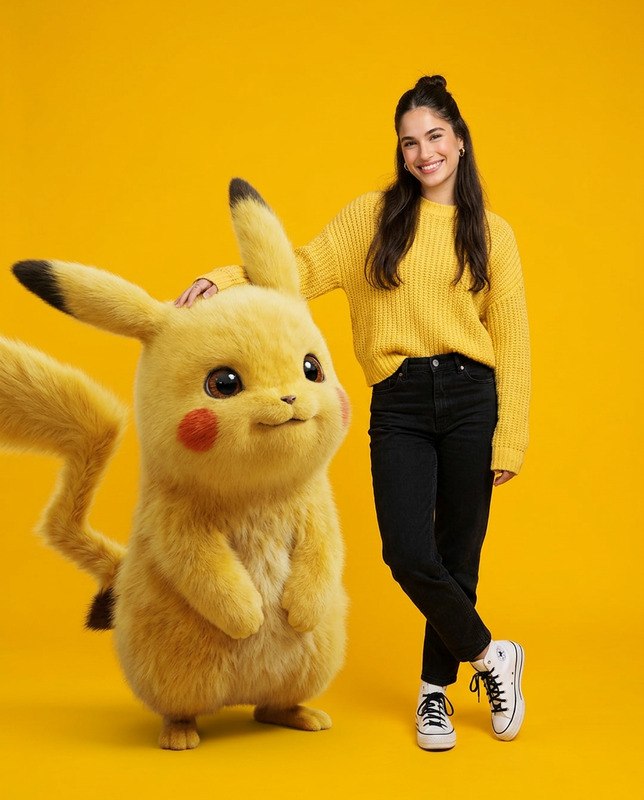
Holding Realistic Pikachu
image-to-video
Any aspect ratio
Animate the Pikachu character from the input image, strictly preserving its original size, proportions, anatomy, and facial identity. You gently stroke Pikachu’s head and ears with your hand. When you softly rub Pikachu’s ears, the ears naturally fold down, then slowly perk back up, responding realistically to the touch. Pikachu shows a shy, affectionate, and cute expression, reacting gently and calmly. Facial Expression & Identity Lock (CRITICAL): Facial animation is very subtle and natural NO change to nose shape, nose size, nose color NO change to mouth shape or mouth size No new facial details or redesign Eyes may blink softly, cheeks lift slightly Motion & Body Behavior: Movements are slow, gentle, and physically realistic Head tilts slightly in response to petting Ears fold down when touched, then return upright smoothly No exaggerated motion Character Consistency (STRICT): Do NOT resize, stretch, or distort the character Arms, legs, ears, and tail remain clearly visible Fur texture and markings remain unchanged Interaction Details: The human hand moves slowly and gently, clearly touching the head and ears Touch feels soft and affectionate Lighting & Visual Quality: Maintain natural, soft lighting from the original image Sharp details, consistent shadows No blur, glow, haze, fog, or motion blur Camera & Framing: Fixed camera, no zoom, no pan, no rotation Original framing preserved No camera shake Mood & Style: Cute, shy, affectionate, heartwarming Realistic motion, clean details, stable facial features Negative Prompt (STRICT): nose change, mouth change, facial redesign, face distortion, character resize, proportion change, body deformation, exaggerated expression, cartoon motion, blur, glow, haze, fog, motion blur, camera movement, scene change
Cinematic Image-to-Video Template
Turn a single still image into a dynamic, cinematic video sequence using Magic Hour’s image-to-video technology. This template is built with creators and teams in mind: use it to prototype ad creatives, social content, product shots, motion studies, or character intros in minutes—without touching a traditional video editor.
What this template does
This template takes one input image and transforms it into a short, stylized video. It’s powered by Magic Hour’s core Image-to-Video technology, which uses generative models to:
- Add smooth camera motion (pans, zooms, pushes, reveals)
- Animate depth, lighting, and subtle object movement
- Preserve the overall look and composition of your source image
- Output a ready-to-share video clip for social, ads, or prototypes
Because it’s image-first, you can start from:
- Product photos and mockups
- AI-generated images (from tools like AI Photo Generator or AI Art Generator)
- Brand key visuals, posters, or pitch decks
- Character and avatar art (great with Avatar Generator or AI Character Generator)
How to remix this template in Magic Hour
You can recreate or customize a version of this template directly in Magic Hour by combining:
Your base image
- Upload a photo, product render, illustration, or AI-generated artwork.
- For best results, start with a clean, high-resolution image. You can upgrade low-res assets with the AI Image Upscaler or clean them up with the AI Image Editor.
Image-to-Video conversion
- Open the Image-to-Video product.
- Use your uploaded image as the starting point.
- Generate a short video that adds motion, depth, and animation while preserving your original style.
Optional: refine assets before or after
To get closer to the look of this template, many users chain tools together:Design or adapt your starting image
- Create original concept art with the AI Photo Generator, AI Art Generator, or AI Illustration Generator.
- Explore stylized looks:
Edit the image before animating
- Remove unwanted elements with AI Remover or Remove Object from Photo.
- Clean backgrounds with Image Background Remover or design new scenes with the AI Background Generator.
- Fix blur or old assets using Unblur Image and Old Photo Restoration.
Polish the final video
- Sharpen and enhance your output with the Video Upscaler.
- Add automatic subtitles for social or international audiences using the Auto Subtitle Generator.
Save as your own template
- Once you’ve created a version you like, you can reuse your workflow: same visual style, similar input images, and consistent duration.
- This is especially useful for teams building repeatable formats (e.g., product shots, feature teasers, or weekly content series).
Who this template is for
This Image-to-Video template is designed for:
Marketers & growth teams
- Quickly test animated ad variants from static creative.
- Turn winning images into motion for paid social and UGC-style content.
Founders & startup teams
- Prototype product launch visuals or explainer visuals without hiring a video team.
- Bring pitch decks and concept art to life to align stakeholders faster.
Designers & art directors
- Explore motion directions for brand visuals, characters, and packaging.
- Turn moodboards and key frames into animated references for clients.
Developers & technical creatives
- Use image-to-video outputs in product demos, landing pages, and onboarding flows.
- Generate assets programmatically, then feed them into other tools such as Text-to-Video or AI Talking Photo.
Examples of how to use this template
You can adapt this template to a wide range of use cases:
Product hero shots
- Start from a product still, animate a slow push-in with lighting changes, and finish on your logo.
- Combine with AI Logo Generator or Thumbnail Maker for cohesive branding.
Character and avatar intros
- Use avatars from Avatar Generator or AI Face Generator, then convert them into animated motion reveals.
- Pair with AI Talking Photo and AI Voice Generator for full talking intros.
Content for TikTok, Reels, Shorts
- Turn any static meme or visual into motion and loop-friendly content.
- Use AI Meme Generator to ideate concepts, then animate high-performing memes with Image-to-Video.
Brand storytelling and key visuals
- Generate concept art with AI Illustration Generator, then animate it into cinematic scenes.
- Useful for pitch videos, landing page backgrounds, and on-screen visuals in presentations.
Niche creative formats
- Book covers & album art: design with Book Cover Generator or Album Cover Generator, then animate for launch campaigns.
- Game worlds & maps: create environments using the Fantasy Map Generator or Architecture Generator and bring them to life with camera moves.
- Fashion & outfits: design looks with AI Fashion Generator or AI Outfit Generator, then create animated lookbook-style clips.
Combining Image-to-Video with other Magic Hour tools
For more advanced workflows, many teams chain Image-to-Video with other Magic Hour products and templates:
Face-driven content & UGC-style videos
- Start with portrait images, adapt them with AI Face Editor, Gender Swap, or Face Swap.
- Turn them into animated clips, then layer:
- Lip Sync for matched mouth movements
- AI Talking Photo and AI Voice Cloner for realistic speech
- Face-Swap Video for creator-style content at scale
Video refinement and transformation
- Use Video-to-Video to stylize or restyle the videos you generated from images.
- Combine with Animation templates to explore different motion aesthetics (cartoon, anime, cinematic, etc.).
Social-ready loops and GIFs
- Convert your image-to-video outputs to lightweight loops using the AI GIF Generator.
- Ideal for email, product launches, and lightweight social posts.
Tips for getting strong results
To get consistent, high-quality outputs when you remix this template:
Start from clean, intentional images
- Use images with a clear subject, good contrast, and minimal clutter.
- If needed, clean up with the AI Image Editor and Image Background Remover.
Design for motion, not just composition
- Think about where a camera move would feel natural—foreground vs. background, leading lines, and negative space.
- Concept art tools like AI Background Generator and Architecture Generator can help you create “cinematic” spaces.
Preserve brand consistency
- Use the same base styles or image-generation workflows for a consistent look.
- Tools like AI Logo Generator, Thumbnail Maker, and Book Cover Generator help standardize your branding across assets.
When to choose Image-to-Video vs. Text-to-Video
Use Image-to-Video (this template) when:
- You already have a strong visual (photo, render, artwork) and want to add motion.
- You need fine control over composition and visual identity.
Use Text-to-Video when:
- You’re exploring ideas from scratch and don’t yet have an image.
- You want to quickly ideate multiple visual directions with prompt-based control.
Many creators combine both: generate concepts with Text-to-Video or image tools, then lock in a final frame and feed it into Image-to-Video for more precise, on-brand motion.
Getting started
To build your own version of this Image-to-Video template in Magic Hour:
- Prepare or generate your base image (via upload or tools like AI Photo Generator, AI Art Generator, or AI Background Generator).
- Open the Image-to-Video product and generate an animated clip from your image.
- Optionally, refine your image beforehand with AI Image Editor, AI Remover, or Image Background Remover.
- Enhance the output using Video Upscaler and add subtitles via Auto Subtitle Generator if needed.
- Save your approach and reuse it as a template for future campaigns, clients, or product updates.
This workflow lets you go from a single static image to a polished, shareable video in minutes—scalable enough for teams, flexible enough for experimentation.