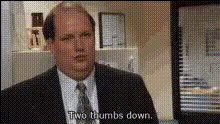
Michael Scott - No!

Magic Hour Profile Picture
by magichourai

face-swap

1 clip
472 videos
Share On

Any aspect ratio

Tags

memes

Michael Scott “No!” Face Swap Template

Turn an Iconic “The Office” Moment Into Your Own Reaction Meme

The Michael Scott “No!” template lets you drop your own face into one of the most famous reaction scenes from The Office. In a few minutes, you can turn Steve Carell’s legendary outburst into a personalized meme, reaction GIF, or short video you can reuse across social, Slack, or internal decks.

This template is built on Magic Hour’s AI Face Swap technology and is ideal for creators, marketers, and teams who want a fast, on-brand reaction asset without editing in Premiere or After Effects.

Why the Michael Scott “No!” Meme Works

Michael Scott’s “No! God, please no!” scene from The Office (U.S.) is one of the most shared clips in sitcom history. It’s been used for:

  • Reaction memes to bad news, product changes, or price hikes
  • Internal team jokes about deadlines, scope creep, or bug reports
  • Social media replies and quote-tweets
  • Presentation openers and pattern-breaking slides

By face-swapping yourself (or your character, CEO, or mascot) into Michael’s place, you keep the emotional punch and timing of the original while making the reaction feel personal and relevant to your audience.

What This Template Does

This template uses Magic Hour’s Face Swap Video workflow to automatically:

  • Detect Michael Scott’s face in the “No!” clip
  • Replace it with your chosen face (photo, avatar, or character)
  • Preserve facial expressions, head motion, and lighting for realism
  • Export a ready-to-share video in your preferred aspect ratio (9:16, 1:1, 16:9, etc.)

You don’t need video editing skills. Upload a face, pick the template, generate, and you’re ready to post.

How to Remix This Template in Magic Hour

If you want to build your own version or variant of the Michael Scott “No!” reaction inside Magic Hour, you can remix it using the Face Swap Video tool:

  1. Prepare your source clip
    Use a Michael Scott “No!” clip you have the rights to use. Trim it to the specific moment you want (the initial “No!”, the extended scream, or a short loop) in any basic video editor before uploading.
  2. Open Face Swap Video
    Go to Face Swap Video. This is where you’ll set up the template: one “source” face (Michael) and one or more “target” faces (you, your team, or a character).
  3. Upload the Michael Scott clip
    Upload your version of the “No!” scene as the base video. The model will automatically detect the face to be replaced.
  4. Add your face
    Upload a clear, front-facing image of the face you want to insert:
    • Good lighting (no heavy shadows)
    • Face clearly visible (no sunglasses or strong obstructions)
    • Neutral or light expression works best for versatile reactions
  5. Generate the face swap
    Run the face swap and preview the result. If you want multiple versions (e.g., different team members), reuse the same base video and swap in different faces.
  6. Export for your channel
    Download versions cropped for:
    • Vertical (9:16) for TikTok, Reels, Shorts
    • Square (1:1) for Instagram feed
    • Horizontal (16:9) for YouTube, decks, internal videos

Once you’ve done this once, you essentially have your own reusable “No!” reaction template: just plug in new faces and regenerate.

Best Practices for High-Quality Face Swaps

  • Use high-resolution face images – Higher resolution and sharp images give more realistic results. If needed, upscale your face photo first with the AI Image Upscaler.
  • Match angle and lighting – If Michael is looking slightly to the side or lit from one direction, choose a face photo with a roughly similar pose and lighting for better coherence.
  • Keep it recognizable – Avoid heavy filters or distortions on your source face if you want it to clearly read as “you.”
  • Check lip and jaw alignment – Even though this is not a lip-sync template, strong jaw movements in the original can emphasize artifacts. Try a couple of different source photos to see what looks most natural.

Advanced Remixes and Related Tools

Once you have a solid Michael Scott “No!” face swap, you can extend it into more complex content using other Magic Hour tools:

  • Turn your swapped Michael into a talking head
    Combine your “No!” face with AI Talking Photo or Lip Sync to create alternate dialogues (e.g., “No to scope creep,” “No to extra meetings”).
  • Generate custom avatars instead of real faces
    Use the AI Image Generator or Avatar Generator to create a fictional character, brand mascot, or stylized persona. Then face-swap that character into the Michael Scott clip.
  • Make a GIF-ready version
    Shorten the clip and export for use with AI GIF Generator. This is useful for Slack, Discord, and email reactions.
  • Build a series of themed reactions
    Use Video-to-Video or Animation to transform the same reaction into different styles: anime, comic-book, corporate explainer, or meme-style overlays. Pair with the AI Art Generator for consistent branding.
  • Create internal or campaign-specific variants
    For teams and startups, you can:
    • Face-swap your CEO or product lead into the scene for launches
    • Swap in each team member to use in retros and sprint updates
    • Combine with AI Voice Generator or AI Voice Cloner for fully customized, on-brand reactions

Use Cases for Creators, Marketers, and Teams

  • Social media & community – Reply to comments, product feedback, or competitor news with a customized “No!” reaction that features your own face or mascot.
  • Product marketing – Use as a pattern-break clip in launch videos or “things we won’t do” segments.
  • Internal comms – Drop the video into Slack or Notion as a lightweight, fun reaction to last-minute tasks or scope changes.
  • Content creators – Turn the clip into a recurring reaction asset in your streams, shorts, or compilations, and keep swapping in new faces or styles.

Ethics, Rights, and Best Practices

Face swap technology is powerful and should be used responsibly:

  • Respect rights and licenses – Only use video clips and images you have rights to use, especially in commercial contexts.
  • Avoid misuse – Don’t use face swaps to deceive, impersonate, or misrepresent real people in sensitive or harmful contexts.
  • Be transparent – If you’re using AI in public-facing or commercial content, it’s often good practice to disclose that a clip is AI-generated or AI-edited.

Related Magic Hour Tools to Explore

If you like this template, you may also find these tools useful for building a larger reaction or meme library:

Start Building Your Own “No!” Reaction Library

The Michael Scott “No!” face swap template gives you a reusable, highly expressive reaction format that you control. Swap in your own face, a teammate, a brand character, or an entirely AI-generated persona—and reuse the clip across campaigns, channels, and internal workflows.

Open the Face Swap Video tool, upload your “No!” clip and a face photo, and generate your first custom Michael Scott reaction in minutes.

More Like This